NP Retail Emergency mPOS (reference guide)
NP Retail Emergency mPOS (reference guide)
NP Retail Emergency mPOS home page
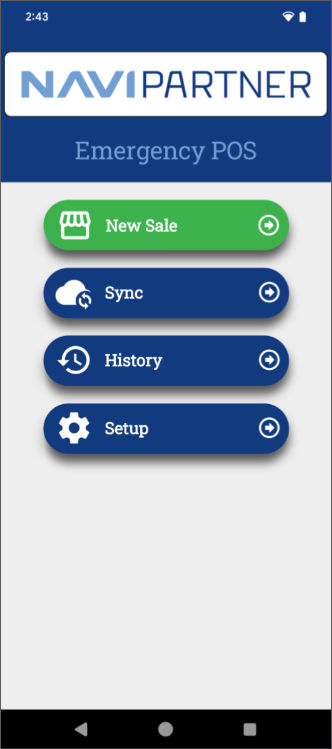
As soon as you open the app, you are presented with the following options:
Setup page
The Setup page is opened by tapping Setup on the home screen. It contains the following options:
BC setup
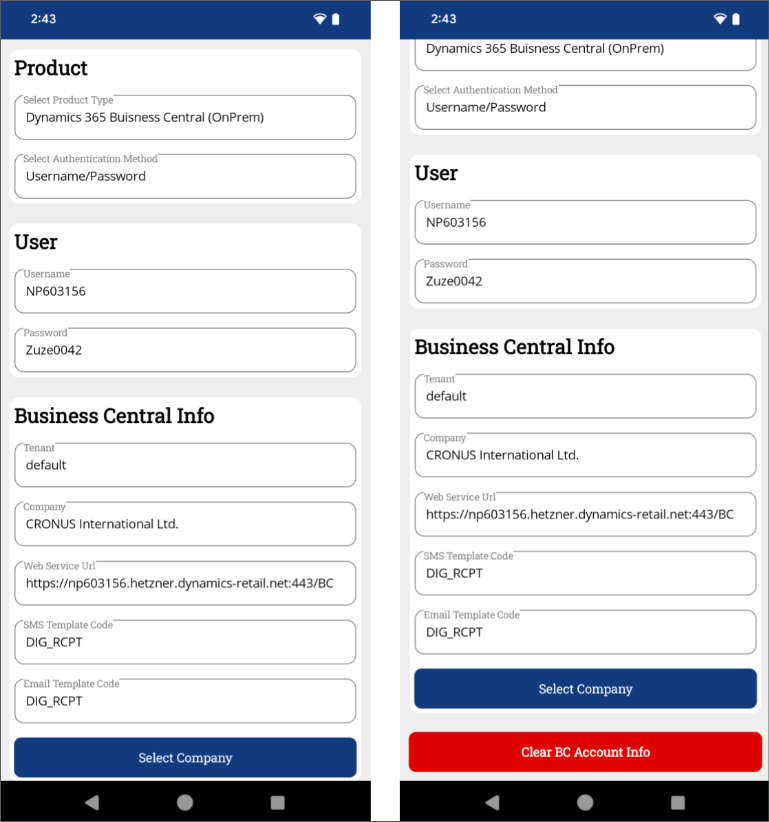
The Business Central setup page is used for connecting to Business Central and synchronizing sales. Most of the available fields it contains are used for targeting specific Business Central environments. The SMS and Email Template codes refer to special setups that are used when sending out receipts.
Payment setup
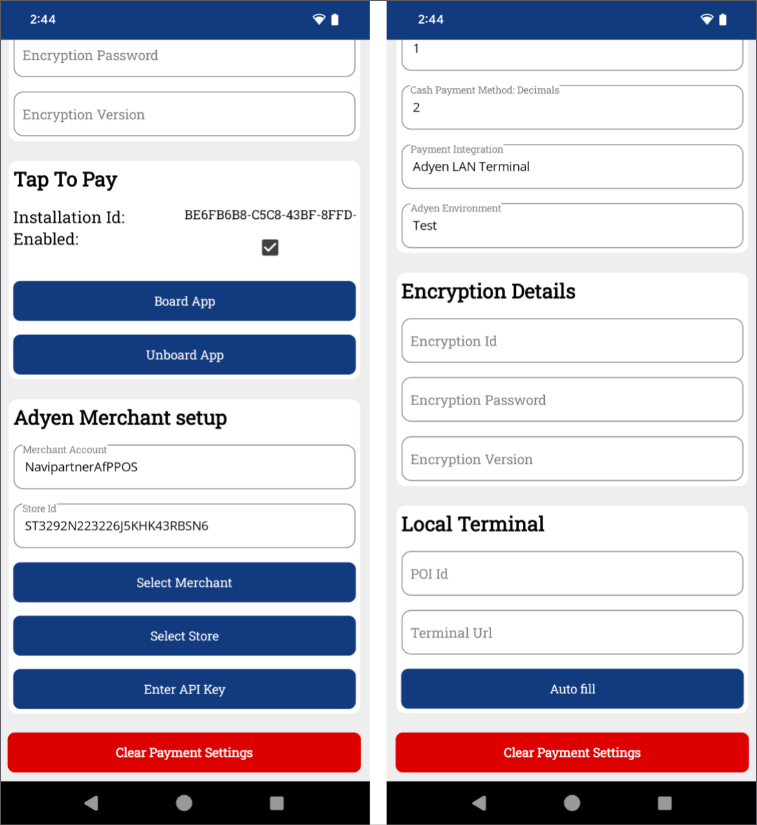
The payment setup page specifies all configurations related to sales and payments.
Scanner setup
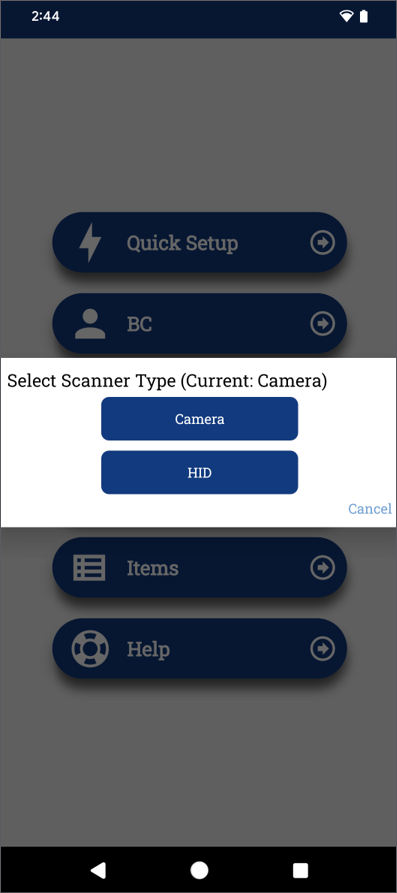
For scanning, you can either use the camera together with the Binary Eye app for barcode scanning, or the HID (Hardware Input Device), which is keyboard simulated events. The latter is typically used with devices that have built-in laser scanner functionality.
Help page
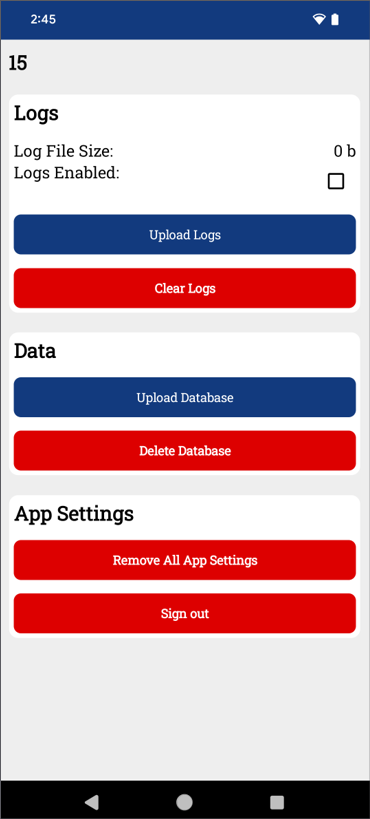
The Help page is used for troubleshooting the app. It contains Logs and Data sections.
Logs
Error and crash events are automatically collected, but enabling the Logs feature extends the info written to a local file. The upload logs can upload the log file to a NaviPartner online storage, so a developer can identify issues with the app.
Data
The database is another type of local storage that keeps track of all sale and item data. In case of data corruption, the database can be uploaded and inspected to identify issues within the sale data.
Note: The Delete Database button should be used with extreme caution, as it will delete all data, and this will not be recoverable.
Item page
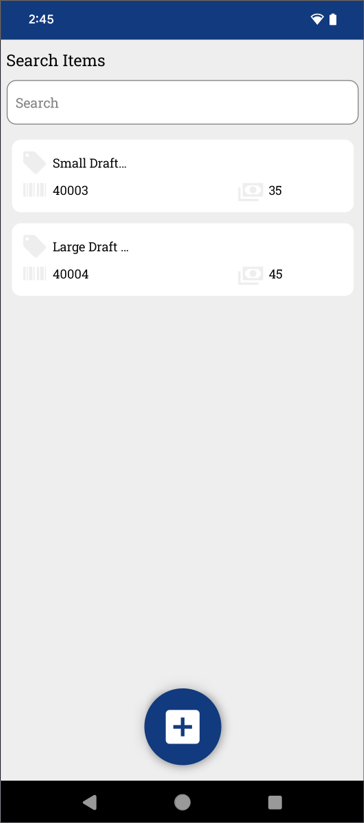
The Item page contains a list of all created items. The items can contain the following information:
- Name
- Barcode
- Price
If a user scans a barcode and the barcode is registered in the app, the app will automatically fill the information when inserting the sale line.
POS page
The POS page contains the list of items in sale lines. The sale lines can be created in one of the following ways:
-
Scanning a barcode
-
Creating a new empty line
-
Creating a new item
-
Adding an existing item
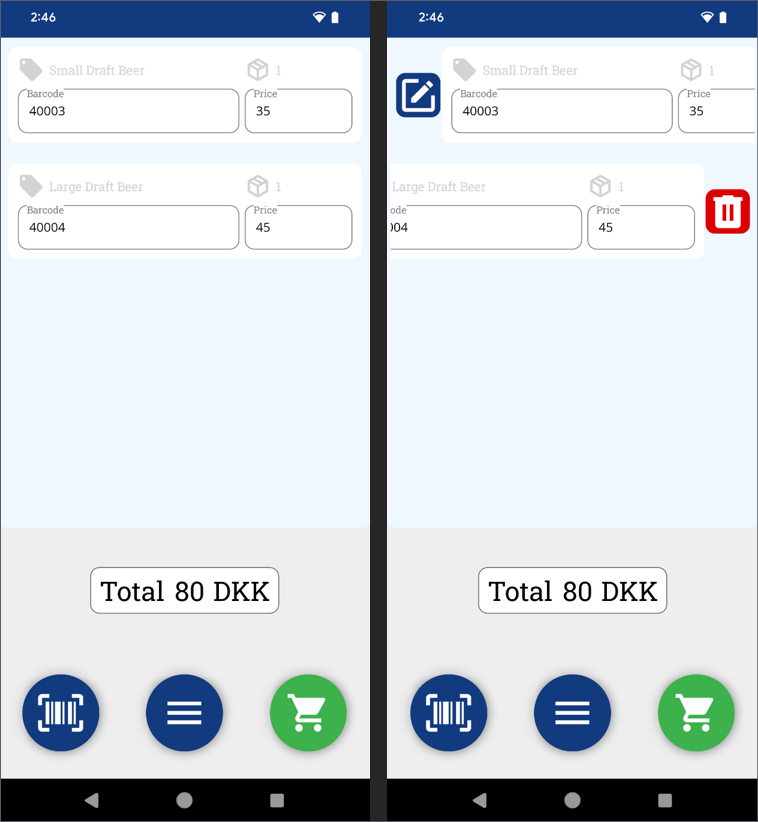
You can also take the following actions:
-
Cancel the entire sale if no payments have been made.
-
Proceed to the Payments page, by pressing the green cart button.
-
Edit or remove lines with the buttons that appear from swiping the item to the right and left respectively.
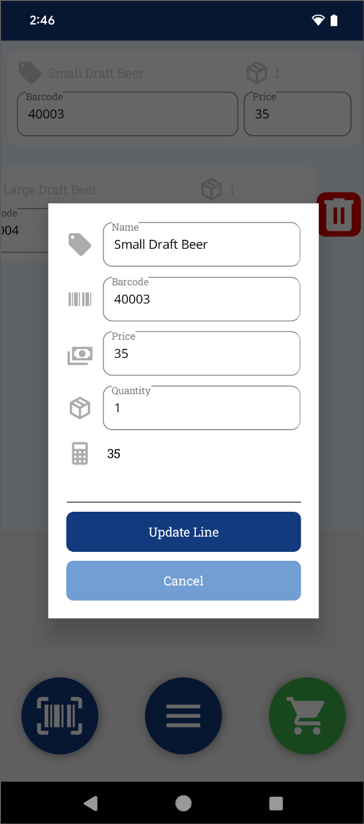
Note: Updating lines in the edit mode does not update the Item itself, only the sale line.
Payment page
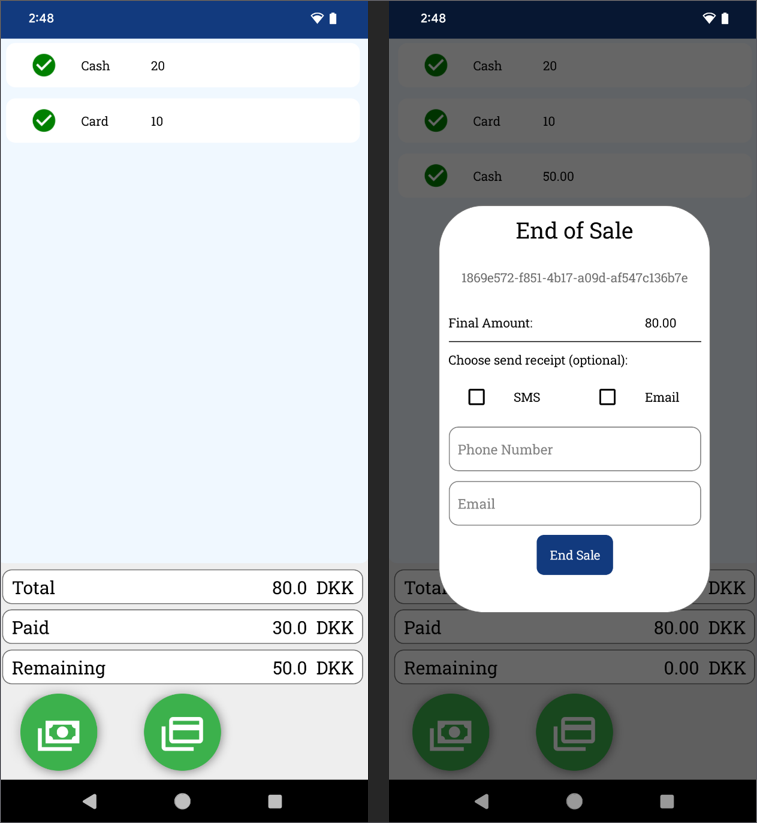
On the Payment page, you can create new payments either with cash or electronic payments that use the NP Pay setup. It also contains the overview of the sale total, the amount paid and the remaining amount.
If the sufficient amount has been paid, the user is prompted with the End of Sale pop-up window, where the phone number and email can be collected, as well as information on whether the customer wishes to receive an electronic receipt when the sale is synchronized to Business Central. After you click End Sale, the sale is finished and you will be redirected back to the home screen.
History page
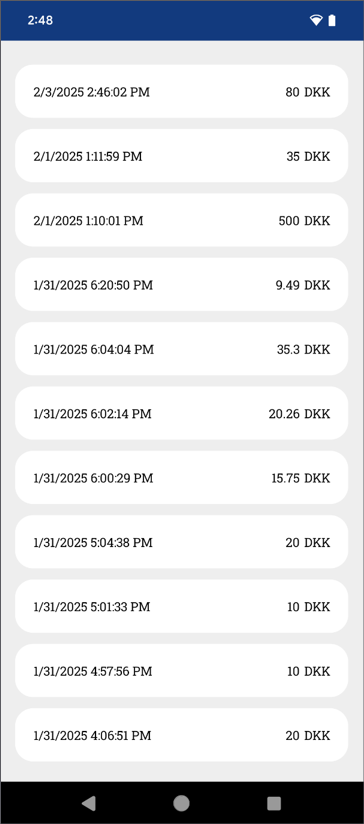
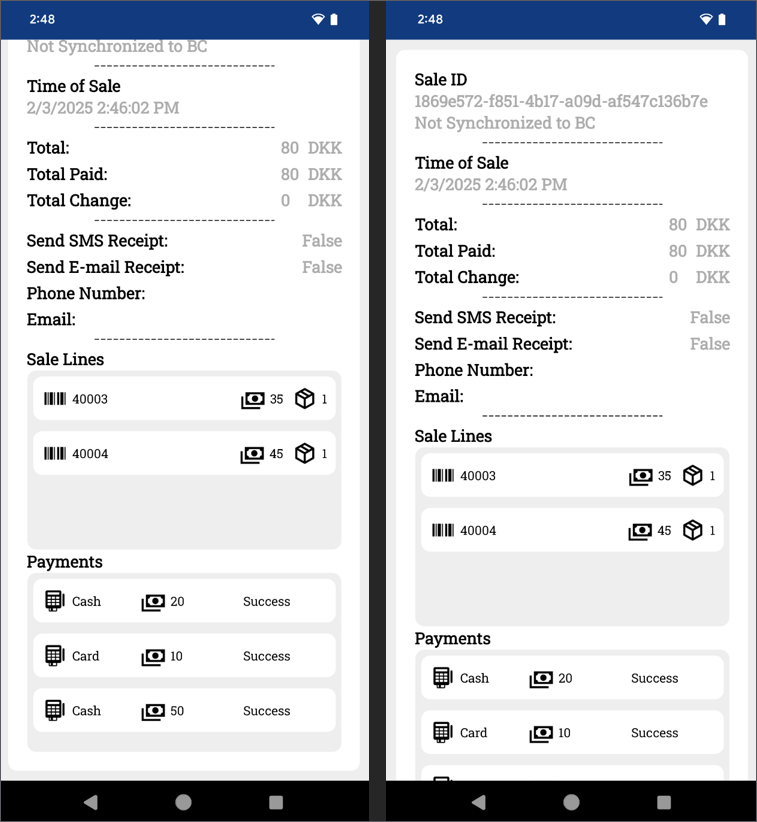
The History page contains all sales made with the app in reverse chronological order. If you press on a sale, you will be presented with its details.