
Variety setup
The General section contains the following options:
The Barcode (Item Ref.) section can be used both with and without varieties. The following options are relevant for both Alternative No. (the default way of using barcodes in NP Retail), and Item Cross Reference (Microsoft’s standard barcodes) barcode usage methods.
In the View section, it’s possible to hide the inactive values via the designated field if you don’t want to show combinations in the matrix form that isn’t used on a specific item.
Variety Fields Setup
From the Variety Setup administrative section, under the Action Tab: Process, you can configure the variety fields. Variety Field Setup allows you to control which field is displayed on the Variety Matrix when you are on different pages.
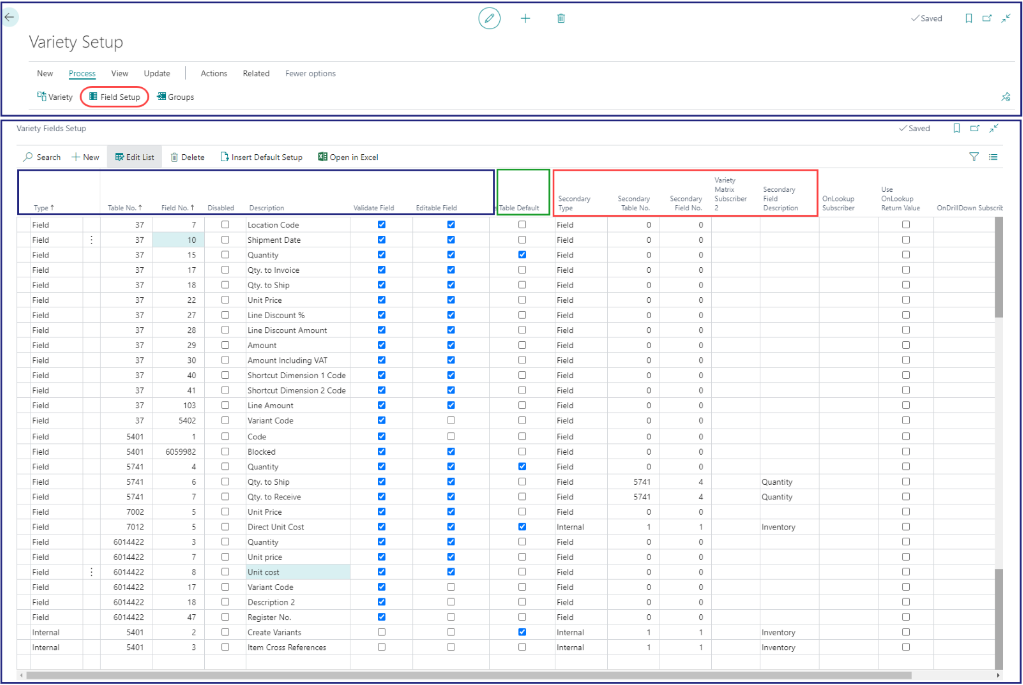
On the Variety Fields Setup screen, there is an Action Tab: Insert Default Setup which simplifies the configuration. Once clicked, the default values will be set on the default tables. If you want to customize the display, you need to manually change the settings or add new tables and fields in the Variety Fields Setup. The following fields and options are available:
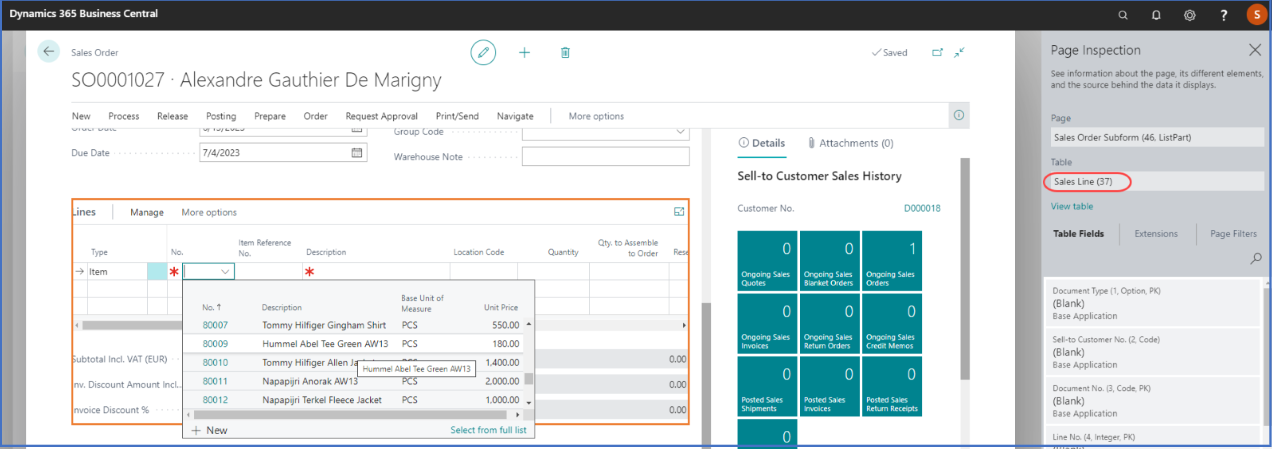
You can enter the quantity that you’re selling from the sales order document by using the Variety Matrix.
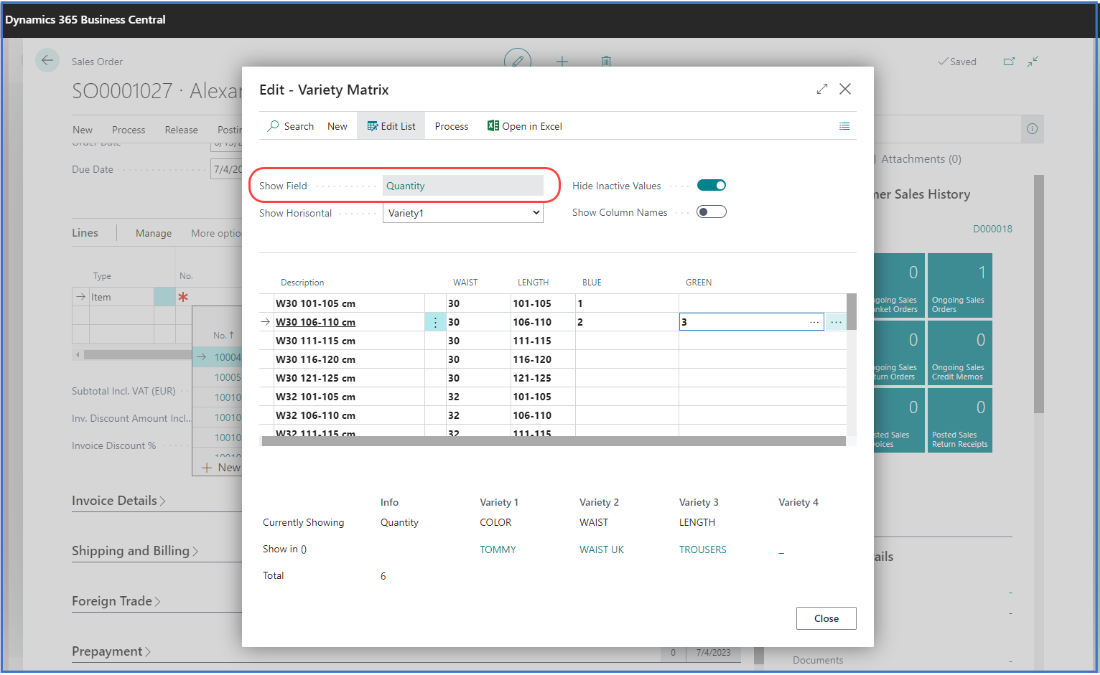
Apart from the primary set of data, you can also define a secondary value to appear in the Variety Matrix in certain circumstances. To do so, you first need to define the fields that you want to be displayed as secondary values.
