
Module setup overview
This section gives you an overview of all the setups in Business Central that are required for the HeyLoyalty integration functionality to work properly.
HeyLoyalty Integration Setup
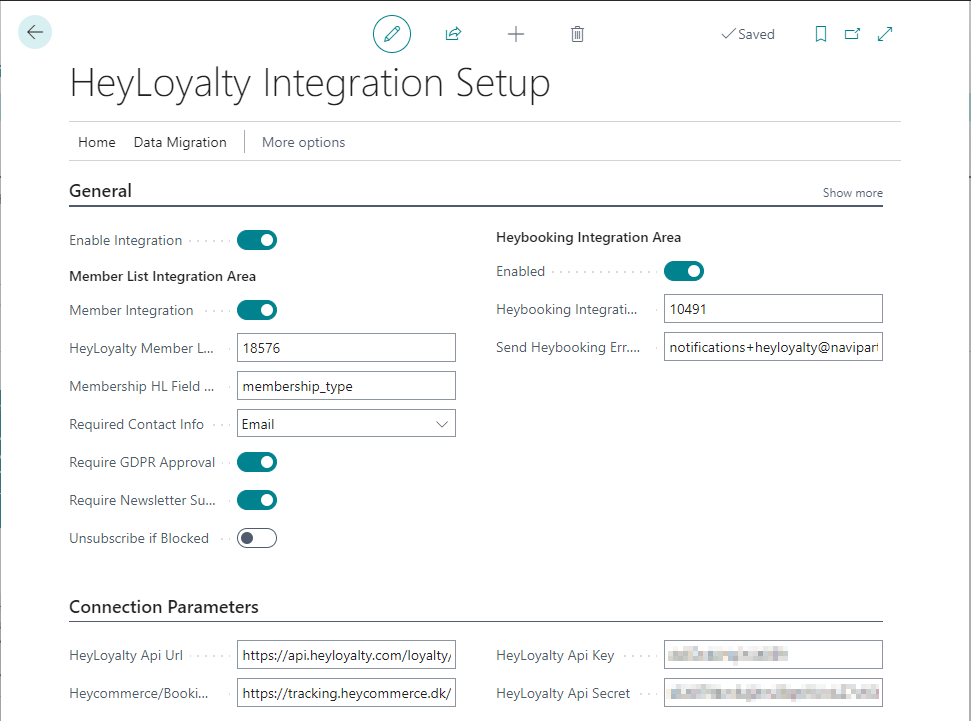
You can access and configure the main setup components for HeyLoyalty in the HeyLoyalty Integration Setup administrative section in Business Central.
Cannot find the page?
The HeyLoyalty integration feature is not enabled by default. To enable it, navigate to the NaviPartner Feature Management page, and make sure there is a checkmark in the Enabled field on the HeyLoyalty Integration line. Do not forget to log into to the system again after enabling the integration.
The following fields and options are available on the page:
HeyLoyalty Multiple Choice Fields
A multiple choice field in HeyLoyalty is a field that allows users to select multiple values from a list of predefined options.
If you wish to include a HeyLoyalty multiple choice field into the member list integration scope, you’ll need to set the field up as an HL MultiChoice Field in Business Central.
The HL MultiChoice Field page can be reached from the HeyLoyalty Integration Setup administrative section by selecting Home followed by MultiChoice Fields in the ribbon.
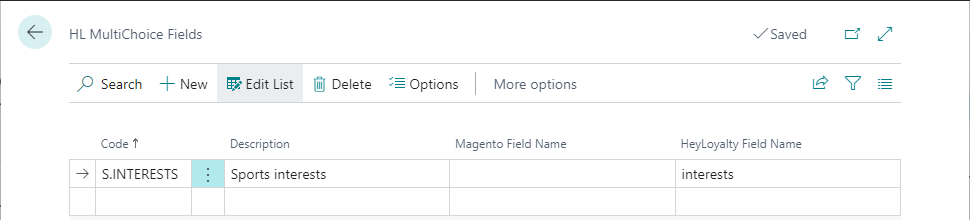
On the HL MultiChoice Field page, you can create a separate entry for each of the multiple choice fields you want to include into synchronization. You’ll need to specify the following information for each of the fields:
Next, you’ll need to specify the list of possible option values for each of the multiple choice fields. Placing your cursor on the line with the field definition in the HL MultiChoice Field page, and clicking Options in the ribbon opens the HL MultiChoice Field Options page.
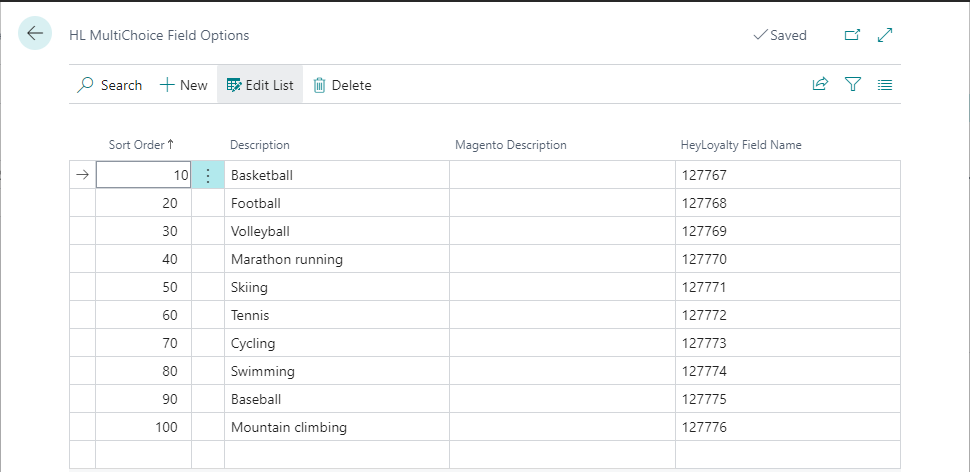
Here you need to specify the following information for each of the field’s possible option values:
Warning: You may need to extend the HeyLoyalty integration functionality, if you want to be able to modify the selected multiple choice field values for members in Business Central, as this is not supported out of the box.
Member Attributes
You can map any HeyLoyalty single choice or text field to a member attribute in Business Central. Refer to the guide for setting up client attributes if you need more information on how to set up member attributes.
Warning: You must set the Value Datatype field to Text, the On Validate field to Lookup, and disable LookUp Table on the Client Attribute Card page to be able to synchronize the attribute between Business Central and HeyLoyalty.
In addition, to map a member attribute and its option values to a HeyLoyalty field, you’ll need to take the following actions on the Client Attribute Card page:
- Specify the HeyLoyalty Field ID (the value from column Merge field in HeyLoyalty field definition page) for each member attribute.
- Specify the Default HeyLoyalty Value, if you need a default attribute value to be sent to HeyLoyalty in cases, when the attribute has no value assigned for the member in Business Central.
- Enable the Auto Create New Values boolean field, if you wish a new attribute value to be automatically created in Business Central whenever a non-existing attribute value is received from HeyLoyalty.
You also need to take the following action on the Client Attribute Value Lookup page:
- Specify the HeyLoyalty Name for each attribute value.
Stores
Each member can have a preferred store selected on their card in Business Central. This is basically a Collect Store from the NP Retail Click & Collect module. For each shop you have in HeyLoyalty, you need to create a Collect Store in Business Central and map the entities to each other to be able to synchronize the store code selected on each member card between Business Central and HeyLoyalty.
To associate a Business Central Collect store with a HeyLoyalty store, you need to specify in Business Central the ID used for the store in HeyLoyalty. The ID needs to be provided on the Collect Store Card page in the HeyLoyalty Name field.
A HeyLoyalty store ID usually consists of 5 digits. You may need to contact your HeyLoyalty provider to obtain the store IDs.
Data Log Subscribers
Data log subscribers are required for the system to keep track of changes made to the data. These are automatically created when the relevant HeyLoyalty integration area is enabled. Here is the list of automatically generated data log subscribers.
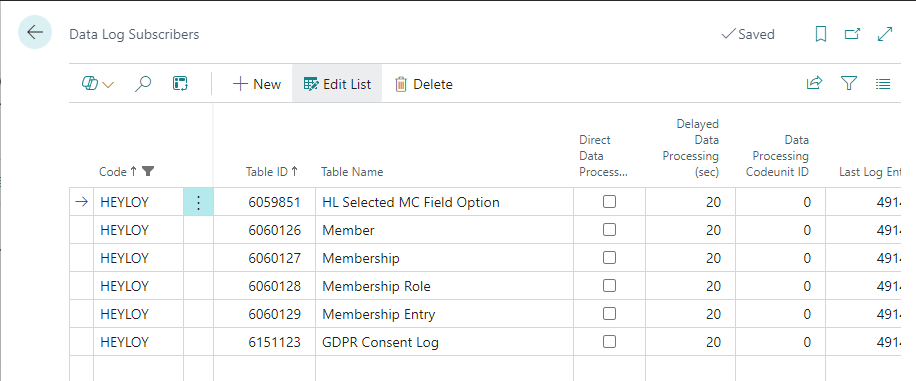
All data log subscribers should have Delayed Data Processing (sec) set to 20.
Warning: Direct Data Processing shouldn’t be set to yes (except for test/sandbox environments), as this may result in incorrect data being sent to HeyLoyalty.