
Install Store Assistant and RFID apps on mobile devices
There are two available apps - NP Store Assistant and NP RFID. NP Store Assistant contains warehouse management features, and is also used for barcode scanning, while NP RFID is useful when RFID tags are attached to items.
To install the apps and connect devices to the Store Assistant environment, follow the provided steps.
- To download and install the necessary Store Assistant apps, you first need to find them in the Google Play store.
The apps you need are called NP Store Assistant and NP RFID, both produced by Navi Partner, as indicated in the following screenshot.
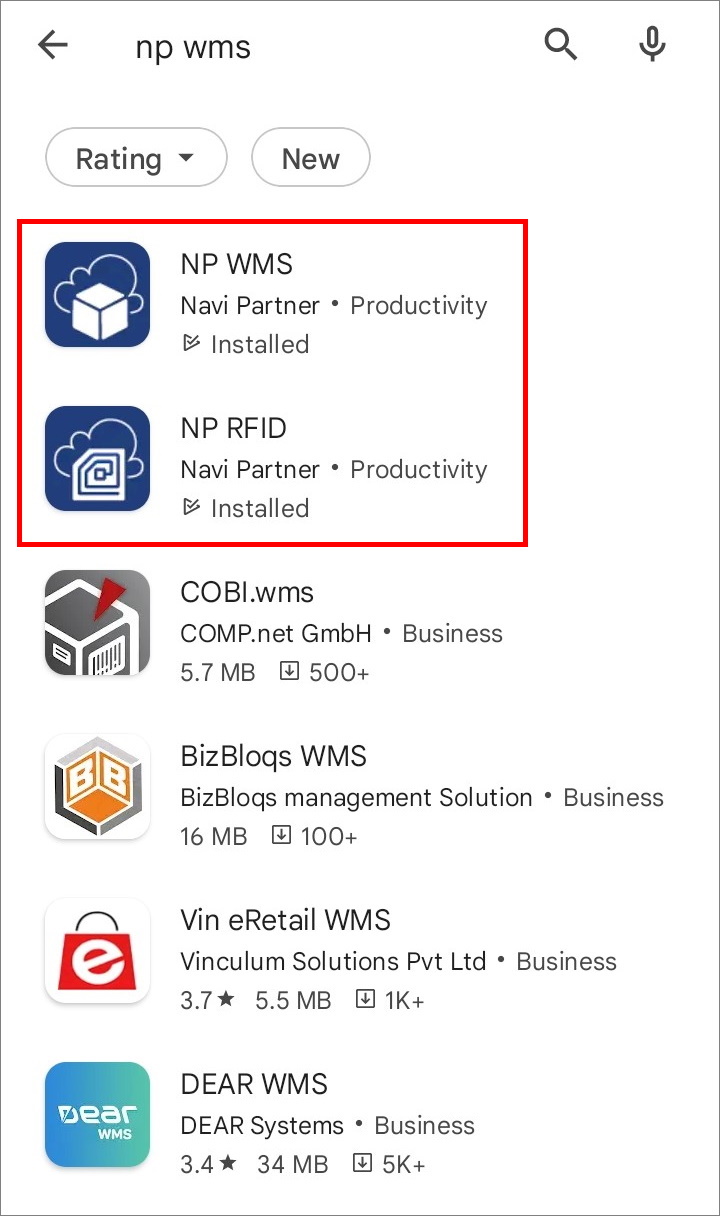
Note: Both NP Store Assistant and NP RFID are Android-exclusive apps.
-
Once downloaded and installed, open the NP Store Assistant/NP RFID app and select whether you wish to use the SaaS or on-prem version.
-
Use the necessary authentication to proceed, and then select the tenant and company that you want to use.
-
Press SETUP.
A window for setting up the profile is displayed. -
In the PROFILE window, press SETUP ACCOUNT.
-
In NP Store Assistant, press the camera icon in the upper right corner to scan the QR Code that was previously created in Business Central.
Following the successful QR scan, the required parameters will be saved in the Setup. -
In the NP RFID app, press CONNECT A SCANNER to select how the scanning will be performed.
You can choose between a phone camera, or one of the listed scanners. If you selected a camera, you also need to REQUEST A SCANNER LICENSE. Scanner licenses are then distributed to new devices by NaviPartner employees.
Note: he only difference between the NP Store Assistant and NP RFID scanner configuration is that the NP RFID app is connected to the Bluetooth scanner in the SCANNER portion of SETUP, where you can see the type of scanner in use, along with the RFID scanner ID, and multiple options for configuring the RFID scanner settings.
Once the necessary steps are completed, you will be ready to log in and start using the app.