
Set up Sales Order integration area
Refer to this article if you wish to set up e-commerce stores, shipment method mapping, and more.
This topic contains instructions for all setups related to the Sales Order Integration area.
Set up E-commerce stores
A distinct e-commerce store needs to be created in Business Central for each value sent from Shopify as a JSON key “Source Name” of the Shopify order JSON file.
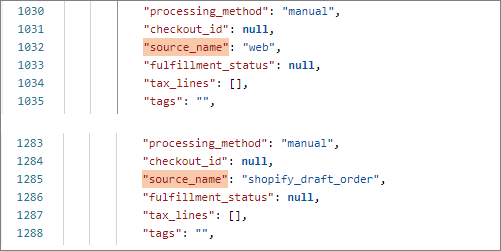
To define an e-commerce store:
-
Search for E-commerce Stores and select the related link.
The page containing all the existing e-commerce stores in the system is displayed. -
Click New and specify all values that correspond to your business needs in the provided fields.
The Code, Shopify Store Code, Shopify Source Name and Salesperson/Purchaser Code fields are mandatory.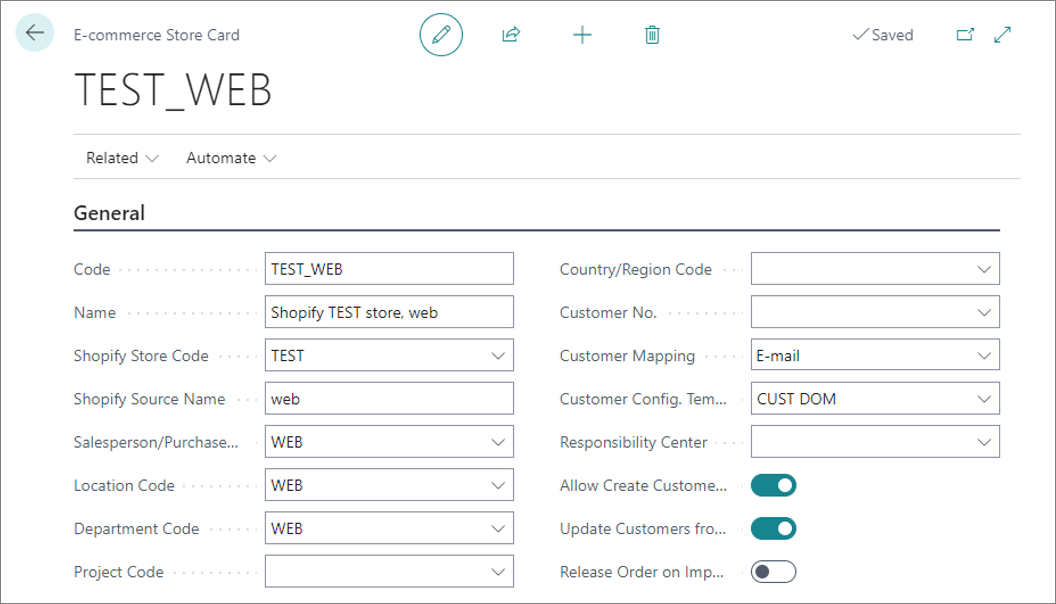
Set up Shipment Method Mapping
The shipment method mapping needs to be set up for each value sent from Shopify as the “code” property in the Shopify order JSON file’s “shipping_lines” array.
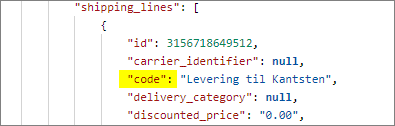
To define a shipping method mapping:
-
Search for Shipment Method Mapping and select the related link.
The page containing all the existing shipment method mappings in the system is displayed. -
Click New and specify all values that correspond to your business needs in the provided fields.
The External Shipment Method Code and Shipment Fee No. fields are mandatory.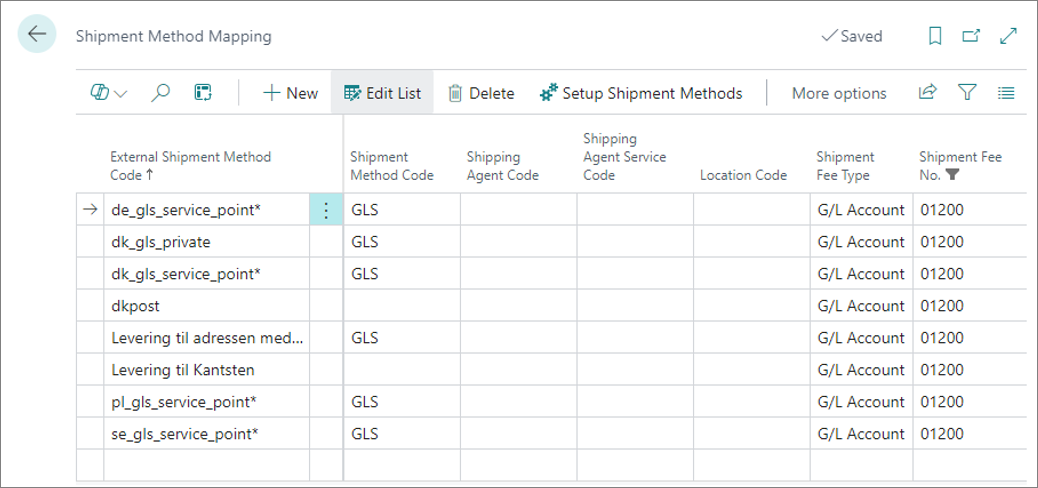
Set up Payment Method Mapping
The payment method mapping needs to be set up in Business Central for each value sent from Shopify as the “gateway” JSON key in the Shopify order JSON file.

To define a payment method mapping:
-
Search for Payment Method Mapping and select the related link.
The page containing all the existing payment method mappings in the system is displayed. -
Click New and specify all values that correspond to your business needs in the provided fields.
The External Payment Method Code and External Payment Type fields are mandatory.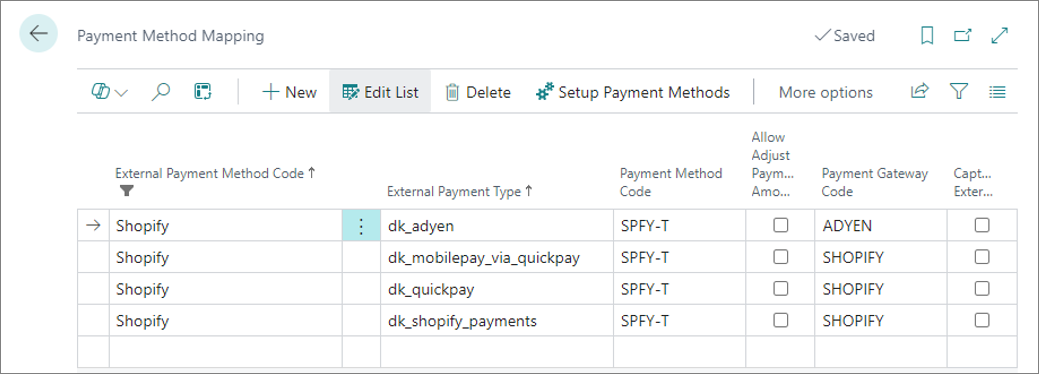
Set up Location mapping
Location mapping is used for identifying the code of the Business Central location the items are shipped from, as well as the shipping agent and its service code. During the order import process, the system searches for the location code and/or shipping agent, which depend on the customer’s country and postal code.
The location mapping setup is taken into account only if the system can’t identify the Location Code and/or Shipping Agent Code during the evaluation of the Shipment Method Mapping.
Location mapping needs to be set up for each store. To set up location mapping:
-
Search for E-commerce Stores and select the related link.
The page containing all e-commerce stores in the system is displayed. -
Create a new e-commerce store or edit the existing one, then click Related, followed by Location Mapping.
The Location Mapping popup window is displayed. -
Set up the location mapping according to your business requirements.
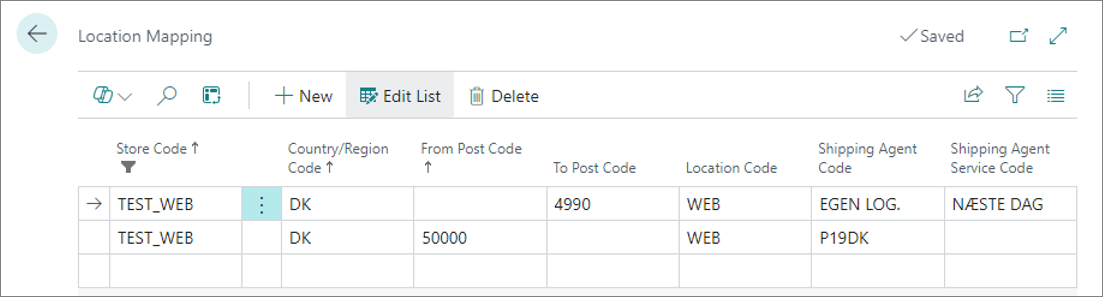
Note: If the system is unable to identify a Business Central location with the mapping setup, the default location will be used. The default location can be specified in the E-commerce Store card.