Create item addons and attach them to main items
This is the main procedure for creating item add-ons that is common for all custom configurations.
Follow the provided instructions to create item add-ons:
- Search for Item AddOns, and choose the related link.
A list of all existing item add-ons is displayed. - Click New to create a new add-on.
The Item AddOn Card is displayed. - Populate the necessary fields in the General and Lines sections, described in this reference article in more detail. Now you can either attach the item add-on to the main item, or create the POS button for the standalone item add-on menu to be used on the POS.
Attach item add-ons to the main item
Note: Any custom configuration you may wish to perform should be done between the common creation steps and this procedure. For more details, refer to the article with custom configuration examples.
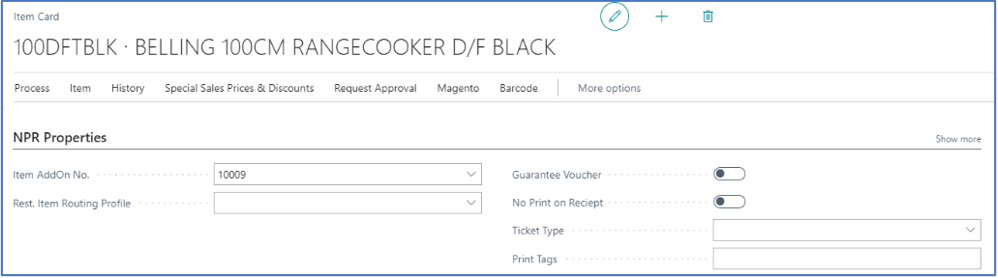
- Navigate to the Item Card of the main item.
- In the NPR Properties section, insert the item add-on code in the Item AddOn No.
Whenever you scan the main item, a second line is added on the POS for the item add-on.