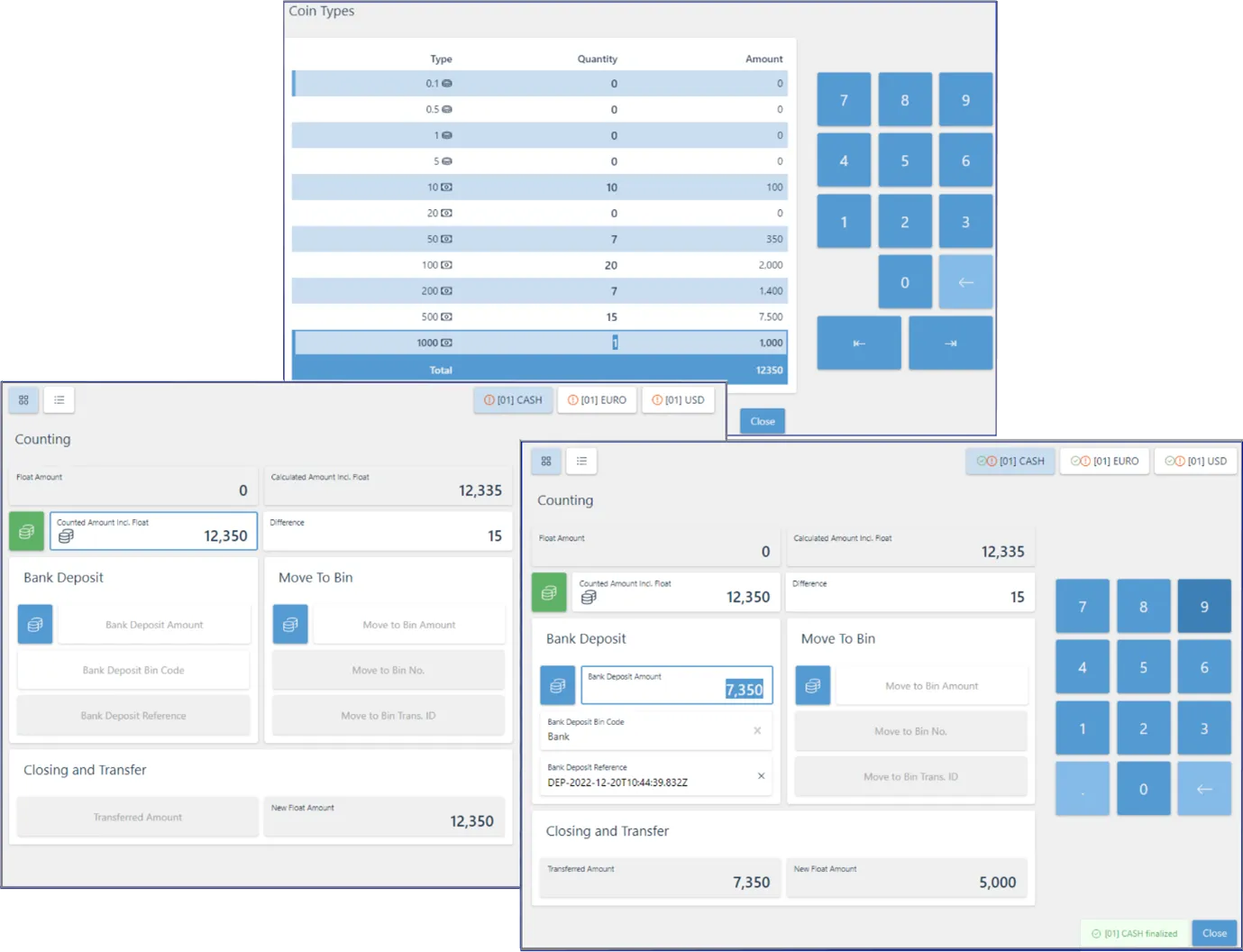
POS Counting screen
Refer to this article to learn what the fields and options in the POS Counting Screen are used for.
This page is for Product Documentation.
| Field Name | Description |
|---|---|
| Float Amount | Indicates the opening float of the POS unit. |
| Calculated Amount Including Float | Indicates the expected ledger balance calculated by the system. It contains the initial float and the currency received as payment for sales. |
| Assist Button for Denominations | When used, the screen with the list of denominations is displayed, and salespeople are required to insert the quantity of each denomination counted. The initially blue logo turns red when the count is finished, as an indication that it has been completed. You can always come back and redo the count before finalizing it. |
| Counted Amount Including Float | This field is updated either from the Denomination screen or an amount can be inserted directly into it. |
| Difference | The difference is automatically calculated. If you provide a value in this field, the system will insert an amount in the Counted Amount field instead. You can make this field editable in the NPR POS End of Day Profile Card. |
| Bank Deposit | The float can be moved either into the bank or into an intermediary account which is defined in the POS Posting Setup. There are multiple fields here: - Bank Deposit Amount - the amount to be transferred out of the float; - Bank Deposit Bin Code - the code created in the POS Payment Bin assigned automatically; - Bank Deposit Reference - automatically generated reference which can be overridden if needed. For example, if we take the money directly to the bank, we can put the reference for the bank or if we have predefined money bags with the reference, we can provide that reference. |
| Bank to Bin | You can define a POS payment bin called SAFE, and move it to the safe from this section. The accounting setup is done in the POS Posting Setup. |
| Transferred Amount | The sum of all amounts transferred out of the float. |
| New Float Amount | The closing balance of the float. This amount becomes the opening baseline for the Cash Summary view on the next shift. Cash Summary applies all subsequent cash-in and cash-out movements on top of this figure to show the current intraday bin balance. It does not retain historical snapshots — for historical closing amounts by date, POS unit, or payment bin, use POS Balancing Line from the POS Entry List. |
| Finalize | When you’re satisfied with the balancing, you can finalize it. |
| Close | At any point of the process, you can quit, and close the screen. |