Create item worksheet line
Item worksheet lines can be created in a couple of different ways:
- manually;
- via import from external data sources;
- via the Suggest Worksheet Lines action.
Note: Files can be imported from the Excel file manually or automatically from the FTP server.
It is possible to create a field mapping for the import, by specifically stating what Excel column will be imported to what field in the Worksheet. You can define the mapping with the Map Excelsheet action in the Import/Export dropdown in the ribbon.
Note: It is also possible to perform import without mapping the fields, but the columns in the Excel files need to be in the same order as they are in the system.
Excel sheet approach
While importing from Excel, there are several options to use on how to handle the data.
When importing the Excel sheet, a single Excel line corresponds to a single item worksheet line. This means that when importing varieties, each variety is placed on a separate item worksheet line.
Suggest Worksheet Lines action
The Suggest Worksheet Lines action allows you to select a range of items that will be inserted into the worksheet lines via filtering.
You can specify the following options:
Manual approach
You can insert new lines in the Item Worksheet page and populate the require fields. When an item worksheet line is created, the item worksheet variety lines can be created by clicking one of the following buttons in the Actions > Worksheet line.
Variety lines can’t be inserted manually, but they can be modified. The unit price (sales price) and unit cost (purchase price) of the variety are displayed between brackets if they are identical to the unit price/direct unit cost of the corresponding item worksheet line.
Header lines are inserted automatically with a Header Text summarizing the actions underneath. They will not result in an update of the variant or master data. However, they can be used to quickly modify the fields in the rows below. For example, setting an action or a sales price on a heading text will copy this action or the sales price to all rows below.
All lines inserted manually into the Item Worksheet are by default set to be skipped. The lines created via the Suggest Item Worksheet Item Lines action can be set to a default value (skip, create new, update only, update, and create variants). The Item Worksheet lines created via the Excel import are automatically set to Update and Create Variants if they can be matched to the existing items, or to Create New if they can’t be matched.
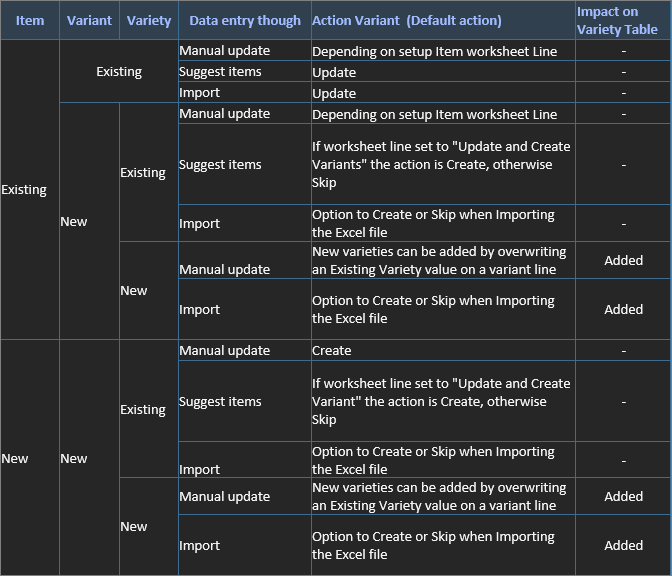
The provided table describes the system behavior in different scenarios of the existing data in Business Central, and the method of input.