
Set up Endless Aisle
The endless aisle gives stores the option of granting customers the ability to access and purchase items that aren’t physically in stock. In other words, even if a product isn’t available or typically carried by the store, customers can still order it from the retailer’s extended inventory.
The NP Pay endless aisle feature converts a POS sale, which can include out-of-stock items in a sales order. During this process, the shopper needs to make a payment reservation with their credit/debit card. They can choose from several shipment fees that are predefined at the store level, and have the option to update their shopping information if needed. The payment isn’t captured until the sales order has been posted.
To set up the endless aisle functionality, follow the provided steps:
-
Search for NP Pay Setup, and choose the related link.
-
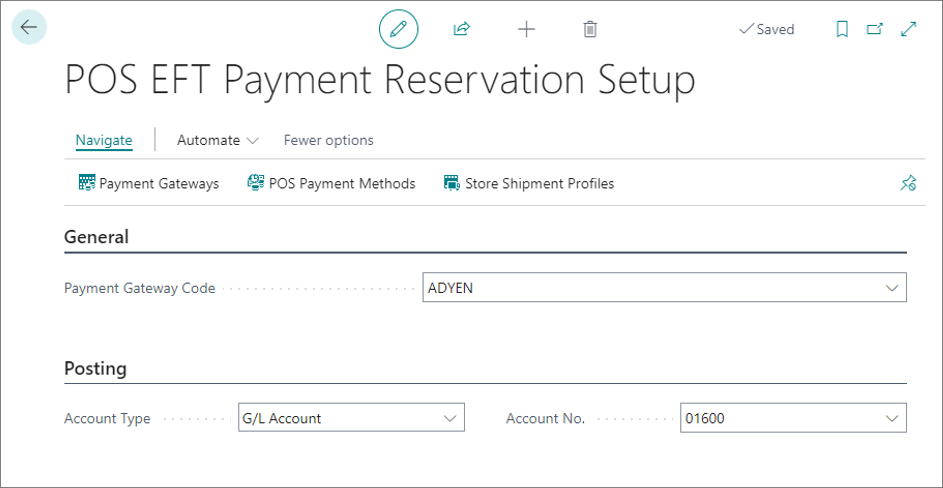
Populate the following fields under the Endless Aisle FastTab:
-
Navigate to the POS Payment Methods.
An EFT POS payment method that supports manual capture is required for the payment reservation. The setup allows you to make a payment reservation with your debit or credit card, authorizing the payment without capturing it immediately. -
Open the POS Payment Method Card that you wish to set up, and select EFT as the Processing Type.
-
Link the POS payment method to a POS bank terminal. Only NP Pay POS terminals are supported.
-
Navigate to the EFT Adyen Payment Type Setup by clicking Payment Type Parameters for the created payment type, and enable the Manual Capture toggle switch.
This option ensures that the payment reservation isn’t automatically captured. -
Navigate to the Store Shipment Profile Card to set up different shipment methods and fees related to the store’s shipping profile.
The shipping profile can be assigned to the store in the POS Shipment Profile field of the POS Store Card. -
Populate the following fields in the General section:
-
Populate the following fields in the Shipment Fees section:
-
Move on to configuring the SALES_DOC_EXP POS action:
- Move on to configuring the EFT_RESERVE_DOC_PAY POS action:
Next steps
Reserve a POS sale to a sales order
Once all setups are complete, you can export a POS sale to a sales order with a payment reservation.
- Log into the POS.
- Add the item or items that the customer wishes to reserve.
As the feature description suggests, the item doesn’t have to be in the store’s stock at the moment. - Press Reserve POS Sale to Sales Order.
A pop-up window is displayed, asking whether you wish to export the sale to a sales document in Business Central. - Press Yes.
The list of available customers is displayed. - Choose a customer which will be tied to the sales order, and press OK.
If this is a brand-new customer, press New instead, to create the customer entity.
The Store Shipment Methods window is displayed. - Confirm the shipment method and the shipment fee by pressing OK.
You are prompted to scan a voucher. - You can scan multiple vouchers for this sale, and deduce their value from the total payable amount.
Each time you scan a voucher, you are asked whether you wish to scan another one. - Once you’re done scanning vouchers, press No.
A pop-up window with the remaining payable amount is displayed, and the customer can proceed with the payment.
Once the payment is complete, the corresponding Sales Order is displayed. You can edit the shipment address information, if needed. - Press Close on the sales order to finish the reservation process.
The POS sale has now been exported to a sales order with a payment reservation. When the order is posted and shipped to your customer, the reserved payment will be captured.
You can try out the reservation process in the following interactive demo:
Results
After the export is complete, a credit sale POS entry is created. It is not going to be posted, but it contains all the necessary information on the completed POS sale.
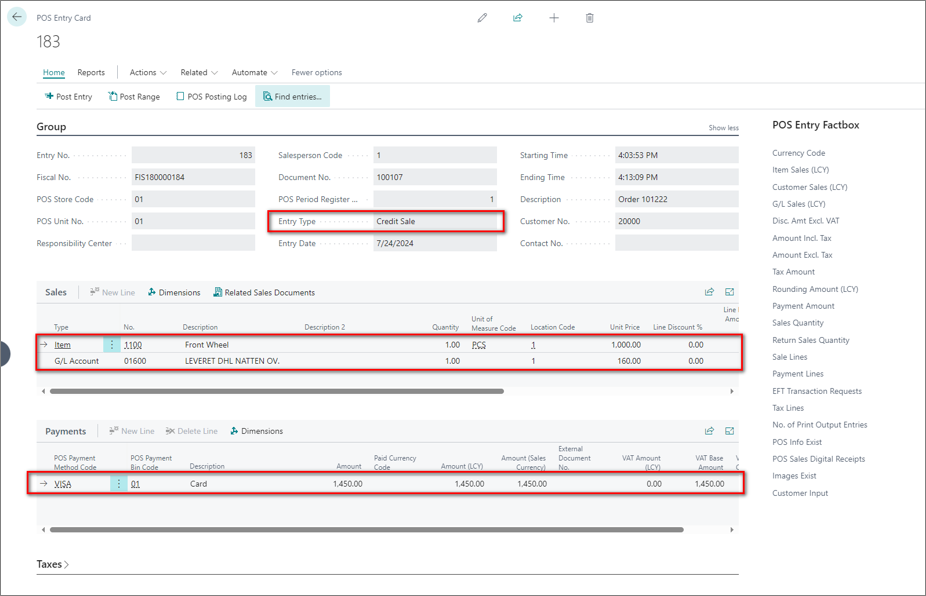
You can find the related sales order by navigating to Related > Related Sales Documents from the POS Entry Card.
From the sales order, you can review the payment reservation by navigating to Related > Payments > Payment Lines. The sales order is treated like a webshop order, meaning that when the document is posted, the payment is captured, and the funds are taken from the shopper’s account.
Tip: If you’ve scanned vouchers, both the total payable amount and the amount deduced by redeeming vouchers during the sale are displayed in the Payment Lines.
If you decide to delete the document, the payment reservation will be canceled.