
Set up a Pepper terminal
To set up a new Pepper terminal which uses Lane/3000 terminals through network on IP 192.168.1.181, follow the provided steps:
Prerequisites
- Have the basic Pepper terminal setup package downloaded.
- Have the Pepper terminal type 96 created.
Procedure
-
Search for Pepper Terminal List, and choose the related link.
-
Click New to open a Pepper Terminal Card.
-
Provide 03 in the Code field.
The code doesn’t need to be same as the POS Unit No., but it may make keeping track of the terminals easier. -
Provide Lane 3000 POS 03 in the Description.
-
Provide 03 in POS Unit No.
-
In the IP Address field, provide 192.168.1.181.
-
Open the dropdown in the Terminal Type Code and select 96.
This is the code of the previously created terminal type. -
In Fixed Currency Code open the dropdown and select DKK.
-
Tick the Open Automatically and Close Automatically checkboxes.
Open Automatically implies that if the terminal is closed, it will be opened as soon as you send a transaction to it, instead of having to use a specific button to open it. Close Automatically means that when the balancing is carried out at the end of the day, it also results in the terminal being closed automatically.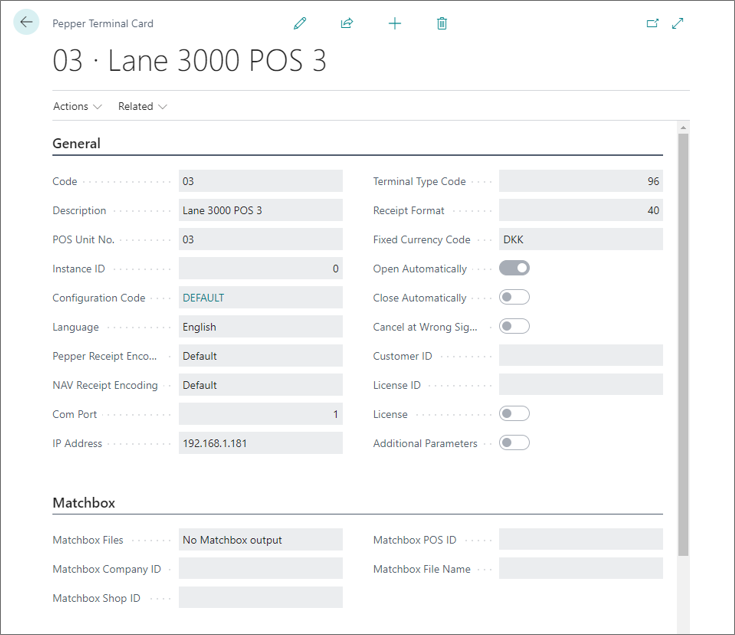
Note: Since there is a test license attached to the Pepper Configuration in the Basic Pepper Terminal Setup, the Pepper Terminal will use it if no additional licenses are set up in the specific Pepper Terminal Card.
- Exit the Pepper Terminal Card and navigate to the EFT Setup.
- In Payment Type POS insert T.
The T is used as a general POS Payment Method to make our terminal calls. - In POS Unit No., insert 03.
- In EFT Integration Type open the pop-up by clicking the … option, and then select PEPPER.