Set up Bambora payment integration
To set up the Bambora online payment gateway integration in Business Central, make sure the prerequisites are met, and follow the provided steps:
Prerequisites
-
Get a Bambora merchant.
Before you can get the required information to integrate Business Central and Bambora, you need to have a merchant account created with Bambora. -
Acquire the API key information.
Business Central uses the Bambora Transaction API to interact with Bambora. Access to the API is required to capture, refund, or cancel a transaction from Business Central.Follow Bambora’s guide to get the access credentials. Business Central needs the following information: Access token, Merchant ID, and Secret token.
Note: NaviPartner advises that you give the key an appropriate name, for example ‘Business Central’. In that way, you can differentiate the keys more easily afterwards.
Procedure
-
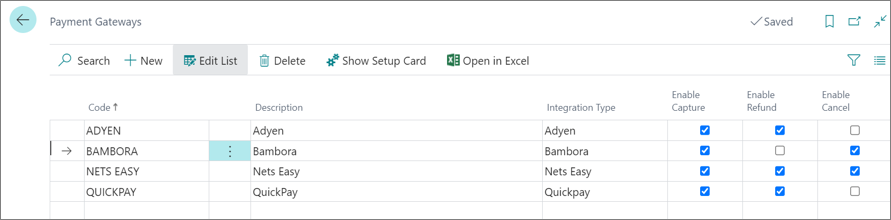
Search for Payment Gateways, and select the related link.
-
Click New to create a code for Bambora integration.
-
Click Show Setup Card to edit details.
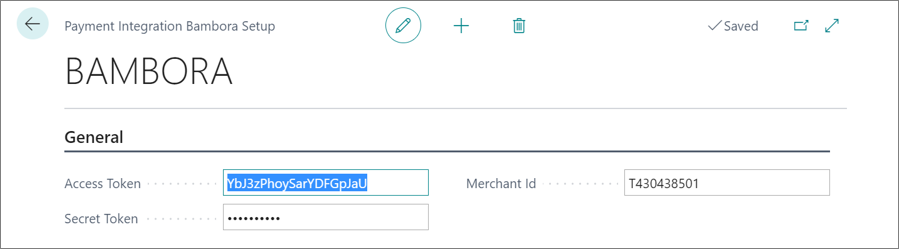
The following values are required, and need to contain the appropriate values:- Access Token - This is the Access Token obtained during the second prerequisite.
- Secret Token - This is the Secret Token obtained during the second prerequisite.
- Merchant ID - Your merchant ID with Bambora. The letter T stands for test account, while the letter P stands for the production account.