
Set up sales price
Follow the provided steps to learn how to set up the sales price from the price list, in a scenario in which the price is different from the unit price.
Note: In Business Central and NP Retail, the sales price takes priority over the unit price in the Item Card. Whenever a sales order or a POS sale is done, the system will first check if an item has a sales price. If it does, that price will be applied, otherwise, the unit price will be applied.
- Search for Sales Price List, and choose the related link.
- From Item Card access the Sales Price via Special Sales Prices & Discount in the ribbon.
On an item level, there will be a line or a list if that item is already in a sales price of some sort. Otherwise, you need to create a new list by selecting the Sales Price List. - Click Sales Prices & Discount in the Item Card to access the Sales Price card.
- Populate the following fields:
- (Optional) During setup, you may use one of the following actions:
- Define the details of the scheme in the Lines section.
Next steps
Apply item discount
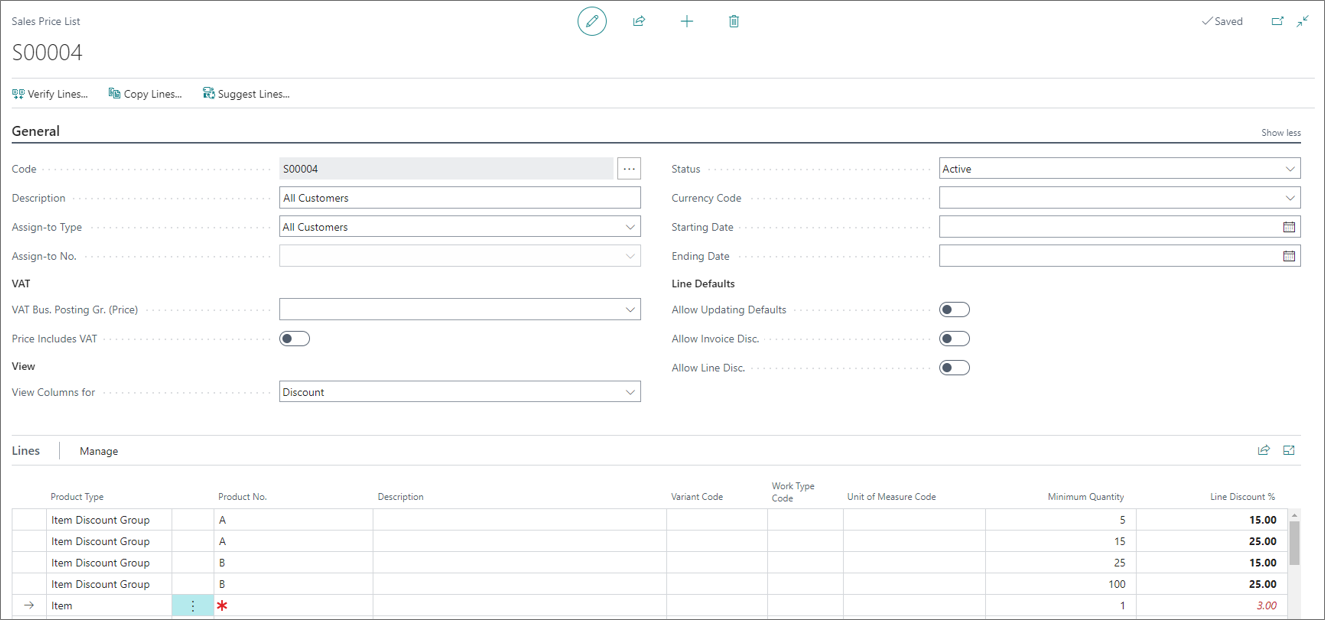
Item discount is applied in much the same way as described in the main procedure above, the only difference being that instead of defining unit prices, you can define the discount.
In the following example, you’re assigning a discount percentage that all customers will benefit from. If 5 x items with Item Discount Group = A are sold, the customer will benefit from 15% discount on the 5 items.
You can also set a “Wild Card” whereby you include all Items in the scheme. In the last line, the Product Type = Item & The Product No = BLANK. This is a function in Business Central that permits you to give a 3 % on all items to all customers.
Combine sales price with item discount
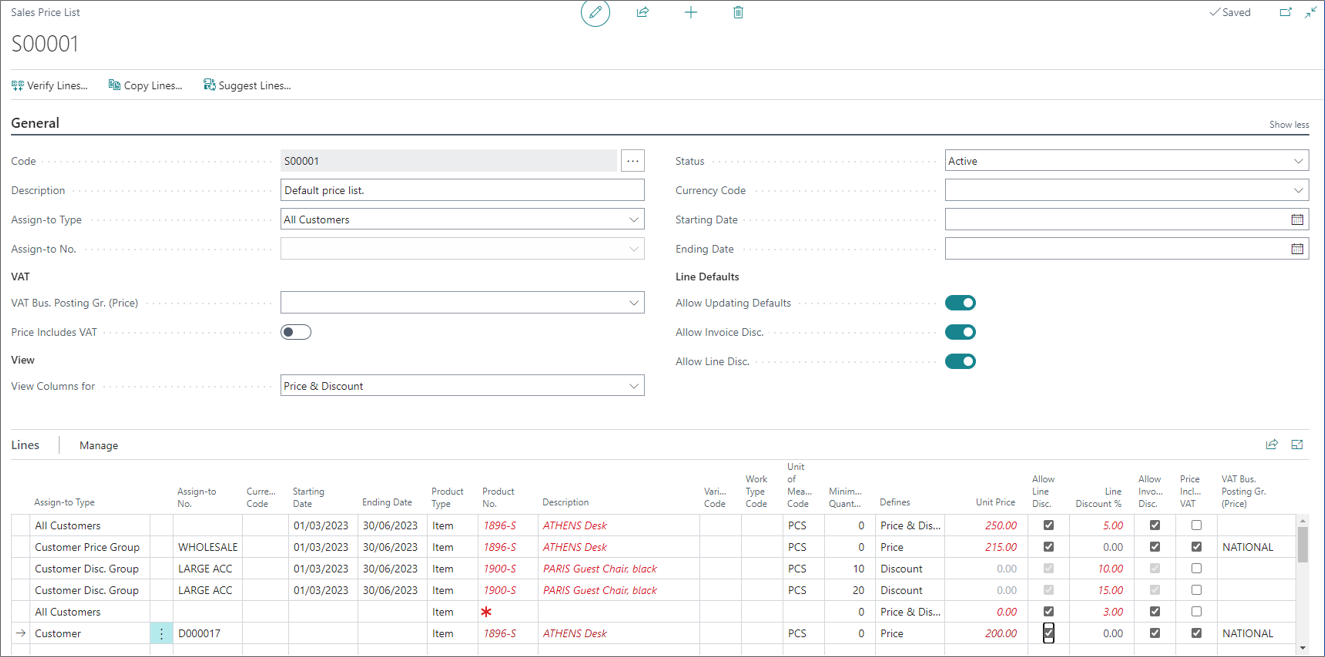
In this example, you can see that different sales price, item discounts or even a combination of both can be set in the system in one price list. Both pricing and discount setup can be performed in one page instead of having to navigate to each Item card to set up pricing and apply discounts individually.
Set up price worksheet
If you want to update prices for multiple items without having to change settings in each Item Card individually, you can create a Default Price List in the Price Worksheet administrative section.