Set up external vouchers
External vouchers are issued by a 3rd party and accepted in the shop. This means that the configuration of the Voucher Type Card is a bit different. This portion of the POS Academy uses GS1 Gratis as an example for the external retail voucher setup.
Prerequisites
-
Create a POS Payment Method for GS1.
Gratis will be associated with the Retail Voucher which is a payment type rather that a discount type.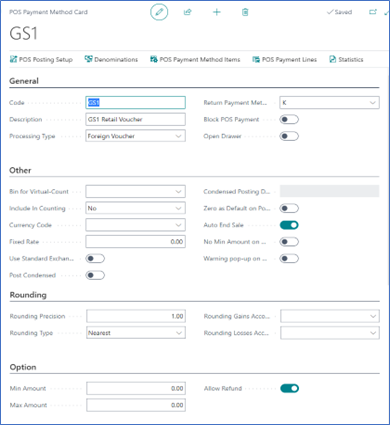
-
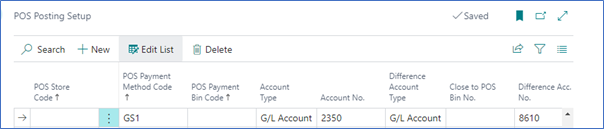
Create the POS Posting Setup for that payment method.
Procedure
To create an External Retail Voucher follow the provided steps:
- Search for Retail Voucher Types, and choose the related link.
A list of all existing Retail Vouchers is displayed. - Click New.
The Retail Voucher Card pop-up window is displayed. - Populate all necessary fields in the General section as indicated in the Example column.
- Populate all necessary fields in the Send Voucher section as indicated in the Example column.
The other fields in this section are left blank as they are not used in this voucher type.
-
Skip the Setup Voucher section as the fields in it aren’t related to the GS1.
-
Populate all necessary fields in the Validate Voucher section.
In this section, only the Validate Voucher Module field needs to be set to DEFAULT, whereas other fields in this section should be skipped, as they aren’t related to the GS1. -
Populate all necessary fields in the Apply Payment section as indicated in the Example column.
POS Action for External Voucher on POS
On the POS menus, you need to define a button for scanning the coupon in the POS payment view. The Action Type used is Payment, with the POS Payment Method GS1 as a parameter. There are no additional parameters to be added to the POS action. When the POS button is pressed, users are prompted to enter the amount and scan the coupon.
Redeem External Vouchers on POS
The main difference between the basic POS Payment Method, and the External Vouchers is their processing type in the POS Payment Method Card.
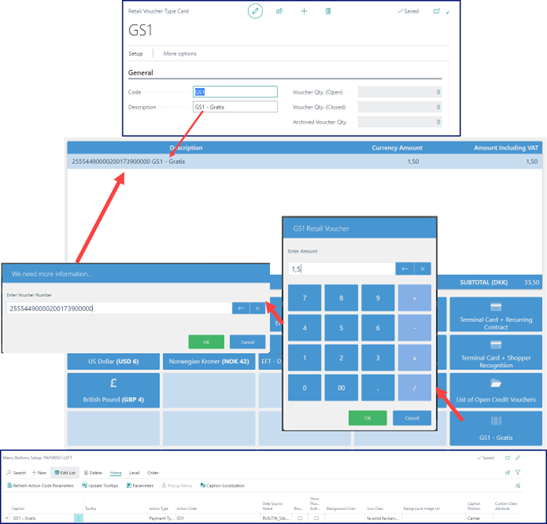
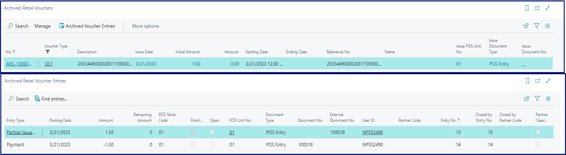
When the voucher is scanned on the POS, a sales line is inserted with the description and the amount to be used as payment on the Payment View. The voucher entries will be created.