
Getting orders from Shopify
New Shopify orders and order updates are downloaded from Shopify automatically. Two periodic processes are responsible for that (refer to Job Queue Entries for reference).
- The connection with the Shopify servers is established, and query for new, cancelled and closed orders is performed. The results are saved in the Import List.
Note: The process doesn’t request all orders from Shopify, only those created/updated in Shopify after the last request has been run, or after the date/time specified in the Get Orders Starting From field on the Shopify Store page (whichever occurs later).
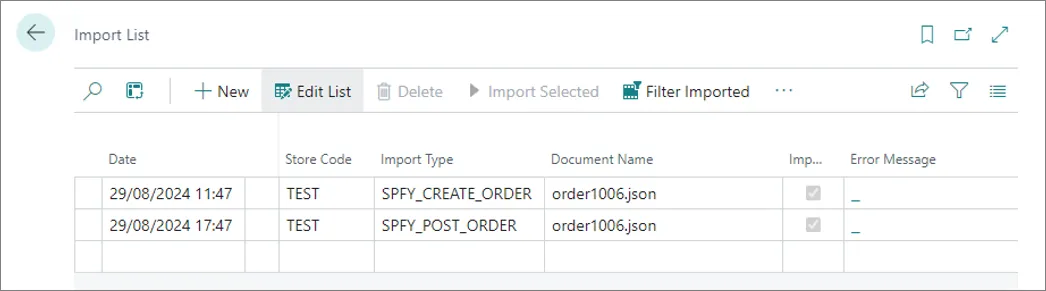
- New entries (retrieved during the first process) in the Import List are processed, and consequently sales orders are updated (the new ones are created, the cancelled ones are deleted, and the closed ones are posted).
Warning: It’s recommended to periodically check the Job Queue Log Entries and the Import List to make sure any potential errors are addressed.
All created sales orders in the system are assigned a Shopify Order ID.
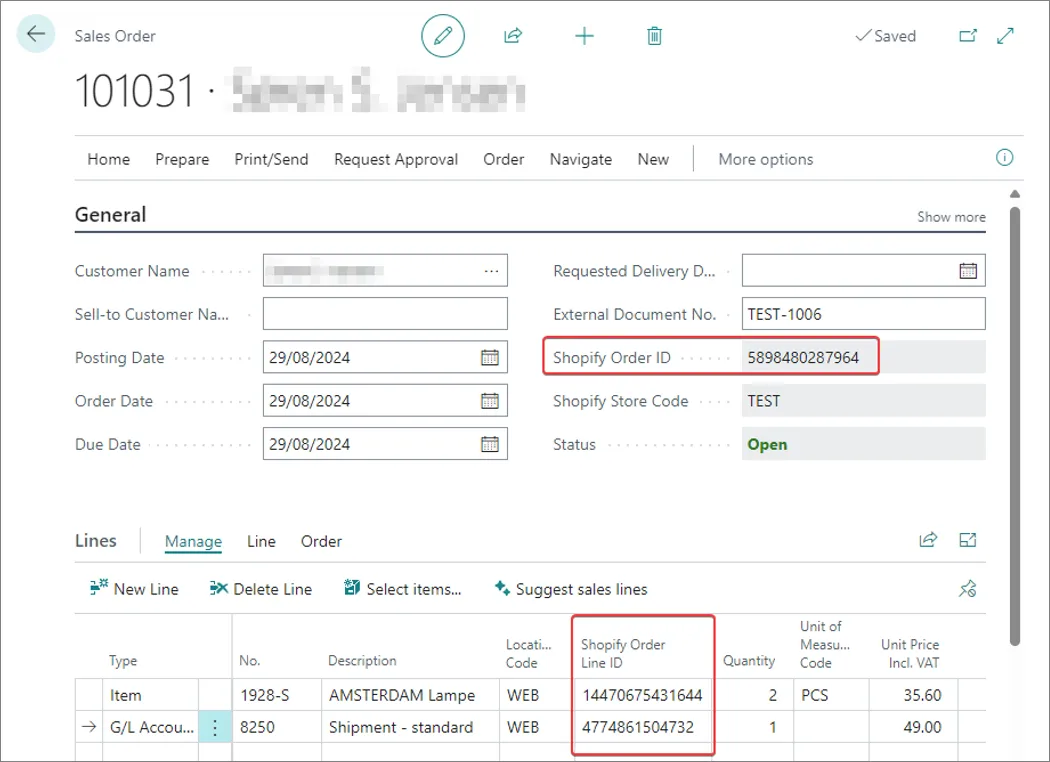
For the purpose of reporting the order progress (shipping items to the customer) back to Shopify, each Sales Order Line also gets assigned its own Shopify Order Line ID.
Customer search routine
Customers are selected by using the Customer search routine. During the order import, the following customer lookup algorithm is applied:
-
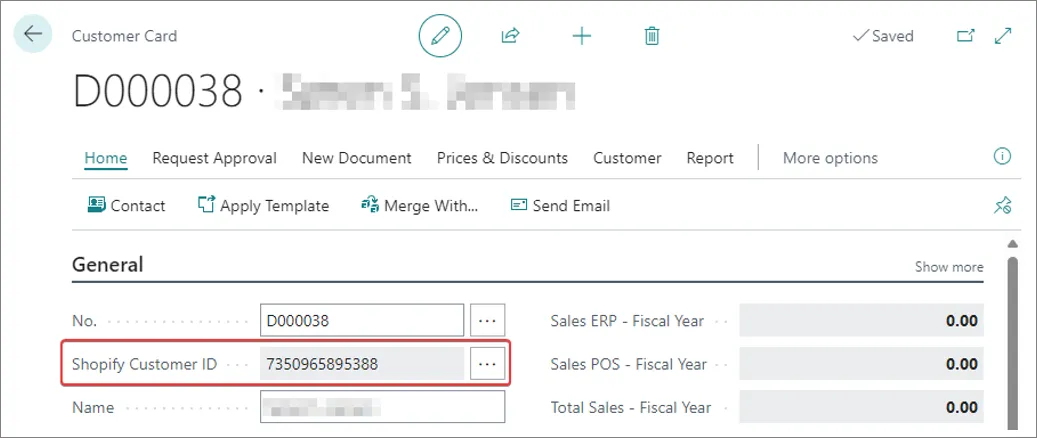
The customer is looked up by their Shopify ID.

Note: Each time a customer is created during the Shopify order import process, the customer’s Shopify ID is stored in the Shopify Customer ID field on the Customer Card.
-
If the customer isn’t found in the first step, the system attempts to find another customer either by email, phone, or both (depending on the provided value in the Customer Mapping field on the E-commerce Store Card).
If the system finds a matching customer at this stage, the Shopify ID will be assigned to them, so that the next time they can be found during the first stage (Shopify ID lookup).
Warning: The system will not use a customer if their Shopify ID is different than the one received in the order, even if the email/phone number is the same.
- If the customer still hasn’t been found, the system creates a new customer if the Allow Create Customers option is enabled in the E-commerce Store Card.
In this case, the system uses the customer template specifies in the Customer Config. Template Code field on the E-commerce Store Card. The template is needed to fill-in fields and values which aren’t sent to Shopify, but are required in Business Central.
If Allow Create Customers is disabled, the system uses a predefined customer (assigned to the store through customer mappings, or directly specified in the Customer No. field on the E-commerce Store Card).
For more information, refer to the article on E-commerce stores.
Troubleshooting: tickets not created
When a customer buys a ticket on the web store but no ticket is created (and no confirmation email is received), the order stopped somewhere between Shopify and the ticket reservation. Work through the flow in order and confirm that the order reached each step before moving to the next:
- Shopify — Confirm the order exists and was paid in the Shopify admin. Note the order number and the customer email.
- Import List — Confirm the order was downloaded into the Import List. If it is missing, order retrieval hasn’t run or hasn’t reached this order yet.
- BC sales order — Confirm a sales order was created from the import entry and carries the Shopify Order ID. If the import entry exists but no sales order was created, the entry failed during processing.
- Ticket reservation — Confirm a ticket reservation was created from the sales order line. This is the step that produces the actual ticket.
- Customer email — Confirm the ticket confirmation email was generated and sent.
Identifying the last step the order reached tells you where to focus. Then check the following, roughly in the order the data flows through the integration:
- Import List errors — Read the error text on the failed entry in the Import List and the Job Queue Log Entries. Import errors block the sales order from being created.
- Dimension-code issues on G/L accounts — A mandatory dimension that is missing or blocked on a G/L account used by the order will stop posting or processing. Check the default dimensions on the relevant G/L accounts.
- Cart token — Confirm the order carries the cart token the integration expects. A missing or mismatched cart token can prevent the order from being matched to the ticket request.
- Admission code — Confirm the item’s admission code is set and valid. Without a resolvable admission code, no reservation can be created.
- Schedule number — Confirm the schedule number resolves to a valid admission schedule for the requested date and time. An invalid or missing schedule stops the reservation.
- Reservation/email steps — Use the trace above to confirm whether a reservation was created and whether the confirmation email step ran. If the reservation exists but no email was sent, the problem is in email delivery, not ticket creation.