> This page is for Product Documentation.
> For clean Markdown of any page, append .md to the page URL.
> For a complete documentation index, see https://docs.navipartner.com/llms.txt.
> For AI client integration (Claude Code, Cursor, etc.), connect to the MCP server at https://docs.navipartner.com/_mcp/server.
# Install Store Assistant and RFID apps on mobile devices
> There are two available apps - NP Store Assistant and NP RFID. NP Store Assistant contains warehouse management features, and is also used for barcode scanning, while NP RFID is useful when RFID tags are attached to items.
To install the apps and connect devices to the Store Assistant environment, follow the provided steps.
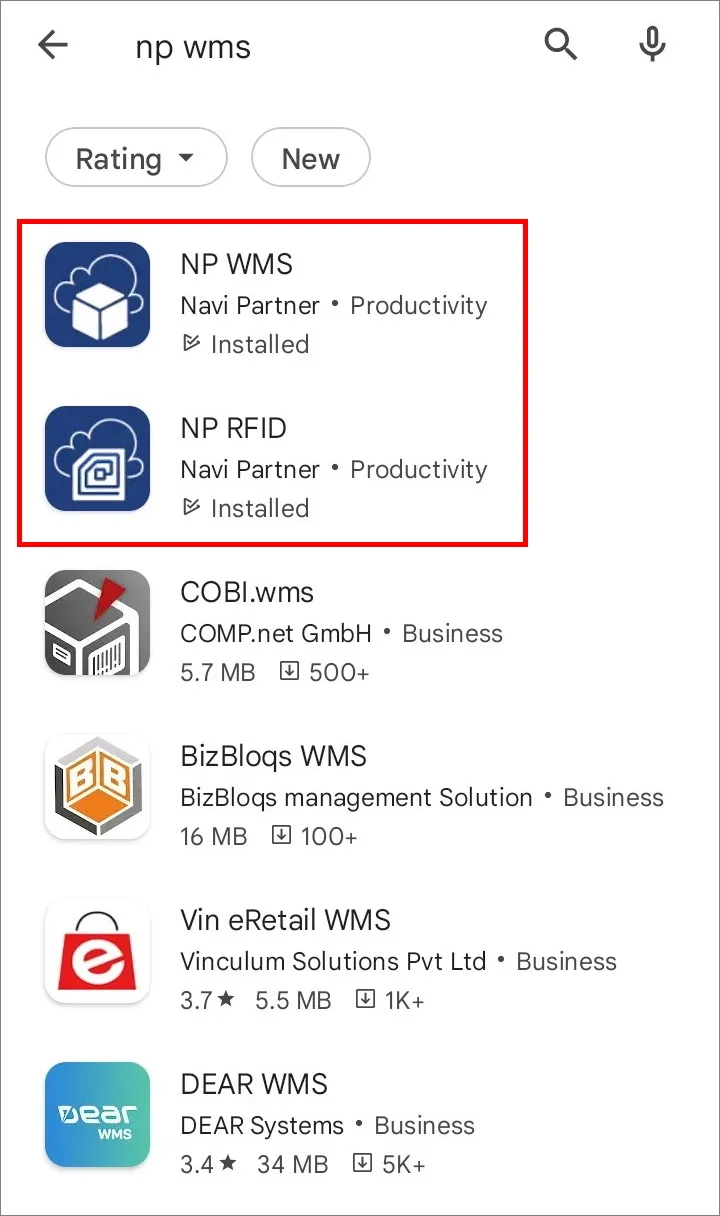
1. To download and install the necessary Store Assistant apps, you first need to find them in the Google Play store.\
The apps you need are called **NP Store Assistant** and **NP RFID**, both produced by **Navi Partner**, as indicated in the following screenshot.
> **Note:** Both NP Store Assistant and NP RFID are Android-exclusive apps.
2. Once downloaded and installed, open the **NP Store Assistant**/**NP RFID** app and select whether you wish to use the SaaS or on-prem version.
3. Use the necessary authentication to proceed, and then select the tenant and company that you want to use.
4. Press **SETUP**.\
A window for setting up the profile is displayed.
5. In the **PROFILE** window, press **SETUP ACCOUNT**.
6. In NP Store Assistant, press the camera icon in the upper right corner to scan the [QR Code](/product/store-assistant-create-qr) that was previously created in Business Central.\
Following the successful QR scan, the required parameters will be saved in the **Setup**.
7. In the NP RFID app, press **CONNECT A SCANNER** to select how the scanning will be performed.\
You can choose between a phone camera, or one of the listed scanners.
If you selected a camera, you also need to **REQUEST A SCANNER LICENSE**. Scanner licenses are then distributed to new devices by NaviPartner employees.
> **Note:** he only difference between the NP Store Assistant and NP RFID scanner configuration is that the NP RFID app is connected to the Bluetooth scanner in the **SCANNER** portion of **SETUP**, where you can see the type of scanner in use, along with the RFID scanner ID, and multiple options for configuring the RFID scanner settings.
Once the necessary steps are completed, you will be ready to log in and start using the app.
#### See also
* [Set up Capture Service](/product/store-assistant-cs-setup)
* [Set up CS UIs](/product/store-assistant-cs-ui-setup)
* [Set up RFID functionalities in Business Central](/product/store-assistant-rfid-setup)