> This page is for Product Documentation.
> For clean Markdown of any page, append .md to the page URL.
> For a complete documentation index, see https://docs.navipartner.com/llms.txt.
> For AI client integration (Claude Code, Cursor, etc.), connect to the MCP server at https://docs.navipartner.com/_mcp/server.
# Capture service UIs
> The Capture Service user interfaces (CS UI) are used for defining the look and feel of Store Assistant mobile device app.
You can see the list of all available CS UIs in the **CS UIs** administrative section. You can view and edit the existing CS UIs or [create new ones](/product/store-assistant-cs-ui-setup).
To see the current UI layout and hierarchy of UIs in the mobile app, navigate to the [**CS UI Structure**](/product/store-assistant-cs-ui-structure) administrative section. You can add or remove some segments from the current app layout if needed.
> **Note:** For the mobile app to work correctly, it's necessary to define the **Start UI**, which is the first screen that the user sees when opening the mobile app. By default, this is the login screen. You can pick the start UI either from the **CS UI Structure**, or an individual **CS UI** card.
## General
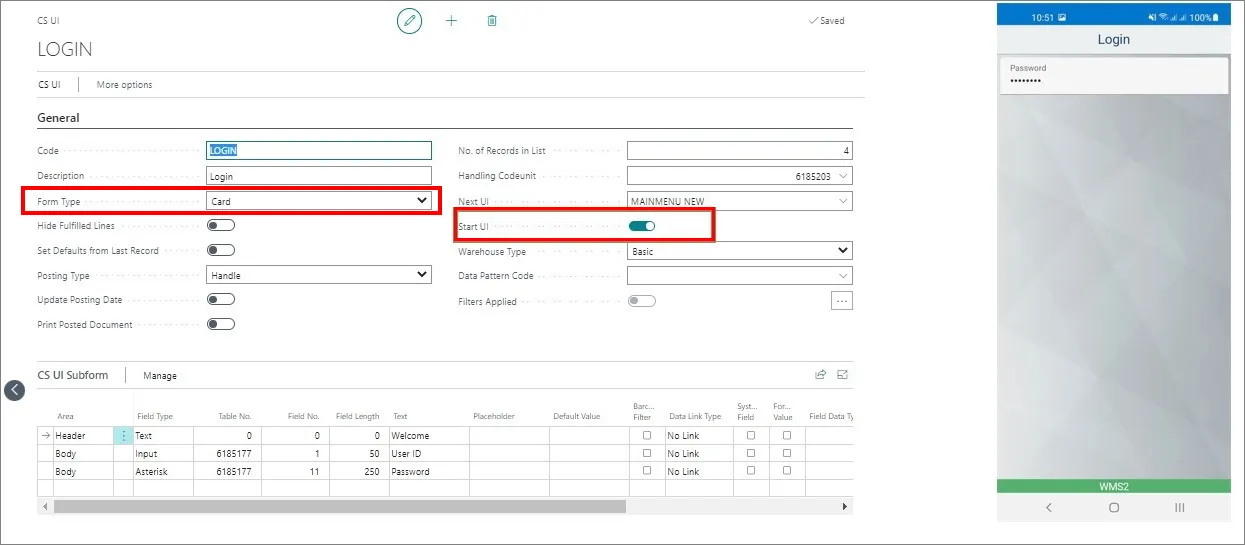
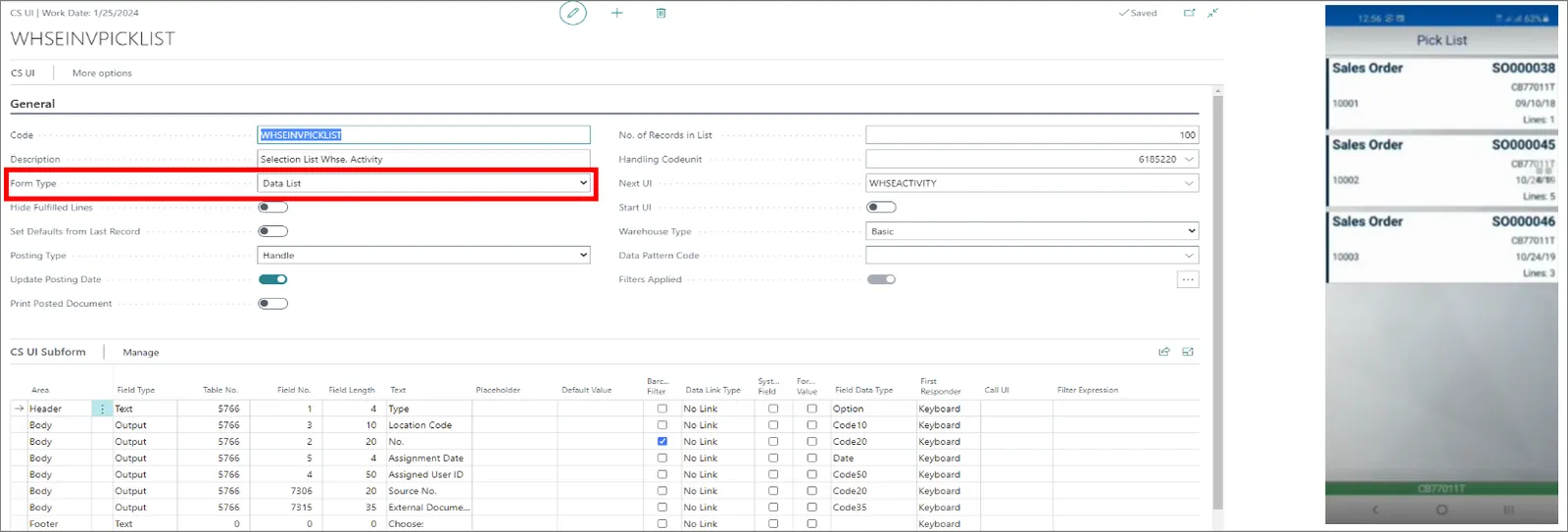
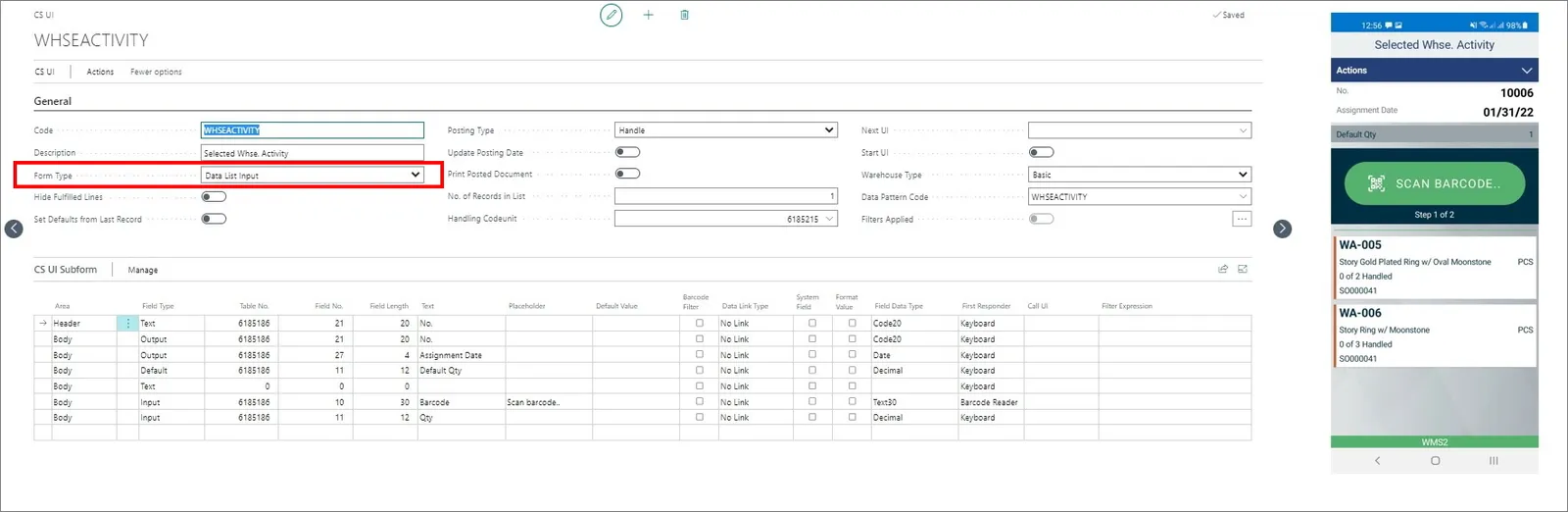
There are several customizable **Form Types** that exist in NP Store Assistant. These UI types are listed below along with the screenshots depicting the necessary setup in Business Central on the left side, and on right - the corresponding mobile app UI. If you wish to apply one of these UI layouts in your app, use the options presented in the Business Central segment of each screenshot.
* **Card** (e.g. Login)\
The **Card** type is used only for the Login screen, in which user input is required.
* **Selection List** (e.g. main menu)
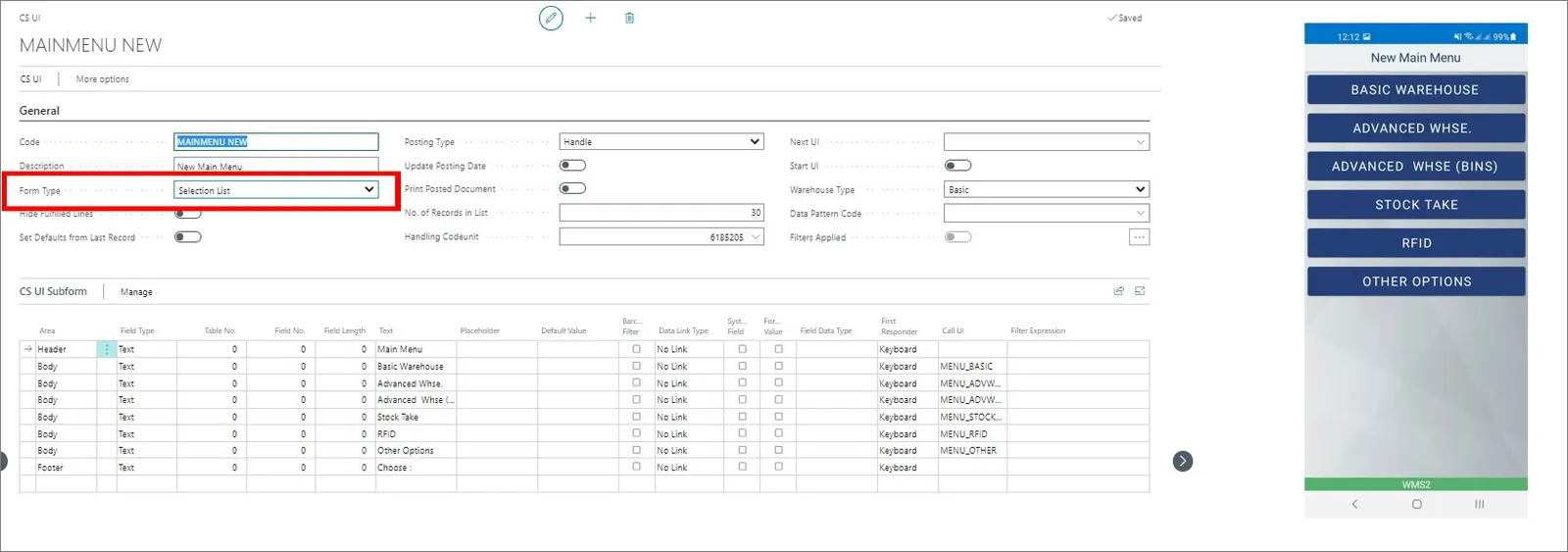
> **Tip:** Selection lists don't have the **Next UI** link like the **Card** pages, as they typically give users the option of navigating to multiple pages in no specific order. To specify which UIs users can navigate to from the selection list, provide the UI IDs in the **Call UI** column of the **CS UI Subform**.
* **Data List** (a dynamic list of information that relies on the documents created in Business Central e.g. Inventory pick list)
* **Data List Input** (these types of UIs determine what happens at the end of the process, i.e. when the barcode is scanned e.g. Warehouse Pick document)
> **Note:** NaviPartner provides standard UIs which can be implemented and modified as per requirements of the users.
## UI Subform
In the **UI Subform** section of each CS UI, you can add the actual content of each mobile UI, and designate where the page elements you create will be placed. The available areas are **Header**, **Body**, and **Footer**.
> **Note:** In the **NP Store Assistant** app you can click the header of each page to see which **UI Code**, **Handling Codeunit**, and **Next UI** were used.
## Data pattern code
Data pattern code is the code assigned to a certain product. It consists of some of the product's main characteristics, such as ingredients, year of production, expiration date, and so on. Each of these characteristics has its own ID, and the combination of all of them provides a unique ID for all goods which are placed inside the warehouse.
## Handling codeunit
Each UI can be associated with one handling codeunit. Codeunits govern the back-end processes associated with each UI.
#### See also
* [Set up Capture Service](/product/store-assistant-cs-setup)
* [Set up CS UIs](/product/store-assistant-cs-ui-setup)
* [Set up Capture Service users](/product/store-assistant-cs-user-setup)
* [Set up CS Data Patterns](/product/store-assistant-cs-data-pattern-setup)