> This page is for Product Documentation.
> For clean Markdown of any page, append .md to the page URL.
> For a complete documentation index, see https://docs.navipartner.com/llms.txt.
> For AI client integration (Claude Code, Cursor, etc.), connect to the MCP server at https://docs.navipartner.com/_mcp/server.
# Set up CS Data Patterns
> A data pattern defines the way in which the data collected can be structured, indexed, and made available for searching.
To set up data patterns, follow the provided steps.
1. Search for **CS Data Patterns** and choose the related link.
A list of configured Data Patterns is displayed.
2. Click **New**.
3. Fill out the necessary fields as presented in the provided screenshot.\
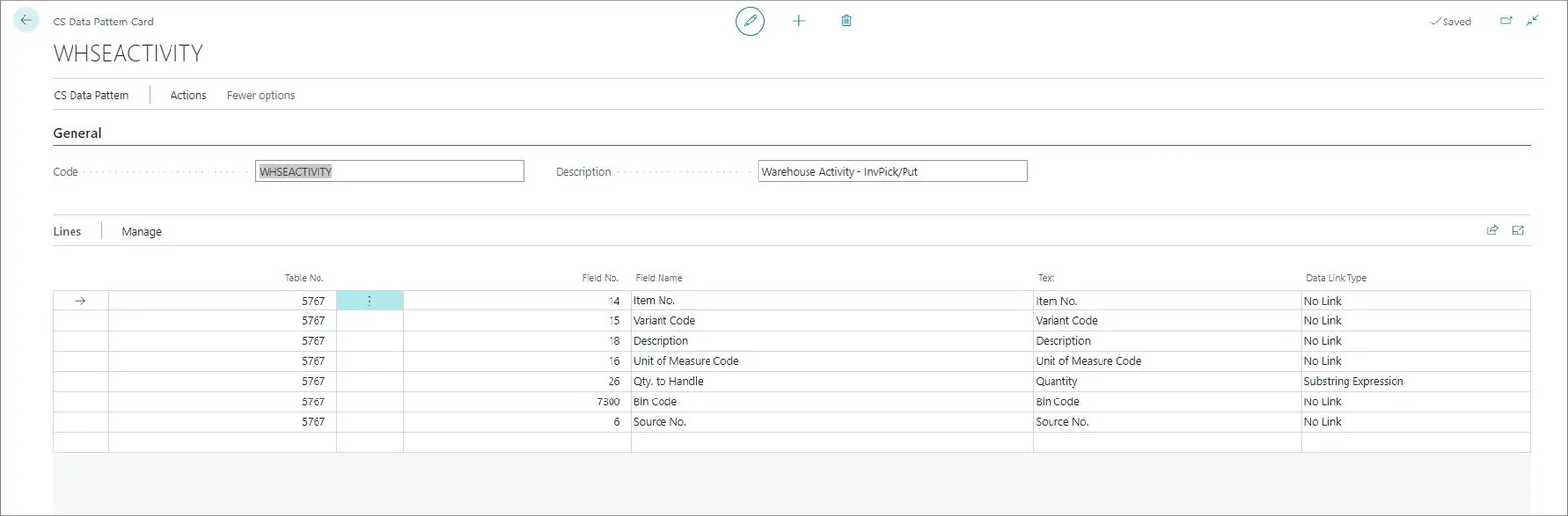
| Field Name | Description |
| --------------- | --------------------------------------------------------------------------------------------- |
| **Code** | Specifies a unique code for the CS data pattern. |
| **Description** | Specifies the description of the CS data pattern. |
| **SubForm** | Enter the fields you would like to display as lines on the mobile device in the subform area. |
#### See also
* [Install Store Assistant and RFID apps on mobile devices](/product/store-assistant-install-apps)
* [Set up Capture Service](/product/store-assistant-cs-setup)
* [Set up CS UIs](/product/store-assistant-cs-ui-setup)
* [Set up CS users](/product/store-assistant-cs-user-setup)
* [Perform stock count (Physical Inventory Journal and mobile apps)](/product/store-assistant-stock-count-bc-store-assistant)