> This page is for Product Documentation.
> For clean Markdown of any page, append .md to the page URL.
> For a complete documentation index, see https://docs.navipartner.com/llms.txt.
> For AI client integration (Claude Code, Cursor, etc.), connect to the MCP server at https://docs.navipartner.com/_mcp/server.
# Set up Shipmondo integration
> To set up integration with Shipmondo, follow the provided steps on the Shipmondo website and Business Central in the indicated order.
To set up integration with Shipmondo, follow the provided steps on the Shipmondo website and Business Central in the indicated order:
## Procedure on Shipmondo website
1. Navigate to the [Shipmondo website](https://shipmondo.com/), and create a new account.
2. Once the account is created and you're logged in, click on your company username in the top right corner of the page.\
A dropdown list is displayed with all available account options.
3. Click **Add Funds**, and provide the amount you wish to add in the pop-up window that is displayed.
4. Follow the on-screen instructions to complete the payment.
5. Open the **Settings** dropdown in the ribbon, and select **Own agreements**. If you have any agreements, add them here.\
This section should contain the necessary agreements for the integration to be established successfully.
6. Open the **Settings** dropdown again, and select **Print**, followed by **Printers**.
7. Add the printers you're going to use as default label printers.
8. Open the **Settings** dropdown once more, and then select **API**, followed by **Freight and service overview**.\
The **API product and service overview** page is displayed.
9. Add **Denmark** as the **Sender country**, and the **Receiver country**.
10. Select the services you wish to use inside the GLS carrier.
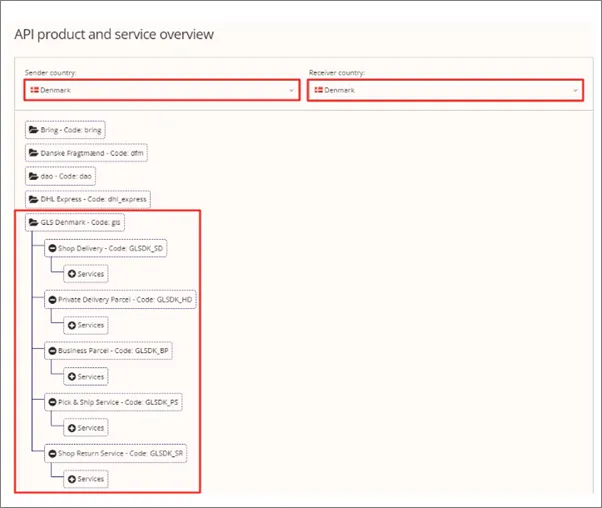
The following services are used by default in the Shipmondo integration:
* Shop Delivery - Code: GLSDK_SD
* Private Delivery Parcel - Code: GLSDK_HD
* Business Parcel - Code: GLSDK_BP
## Procedure in Business Central
1. Search for **Shipping Provider Setup**, and choose the related link.\
The page for setting up information about API in use is displayed.
2. Click **Actions** in the ribbon, followed by **Shipping Agents**.\
The **Package Shipping Agents** page is displayed.
3. Create a new entry, and when inputting the **Code**, open the dropdown to **Select from full list**.\
All fields are populated according to the service used for establishing the integration.
4. Add the **GLSDK_BP**, **GLSDK_HD**, and **GLSDK_SD** shipping agent codes.
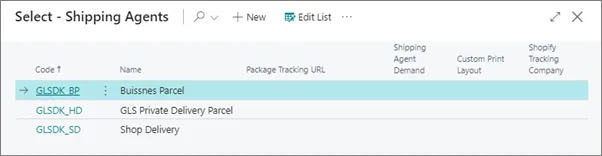
5. Click the **...** option in the ribbon, and select **Shipping Agent** from the dropdown list, followed by **Shipping Agent Services**.\
The **Shipping Agent Services** page is displayed.
6. Add a new entry with the **SERVICE** value in the **Code** field.\
It is possible to rename the **Code** to something more descriptive to the users.
7. Make sure the **Email Mandatory**, **Phone Mandatory**, and the **Use own Agreement** checkboxes are ticked for the **Business Parcel** entry in the **Package Shipping Agents** page.
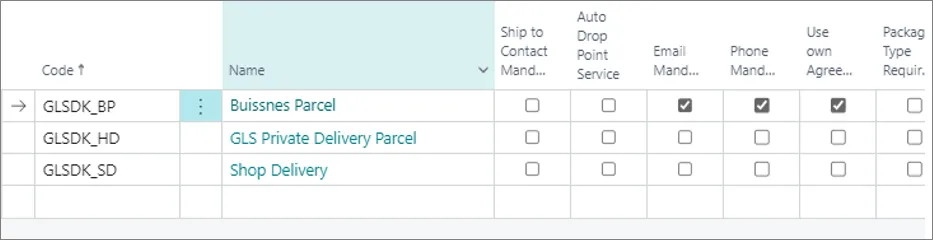
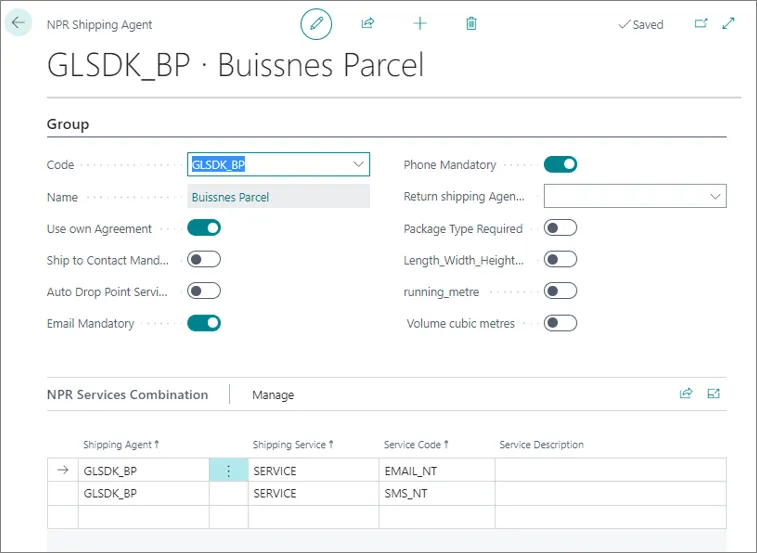
8. Hover over the **Business Parcel** entry, and click **Edit**.
9. Add the necessary **NPR Services Combination** entries.
## Next steps - Test connection
If you need assistance in testing the connection between Shipmondo and your Business Central environment, refer to the guide for [Testing connection with Shipmondo](/product/shipping-labels-shipmondo-test-shipmondo).