> This page is for Product Documentation.
> For clean Markdown of any page, append .md to the page URL.
> For a complete documentation index, see https://docs.navipartner.com/llms.txt.
> For AI client integration (Claude Code, Cursor, etc.), connect to the MCP server at https://docs.navipartner.com/_mcp/server.
# Issue a gift voucher
> Learn how to issue vouchers from the POS through the example of gift vouchers.
Retail vouchers are a payment type that the voucher owner can use to purchase various goods and services. The most common ones are gift vouchers and credit vouchers. Gift vouchers are mostly sold to customers, while credit vouchers are issued as a refund in the return sale process or a refund for a partially spent gift voucher.
To issue gift vouchers, make sure the prerequisites are met, and follow the provided steps:
#### Prerequisites in Business Central
* The **Gift Voucher Retail Voucher Type** needs to be [defined](/product/retail-vouchers-voucher-types) in the company setup.
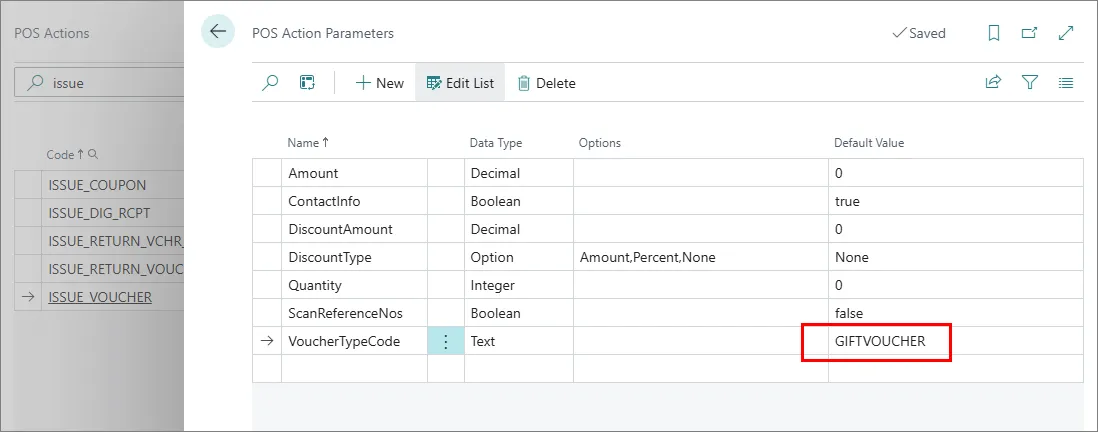
* The **Issue Gift Voucher** button with the [**ISSUE_VOUCHER** action](/product/retail-vouchers-pos-actions-vouchers) needs to be [added to the POS](/product/retail-pos-layout-new-button).\
For gift vouchers, make sure the action's **VoucherTypeCode** parameter is set to **GIFTVOUCHER**.
* Make sure that **Voucher** is set as the **Processing Type** in the **Payment Method Card** of the payment method selected for this transaction.
#### Procedure on POS
1. Open the POS.
2. Press **Retail Gift Voucher** followed by **Issue Voucher (General)**.
3. Choose a gift voucher.\
A pop-up window is displayed.
4. Enter **1** in the **Quantity** field.
5. Press **OK**.\
A pop-up window is displayed.
6. Enter **6.000** in the **Amount** field.
7. Press **OK**.\
A gift voucher is displayed in the **POS Sales Lines** with **Reference No. 2904100108599** and the Amount **6.000**.
8. Press **Go to Payment**.
9. Choose **Cash Payment**.
10. Click **OK**.\
The sale is finished, and the gift voucher is issued. You can see information about the voucher you've issued in **Retail Voucher Entries**.
> **Note:** In this example, some of the parameters for issuing a voucher weren't modified, so the cashier is prompted to provide the voucher quantity and amount. Had the **ISSUE_VOUCHER** POS action's parameters been specified, the steps 4 thru 7 wouldn't have been necessary.
#### See also
* [Voucher types](/product/retail-vouchers-voucher-types)
* [Create a voucher on a sales order](/product/retail-vouchers-create-new-sales-order)