> This page is for Product Documentation.
> For clean Markdown of any page, append .md to the page URL.
> For a complete documentation index, see https://docs.navipartner.com/llms.txt.
> For AI client integration (Claude Code, Cursor, etc.), connect to the MCP server at https://docs.navipartner.com/_mcp/server.
# Assign a variety to an item
> After you've set up varieties, you can assign them to items.
After you've set up varieties, you can assign them to items. To assign a variety to an item, follow the provided steps:
1. Search for **Items** and open the related link.
2. Open the **Item Card** of an item you wish to assign the variety to.
3. Select the **Variety Group** in the **Variety** section.\
All other fields are populated automatically with the data from the [variety group](/product/retail-varieties-group-ref) you've added.
The varieties are now assigned to the item, but it's also necessary to assign the values of varieties which this item has.
4. Click **History** in the ribbon, followed by **Variety Maintenance**.\
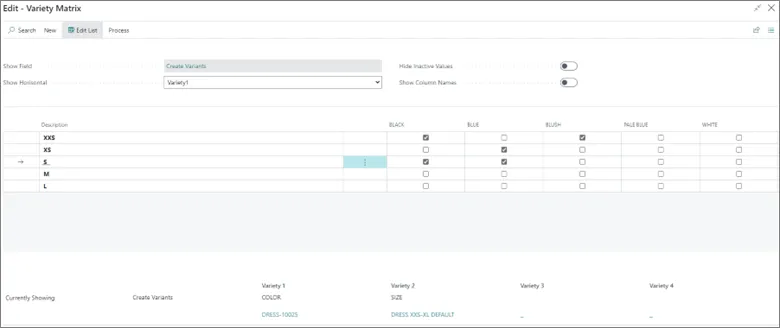
The matrix with different values is opened as a result.
5. Tick the checkboxes in the matrix to create combinations of values that the item is going to have.\
In the provided example, the item `10025 - dress` has the following combinations of size and color: `XXS Black`, `XXS Blush`, `S Black`, `S Blue`, and `XS Blue`.
#### See also
* [Set up variety matrix facilities on Sales Orders](/product/retail-varieties-matrix)
* [Create varieties in Business Central](/product/retail-varieties-create-variety)
* [Block a variant](/product/retail-varieties-block-variant)