> This page is for Product Documentation.
> For clean Markdown of any page, append .md to the page URL.
> For a complete documentation index, see https://docs.navipartner.com/llms.txt.
> For AI client integration (Claude Code, Cursor, etc.), connect to the MCP server at https://docs.navipartner.com/_mcp/server.
# Set up Global Blue tax-free solution
> The Global Blue tax free setup is performed in several sections of Business Central that are described in this article.
The Global Blue tax free setup is performed in several sections of Business Central. Follow the provided steps to set it up.
1. Search for **POS Tax Free Profiles** and select the related link.\
The page which contains all POS tax free profiles created in the environment is displayed. Here, you can link the tax free parameters to each available POS unit.
2. Click **New** and define [all necessary options](/product/retail-pos-profiles-tax-free-ref).\
The **Code** field is mandatory.
3. In the **Handler ID** field, select the **GLOBALBLUE_I2** for the Global Blue integrated solution.\
As soon as you specify the handler ID, you need to set the accompanying parameters.
4. Click **Set Parameters** in the ribbon.\
Populate the [parameter-related fields](/product/retail-taxfree-params-ref).
5. Choose between **PROD** or **TEST** to determine whether the integration will be established on the production environment, or not.\
The **PROD** option should be selected for customers.
6. Click **Set Parameters** to set up the handler.\
A popup window containing parameters for handler setup is displayed.
7. Set up everything in the **Required** panel according to the Global Blue instructions for the specific customer.\
Set up other parameters in the **Dialog** panel if needed.
8. Search for **Object Output Selection** and select the related link.
The window from which the NP Retail print setup can be controlled is displayed.
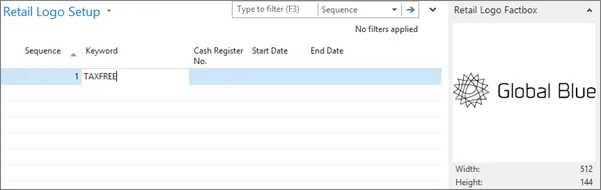
9. Search for [**Retail Logo Setup**](/product/retail-pos-processes-retail-logo) and select the related link.\
A window in which logos can be uploaded and set up is displayed.
10. To make sure the Global Blue logo is printed out on the thermal tax-free vouchers, upload it in the **Retail Logo Setup** page with the keyword **TAXFREE**.\
11. Search for **POS Unit List** and select the related link.
12. Open the POS Unit Card associated with the POS unit you will use for the tax-free integration, and attach the profile you've created to it by selecting it from the **POS Tax Free Profile** dropdown list.
Tax-free vouchers can be printed out either as thermal or PDF, depending on the customer choice and coordination between them and Global Blue. For thermal vouchers, the **Output Path** field should direct to a thermal printer, and for PDF a regular printer needs to be specified. The alternative for normal windows-connected PDF printer is to print the voucher via the [Google Cloud Print](https://www.google.com/cloudprint/learn).
### Next steps
Move on to the [NAS setup](/product/retail-taxfree-nas-setup).
#### See also
* [Tax-free troubleshooting](/product/troubleshooting-tax-free)
* [Tax-free profile parameters](/product/retail-taxfree-params-ref)