> This page is for Product Documentation.
> For clean Markdown of any page, append .md to the page URL.
> For a complete documentation index, see https://docs.navipartner.com/llms.txt.
> For AI client integration (Claude Code, Cursor, etc.), connect to the MCP server at https://docs.navipartner.com/_mcp/server.
# Set up Global Dimensions
> You can use Global Dimensions to set the analysis codes representing the shops.
To define the Global Dimension, you first need to create it:
## Prerequisite
* You need to use the **NP Retail Manager** Role Center to be able to configure all segments of this setup.
## Procedure in Business Central
1. Search for **Dimension**, and open the related link.
2. Click **New**, and populate the **Name** and **Code** fields.
3. Click **Dimension** in the ribbon, followed by **Dimension Values** in the dropdown that is displayed.\
The **Dimension Values** administrative section is displayed.
4. Click **New**, and provide the necessary values along with the adequate **Dimension Values Type**.
## Attach Global Dimensions to registers
The next requirement is to attach the dimension to the POS unit. A dimension will need to be attached to each POS unit by editing the POS Unit Card, and selecting the dimension shortcut to assign the dimension and dimension value.
> **Note:** Bear in mind that the statistics use dimensions instead of locations.
1. Search for **POS Unit List**, and open the related link.
2. Select the POS unit you wish to edit from the list.
3. From the ribbon, click **Navigate**, followed by **Dimensions**.
4. Assign the dimension to the POS unit by providing the adequate **Dimension Code** and **Dimension Value Code**.
## Enable chart visibility
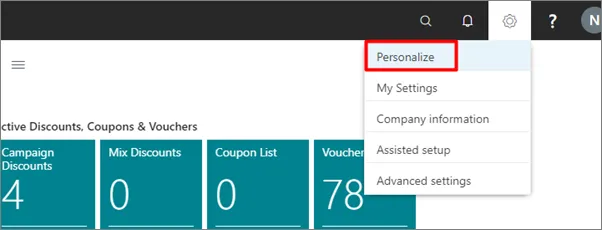
If the chart isn't visible by default, click  in the top right corner, and then use the **Personalize** function in the **NP Retail Manager** Role Center.
## Define chart type
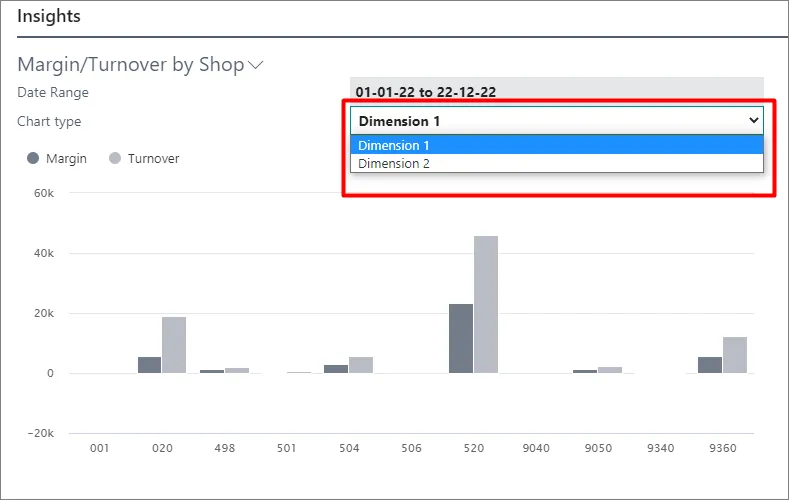
After personalization, the view will be visible, and you will need to define the dimension by which you want to view the overview.\
To do this, navigate to the **Insights** section of the Role Center, and pick the created dimension in the **Chart Type** dropdown list.
#### See also
* [Customize report layout in Microsoft Word](/product/retail-reports-word-layout)
* [Printing overview](/product/retail-reports-intro)
* [Set up event templates](/product/retail-reports-event-templates)
* [Chart margin/turnover by shop](/product/retail-reports-chart-margin-turnover)