> This page is for Product Documentation.
> For clean Markdown of any page, append .md to the page URL.
> For a complete documentation index, see https://docs.navipartner.com/llms.txt.
> For AI client integration (Claude Code, Cursor, etc.), connect to the MCP server at https://docs.navipartner.com/_mcp/server.
# Create a simple receipt/line print template
> Through this example, you will learn how to create a simple print template for a receipt.
> **Note:** NaviPartner provides a large selection of predefined templates for most typical processes, optimized for various printers and print media. You can retrieve these predefined templates with the **Download Template Data** action in the **Print Template List** administrative section. Some of these templates are created specifically for printing receipts - EPSON_RECEIPT_2 / EPSON_RECEIPT_LOYAL.
## Create a basic receipt print template
1. Search for **Print Template List**, and open the related link.
2. Click **New**.\
An empty **Template Card** is displayed.
3. Provide a unique name for the template in the **Code** field.\
For the purposes of this example, the code is **DEMO_RECEIPT**.
4. Select **Line** in the **Printer Type** field.\
The **Line Settings** panel is displayed below. It is used to determine which printer interface will be targeted.\
Matrix and line printing are described in more detail in the [Printer properties](/product/retail-printing-print-properties) article.
5. Make sure **Epson** is selected as the **Line Device**.\
You've now created the most basic receipt print template. However, it's recommended to also define which tables will be data sources for the template.
## Add and link data sources
1. Once all general settings are set, click **Edit Data Items** in the **Template Card**.\
The **Data Items** page provides an overview of all available data items, their relations, and constraints.
2. Add the **NPR POS Entry** table as the main data source.
> **Note:** When printing POS receipts in NP Retail, the data originates from the **NPR POS Entry**, so it is the initial data source, and any additional data sources should be referenced as subsets of it. You can achieve this behavior through indentation and **Data Item Links**.
3. Add two new lines below **NPR POS Entry**. The first one should be the **NPR POS Entry Sales Line**, and the second one **NPR POS Entry Payment Line**.

4. Select the two newly created lines, and use the **Indent** action at the top of the page, to make them subsets of the **NPR POS Entry**.
5. Establish the data link between the **NPR POS Entry** and the **NPR POS Entry Sales Line**, and then with the **NPR POS Entry Payment Line**, respectively.
They need to be linked with the **NPR POS Entry** through the common **POS Entry No.**, so that only the relevant entries are selected. If the data link isn't set, the data from other POS entries will be included in the data set.
For the **NPR POS Entry Sales Line**, the generic **TableLink** will be **Entry No.** in the **NPR POS Entry**, and the **POS Entry No.** in the **NPR POS Entry Sales Line**. An example of a **Fixed Filter** can be placed on the field **Type** from the **NPR POS Entry Sales Line**.
> **Note:** This makes it possible to filter certain types of **NPR POS Entry Sales Lines**, e.g., items or vouchers, in other scenarios that require this behavior.
## Set up Template Line Designer
Once the data items are set, use the **Edit Layout** action in the **Template Card** page.\
As the **Printer Type** is set to **Line**, the **Type** and **Column No.** fields are displayed instead of coordinates used for Matrix printing.
The **Type** is used for more advanced line construction and commands:
| Option Name | Description |
| ----------------- | ----------------------------------------------------------------------------- |
| **Data** | Predefined printer fonts or barcodes. |
| **Loop** | A repetitive data block. |
| **Command** | Predefined printer commands like **Papercut**, **Open Cash Drawer**, etc. |
| **Logo** | A logo selected in the **Retail Logo Setup** page to be printed. |
| **Field Caption** | A field caption for a defined field name, used instead of the value. |
| **If Data Found** | Conditional layout, e.g., adding a copy number if this isn't the first print. |
The **Type Option** is populated with options for the **Line Device**, which is set to **Epson**.
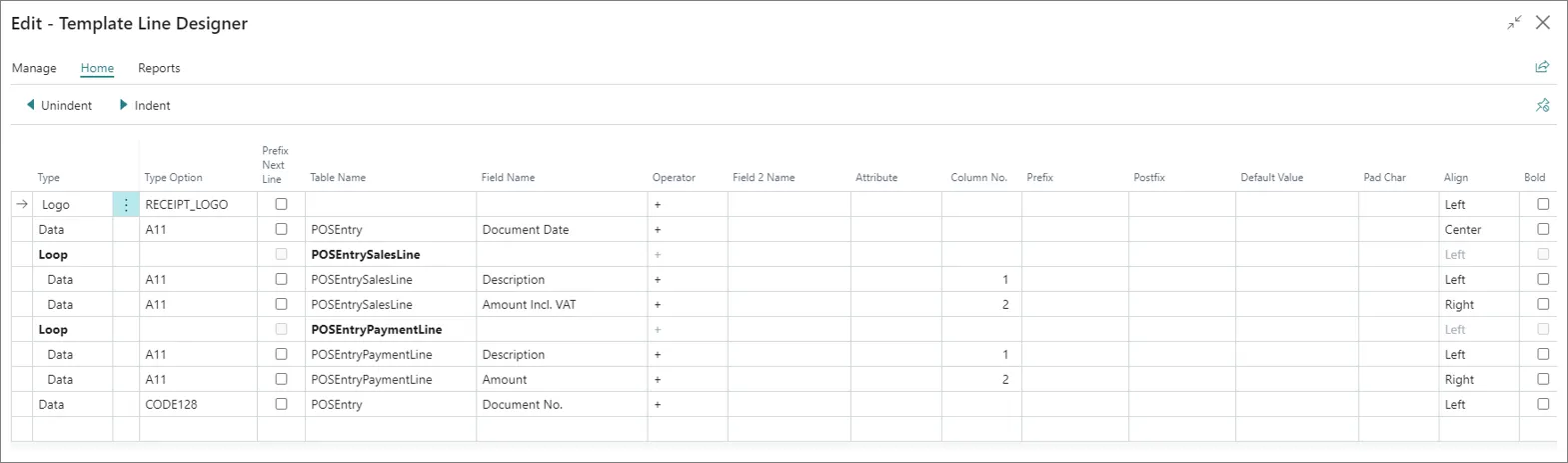
Here's the example of the produced layout and its contents:
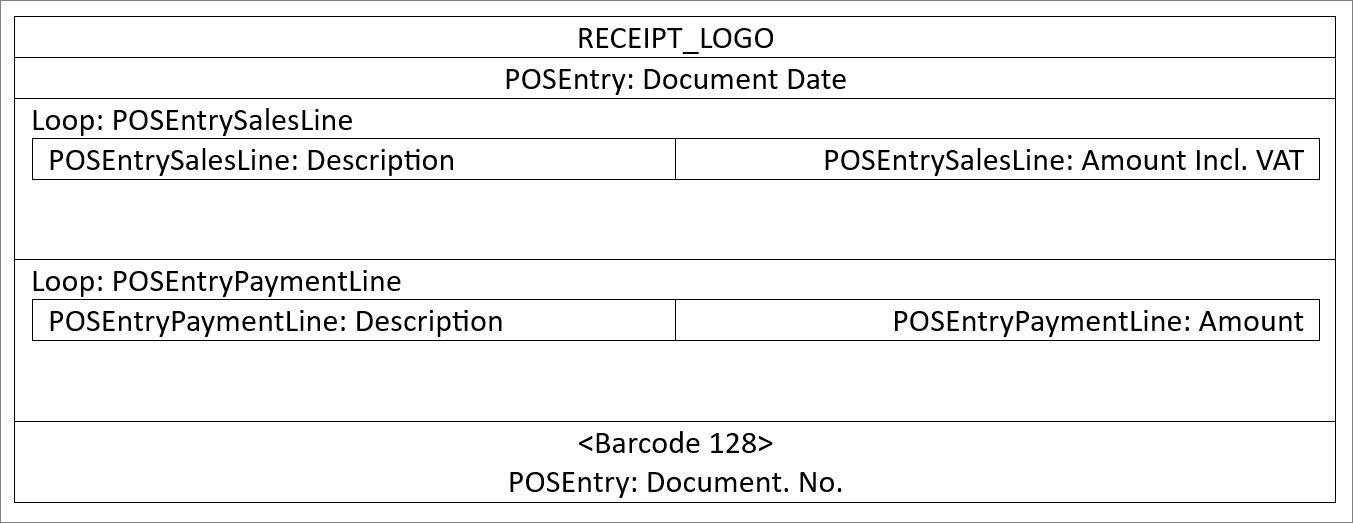
1. A single logo in the top, followed by the document date
2. A loop running through each **POSEntrySalesLine**, and outputting two columns for each record
3. A loop running through each **POSEntryPaymentLine**, and outputting two columns for each record
4. A barcode of the **Document No.**
After you've finished setting up the template, move on to device configuration described in the following section.
## Configure Device Settings
1. Click **Edit Device Settings**.\
As with the layout, the **Printer Type** and the **Line Device** determine the available options in this section.
For **Epson**, the following settings are available:
* **MEDIA_WIDTH** - we support the two standards (58mm and 80mm)
* **ENCODING** - this option is available if a specific encoding is required
* **DPI** - the print resolution is determined with this option
> **Note:** If none of these options are specified, the device settings will default to 80mm, Windows-1252, and 200 DPI.
#### See also
* [Printer troubleshooting](/product/troubleshooting-printer)
* [Printing overview](/product/retail-printing-intro)
* [Print properties](/product/retail-printing-print-properties)