> This page is for Product Documentation.
> For clean Markdown of any page, append .md to the page URL.
> For a complete documentation index, see https://docs.navipartner.com/llms.txt.
> For AI client integration (Claude Code, Cursor, etc.), connect to the MCP server at https://docs.navipartner.com/_mcp/server.
# Set up POS Pricing Profile
> Each POS can have different customer price lists, customer discount list, and price matching.
To set up POS pricing profiles, follow the provided steps:
1. Search for **POS Pricing Profiles** and choose the related link.
2. Create **New**.
3. Type in the name of POS Pricing Profile in the field **Code**.
4. Add a **Description**.
5. In the **Customer Pricing Group** field select the corresponding value of the customer pricing group.
6. In the **Customer Discount Group** field select the corresponding value of the customer discount group.
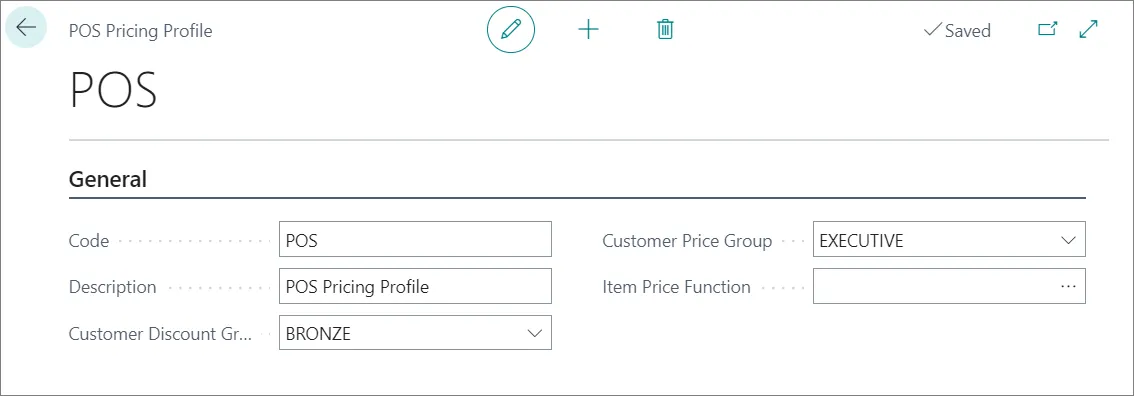
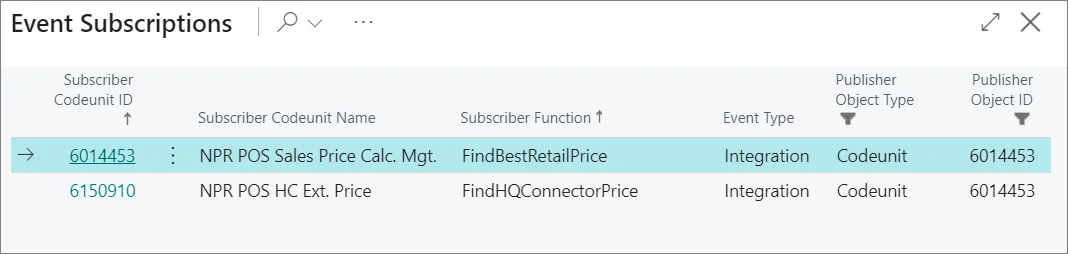
7. In the field **Item Price Function** choose between:
* **Find Best Retail Price function**,
* **Find HQ Connector Price**.
> **Warning:** When configuring the pricing profile, it's important to check whether any specific **Sales Price List** is referenced from an **Item Card** that is also affected by the pricing profile. Any sales price list set to **All Customers** may override setup from the **POS Pricing Profile**, and be used as the price source for all customers.
## Next steps
### Set POS Pricing Profile on POS Unit
The created POS pricing profile needs to be set on a POS unit for the settings to be applied:
1. Search for **POS Unit List**, and choose the related link.
2. Open the **POS Unit Card**
3. Add the created profile in the **POS Pricing Profile** field.
## Configure price list for POS Pricing Profile
If you use **Customer Pricing Group** and **Customer Discount Group** for specifying different prices for different customer groups, you can create specific
Sales Price List for the POS Price Profile.
1. Search for **Sales Price Lists**, and choose the related link.
2. Click **New**.
3. Create a price list with **POS Pricing Profile** as the **Assign-to Type**.
4. Specify **Price List Lines**.
5. Activate the **Price List**.
#### See also
* [Multiple prices on a group of items](/product/retail-pos-processes-multiple-prices-item-group)
* [Sales price list setup](/product/retail-pos-processes-sales-price-setup)
* [Sales price setup](/product/retail-pos-processes-sales-price-setup)
* [Sales price maintenance](/product/retail-pos-processes-sales-price-maintenance)