> For clean Markdown of any page, append .md to the page URL.
> For a complete documentation index, see https://docs.navipartner.com/product/retail-pos-processes-sales-price-setup/llms.txt.
> For AI client integration (Claude Code, Cursor, etc.), connect to the MCP server at https://docs.navipartner.com/_mcp/server.
# Set up sales price
> You can define prices for specific items in the Sales Price List in which the Price functions are combined with the Discount function.
Follow the provided steps to learn how to set up the [sales price](/product/retail-pos-processes-pricing) from the price list, in a scenario in which the price is different from the unit price.
> **Note:** In Business Central and NP Retail, the sales price takes priority over the unit price in the **Item Card**. Whenever a sales order or a POS sale is done, the system will first check if an item has a sales price. If it does, that price will be applied, otherwise, the unit price will be applied.
1. Search for **Sales Price List**, and choose the related link.
2. From **Item Card** access the **Sales Price** via **Special Sales Prices & Discount** in the ribbon.\
On an item level, there will be a line or a list if that item is already in a sales price of some sort. Otherwise, you need to create a new list by selecting the **Sales Price List**.
3. Click **Sales Prices & Discount** in the **Item Card** to access the **Sales Price** card.
4. Populate the following fields:
| Field Name | Description |
| -------------------------------- | ----------------------------------------------------------------------------------------------------------------------------------------------------------------------------------------------------------------------------------------------------------------------------------------------------------------------------------------------------------------------------------------------------------------------------------------------------------------------------------------------------------------------------------------------------- |
| **Code** | Provide a code that is used for the price identification. |
| **Wholesales** | Provide a description for the sales price scheme. |
| **Assign-to Type** | Assign the pricing to a group or a specific person. You can choose between **All Customers**, a specific **Customer**, **Customer Price Group**, a sales **Campaign**, a specific **Contact**. > **Warning:** If a sales price list is set to **All Customers**, any item that has this sales price list selected in its **Item Card** will primarily use this list as the price source for all customers, regardless of what's been selected in the **POS Pricing Profile**. |
| **Assign-to No.** | Specify the entity to which the prices are assigned. The options depend on the selection in the **Assign-to Type** field. If you choose an entity, the price list will be used only for that entity. |
| **VAT Bus. Posting Gr. (Price)** | Specifies the default VAT business posting group code. |
| **Price Includes VAT** | Specifies the if prices used in this scheme include VAT. |
| **View Columns for** | Specify what kind of columns you will have in the detail section. |
| **Status** | Specifies whether the price list is in **Draft** (can be edited), **Inactive** (cannot be edited or used), or **Active** status (used for price calculations). |
| **Currency Code** | Specifies the currency code of the price list. |
| **Starting/Ending Dates** | Specifies the period during which the price list is active. |
| **Line Defaults** | If flagged, all of the following actions are allowed in the detail lines: - **Allow Updating Defaults** - Specifies whether users can change the values in the fields on the price list lines that contain default values from the header. This does not affect the ability to allow line or invoice discounts; - **Allow Invoice Disc.** - Specifies whether invoice discount is allowed. You can change this value on the lines; - **Allow Line Disc.** - Specifies whether line discounts are allowed. You can change this value on the lines. |
5. (Optional) During setup, you may use one of the following actions:
| Action Name | Description |
| ----------------- | ------------------------------------------------------------------------------------------------------------------------------------------------------------------------------------------------------------------------ |
| **Verify Lines** | Check the data consistency in the new and modified price list lines, and suggest resolutions in case of conflicts (e.g., delete duplicate lines) and set the **Price List** to Active when the verification is complete. |
| **Copy Lines** | Copy the lines from the existing price list. New prices can be adjusted by a factor and rounded differently. Change the **Price List Status** to **Draft** to run this action. |
| **Suggest Lines** | Create the sales price list lines based on the unit price in the Product Card (e.g., line or resource). Change the **Price List Status** to **Draft** to run this action. |
6. Define the details of the scheme in the **Lines** section.
## Next steps
### Apply item discount
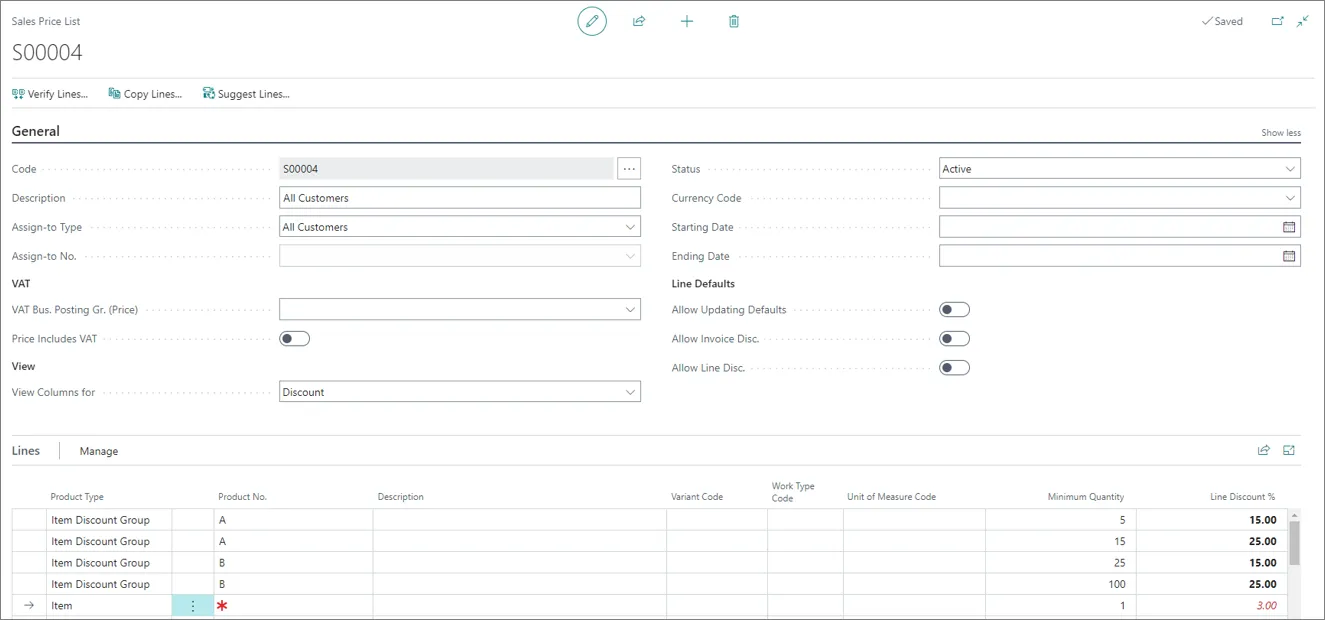
Item discount is applied in much the same way as described in the main procedure above, the only difference being that instead of defining unit prices, you can define the discount.
In the following example, you're assigning a discount percentage that all customers will benefit from. If 5 x items with Item Discount Group = A are sold, the customer will benefit from 15% discount on the 5 items.
You can also set a “Wild Card” whereby you include all Items in the scheme. In the last line, the Product Type = Item & The Product No = BLANK. This is a function in Business Central that permits you to give a 3 % on all items to all customers.
### Combine sales price with item discount
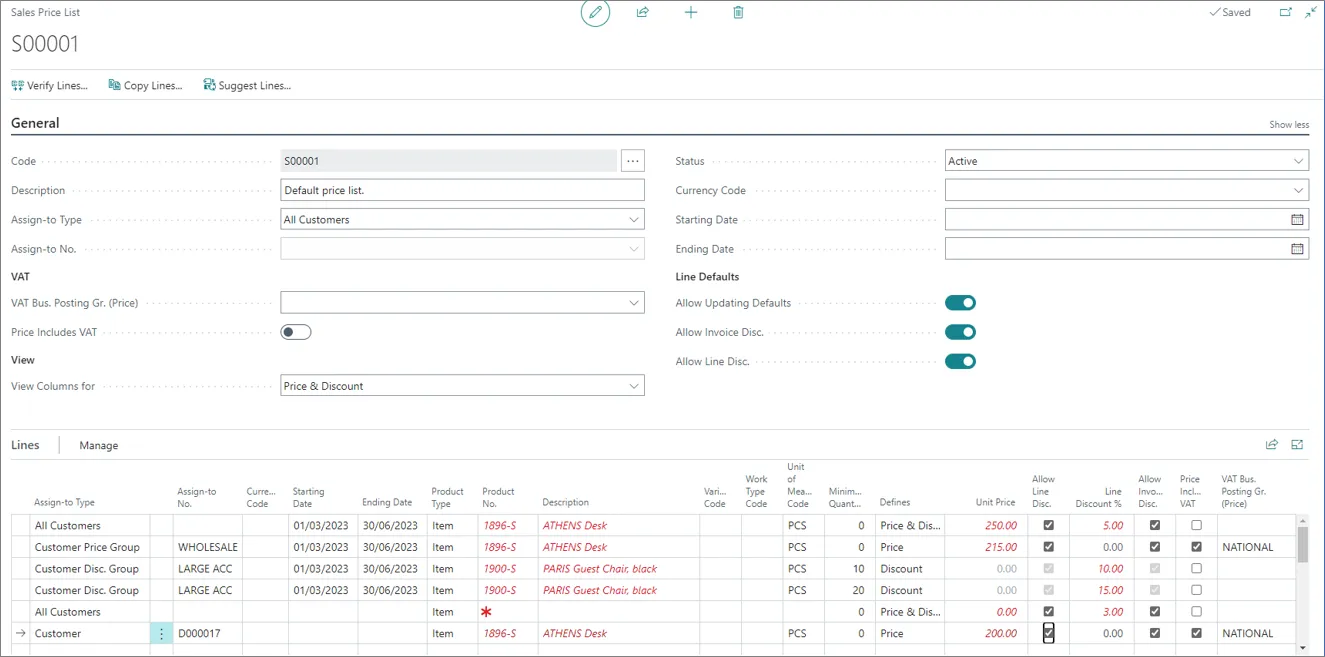
In this example, you can see that different sales price, item discounts or even a combination of both can be set in the system in one price list.
Both pricing and discount setup can be performed in one page instead of having to navigate to each Item card to set up pricing and apply discounts individually.
### Set up price worksheet
If you want to update prices for multiple items without having to change settings in each **Item Card** individually, you can create a **Default Price List** in the [**Price Worksheet**](/product/retail-pos-processes-price-worksheet-setup) administrative section.
#### See also
* [Discount types](/product/retail-discounts-discount-types)
* [Multiple unit prices on an item](/product/retail-pos-processes-multiple-unit-prices-item)
> Documentation for NaviPartner's NP Retail, NP Attractions, NP Hospitality, NP Store Assistant and Entria products, plus their REST APIs, built on Microsoft Dynamics 365 Business Central.