> This page is for Product Documentation.
> For clean Markdown of any page, append .md to the page URL.
> For a complete documentation index, see https://docs.navipartner.com/llms.txt.
> For AI client integration (Claude Code, Cursor, etc.), connect to the MCP server at https://docs.navipartner.com/_mcp/server.
# Group code setup
> Group codes can be predefined in Business Central, and attached to the POS sales.
This functionality is useful for filtering those POS sales when they are exported from the POS to a standard sales order. It also gives users the option of filtering standard sales orders imported to a POS sale.
## Export current POS sale to a standard sales order (SALES_DOC_EXP)
The **SALES_DOC_EXP** POS action can be mapped to a [button](/product/retail-pos-layout-new-button) on the POS used for exporting the current POS sale to a standard sales order. It has two parameters:
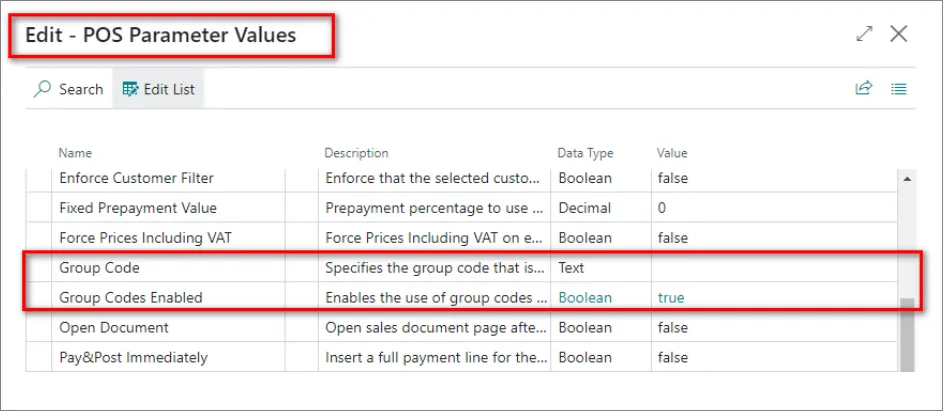
* **GroupCodesEnabled** – enables the group code functionality.
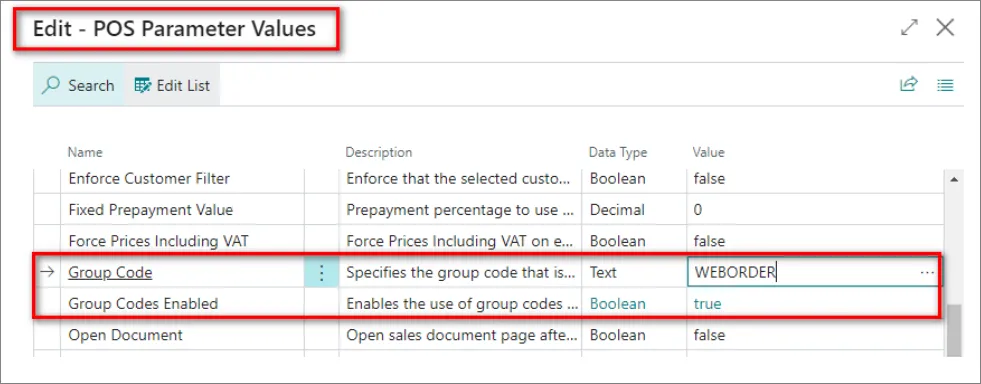
* **GroupCode** – if the **GroupCode** parameter is not set, a lookup page is opened. From it, users can choose the group code that is going to be assigned to the sales order. If the **GroupCode** parameter is set on the POS action, the value is automatically assigned to the exported sales order.
### Example: Group code enabled without assigned group code
When the Group Code functionality is enabled, but the GroupCode parameter isn't set in the POS action, users will be prompted to assign a group code to the exported document.
1. Open the POS.
2. Select an item and press **Export to Sales Order**.\
The name of this button may vary depending on the way you've mapped it in the **POS Menus** administrative section of Business Central.
3. Select a customer, and press **OK**.\
The list of available **Group Codes** is displayed.
4. Select the group code you wish to use, and press **OK**.\
If the group code is selected, the exported sales order will have a value in the **Group Code** field.
### Example: Group code enabled with assigned group code
When the Group Code functionality is enabled, and the **GroupCode** parameter is set in the POS action, the document will be exported, and the value specified in the **GroupCode** parameter will be automatically assigned.
1. Open the POS.
2. Select an item and press **Export to Sales Order**.\
The name of this button may vary depending on the way you've mapped it in the **POS Menus** administrative section of Business Central.
3. Select a customer, and press **OK**.\
The list of available **Group Codes** is displayed.
This time, you won't be prompted to provide a group code, as it has already been assigned. The document will be exported directly.
## Import a sales order to the current POS Sale (SALES_DOC_IMP)
The **SALES_DOC_IMP** POS action can be mapped to a button on the POS used for importing a sales order to the current POS sale. It has two parameters:
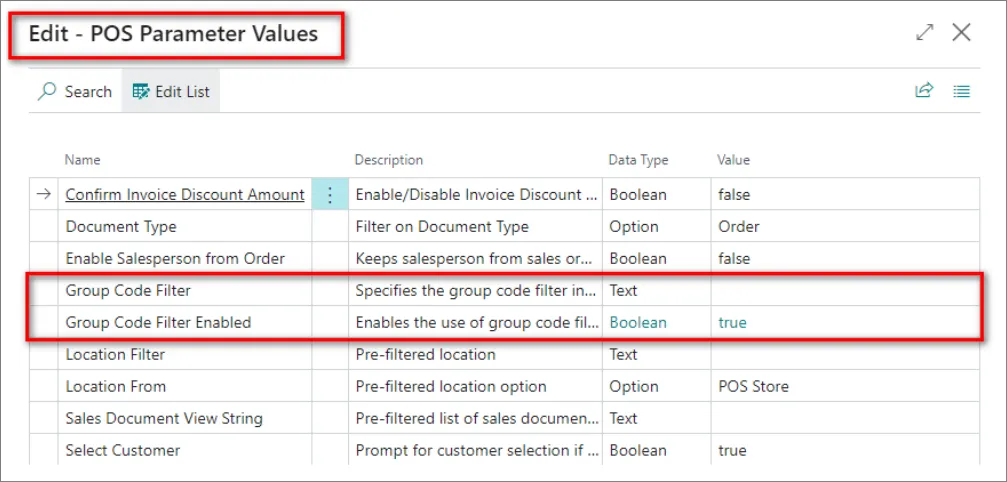
* **GroupCodeFilterEnabled** – enables the group code filter functionality.
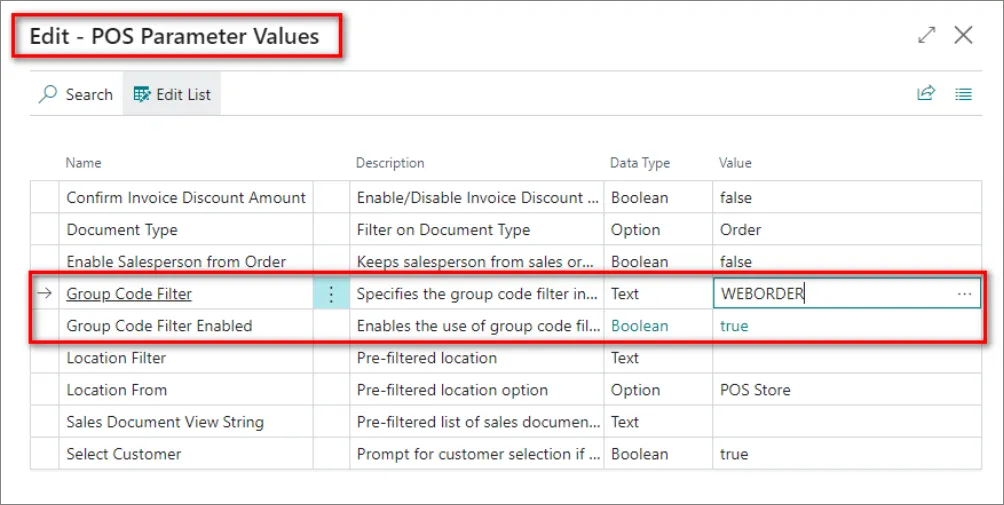
* **GroupCode** – if the **GroupCode** parameter is not set a lookup page is opened. From it, users can choose a group code on which the sales document list is going to be filtered. If the **GroupCode** parameter is set, the sales document list to import is going to be directly filtered on the value.
### Example: Group code filter enabled without specified group code
When the **GroupCodeFilter** functionality is enabled, but the **GroupCode** parameter isn't set in the POS action, users will be prompted to provide a group code on which it will filter the sales order import list.
1. Open the POS.
2. Press **Import Sales Order**.\
The name of this button may vary depending on the way you've mapped it in the **POS Menus** administrative section of Business Central.
3. Select a customer, and press **OK**.\
You will be prompted to provide a group code to filter the sales order list.\
If you've selected a group code, the sales order list will be filtered based on it.
### Example: Group code filter enabled with a specified group code
When the **GroupCodeFilter** functionality is enabled, but the **GroupCode** parameter isn't set in the POS action, users will be prompted to provide a group code on which it will filter the sales order import list.
1. Open the POS.
2. Press **Import Sales Order**.\
The name of this button may vary depending on the way you've mapped it in the **POS Menus** administrative section of Business Central.
3. Select a customer, and press **OK**.\
This time, you won't be prompted to provide a group code, but the sales order list will be filtered directly according to the value selected in the **GroupCode** parameter.
#### See also
* [Use the POS Layout Setup Wizard](/product/retail-pos-layout-layout-wizard)