> This page is for Product Documentation.
> For clean Markdown of any page, append .md to the page URL.
> For a complete documentation index, see https://docs.navipartner.com/llms.txt.
> For AI client integration (Claude Code, Cursor, etc.), connect to the MCP server at https://docs.navipartner.com/_mcp/server.
# Configure the POS balancing feature
> This guide outlines how to set up the POS balancing feature, which is primarily configured in the POS End of Day Profile. Multiple profiles can be created and assigned to individual POS units.
To configure the POS balancing feature, follow the provided steps:
1. Search for **POS End of Day Profile**, and choose the related link.
2. Click **New** to open a blank **NPR POS End of Day Profile Card**.
3. Populate the fields while referring to the EOD [reference table](/product/retail-pos-profiles-eod-profile-ref).
4. Search for **POS Actions Profiles**, and create a new **POS Named Action Profile** (or modify an existing one).
5. In the **End of Day Action Code** field, enter **POS Action BALANCE V4** to enable the balancing function.
6. (Optional) To enable denomination-based counting:
* Navigate to the relevant **POS Payment Method Card**.
* Select **Denominations** and configure denominations for each currency type.
> **Note:** The system updates the page with predefined denominations when counting.
7. Open the **POS Payment Bin** for the relevant POS unit and select **Insert Initial Float** in the ribbon.
> **Note:** This function doesn't provide any accounting entries. If money needs to be transferred from a bank into that cash float G/L account, this needs to be done in the back office using a general journal or a payment journal from a bank. This function is also used when we land from a different system into our system. The float account already contains the figure, so it's not necessary to add any accounting entries in this scenario.
8. Open **Report Selection - Retail** and configure the following settings:
* For **Report Type**, select **Balancing Receipt**.
* Set the print template to **EPSON_END_OF_DAY_X**.
* For **Large Balancing Receipt**, set **Report ID** to **6014459 – Balancing Report - A4 - POS**.

## Next steps
### Set up the counting and transfer process
When you click **Cash Count** on the POS, you are presented with the counting screen. In the top-right corner, you can see which currencies have been received in the POS, that require counting and balancing of the POS unit.
If the button is marked in read, that means that the currency hasn't yet been counted. After the count is completed, there will be a green tick next to it.
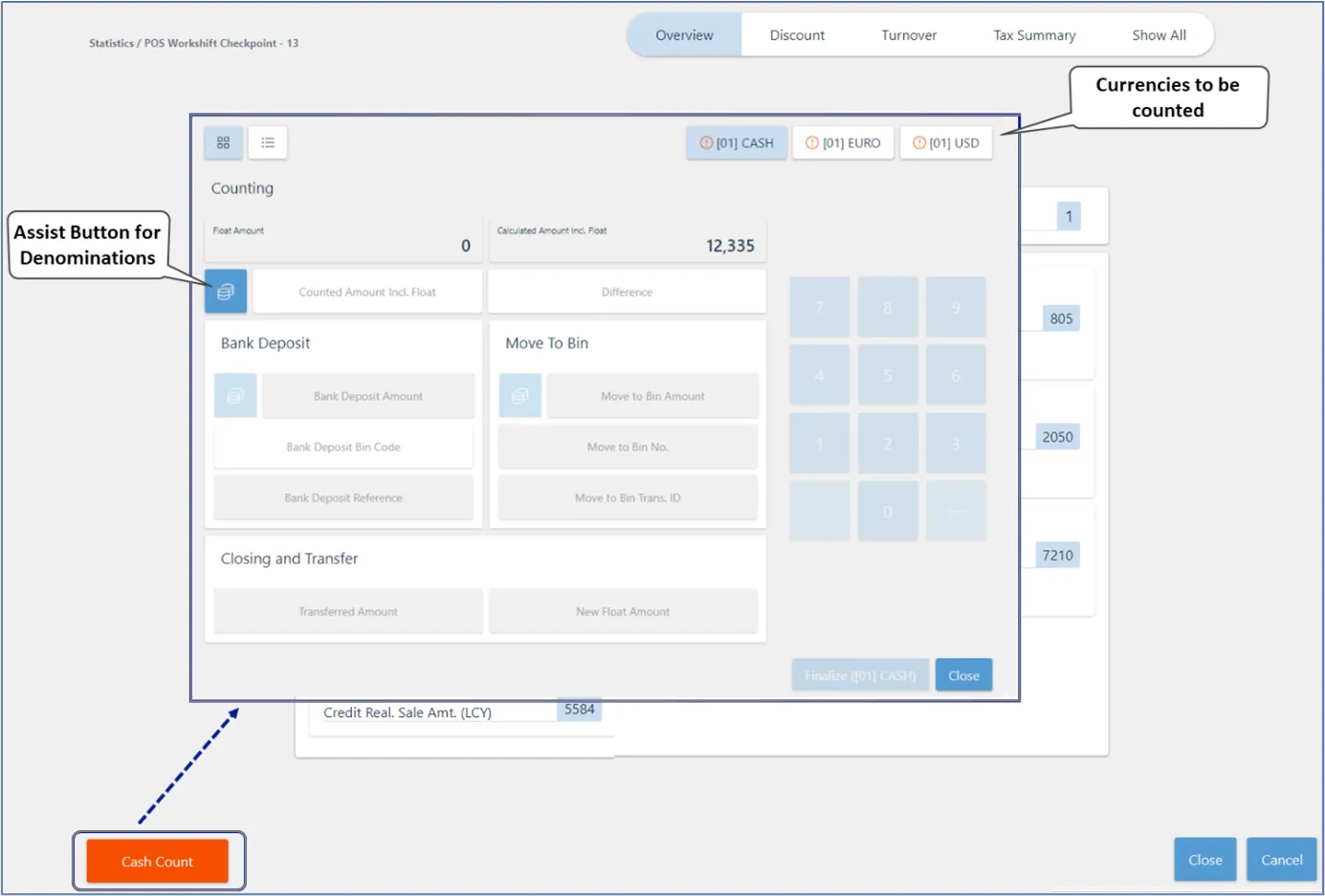
For detailed information on counting screen fields and options, refer to the [reference guide](/product/retail-pos-processes-counting-ref).
### Generate end-of-day report (POS balance)
Once the necessary configurations are complete, you can move on to [balancing the POS](/product/retail-pos-processes-generate-eod) at the end of the work shift.
#### See also
* [End-of-day troubleshooting](/product/troubleshooting-eod)
* [End-of-day report (POS balance)](/product/retail-pos-processes-end-of-day-exp)