> This page is for Product Documentation.
> For clean Markdown of any page, append .md to the page URL.
> For a complete documentation index, see https://docs.navipartner.com/llms.txt.
> For AI client integration (Claude Code, Cursor, etc.), connect to the MCP server at https://docs.navipartner.com/_mcp/server.
# Configure stock-take
> After a template is created, a stock-take configuration may be created using the selected template.
Each stock take requires a specific configuration, depending on the location, calculation date, and other factors. After a [template](/product/retail-physical-inventory-stocktake-template) is created, a stock-take configuration can be created using the selected template. A single stock-take configuration can be used to create multiple [stock-take worksheets](/product/retail-physical-inventory-stocktake-worksheet).
#### Prerequisite
* Create a [stock-take template](/product/retail-physical-inventory-stocktake-template).
#### Procedure
1. Search for **Stock-Take Configurations**, and choose the related link.
2. Click **New**.
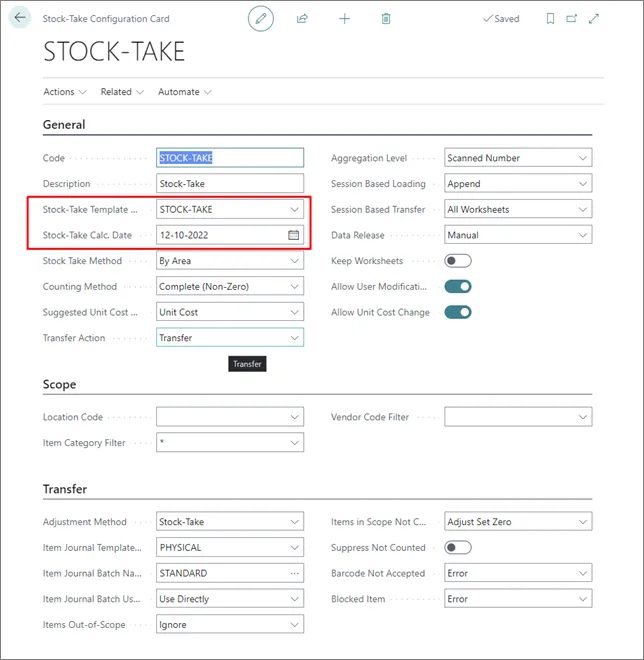
3. Fil in **Code**, **Description**, **Location Code (optional)**, and **Stock-Take Calculation Date** (the date for which the inventory should be calculated - the current stock-count will be based on this date).
4. Populate the **Stock-Take Template Code** to get all settings from the template.\
If a template doesn't exist, you can create a new one from here.
> **Note:** Templates can include the **Location Code**, which may be altered when selecting a template.