> This page is for Product Documentation.
> For clean Markdown of any page, append .md to the page URL.
> For a complete documentation index, see https://docs.navipartner.com/llms.txt.
> For AI client integration (Claude Code, Cursor, etc.), connect to the MCP server at https://docs.navipartner.com/_mcp/server.
# Establish a connection between a receipt printer and an iPad/iPhone
> Refer to this article to learn how to establish a connection between a receipt printer and an iPad/iPhone device.
To establish a connection between a receipt printer and an iPad/iPhone, follow the provided steps:
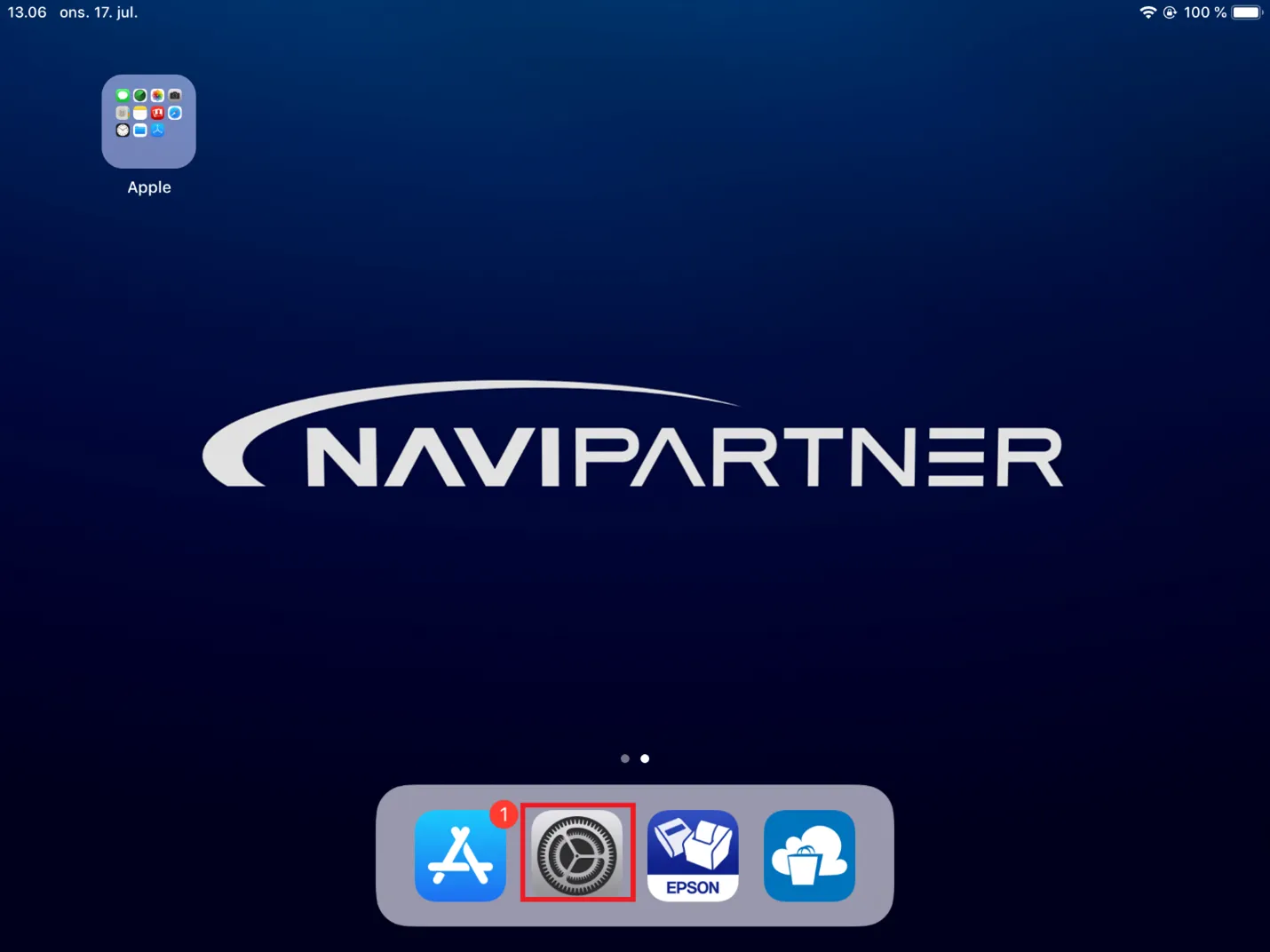
1. Navigate to the **Settings**.
1. Select **Bluetooth Menu** in the menu (iPhone) of in the sidebar (iPad).
2. Make sure that **Bluetooth** is on.
3. Select **Epson P20** (Epson receipt printer) from the **List of Devices**.
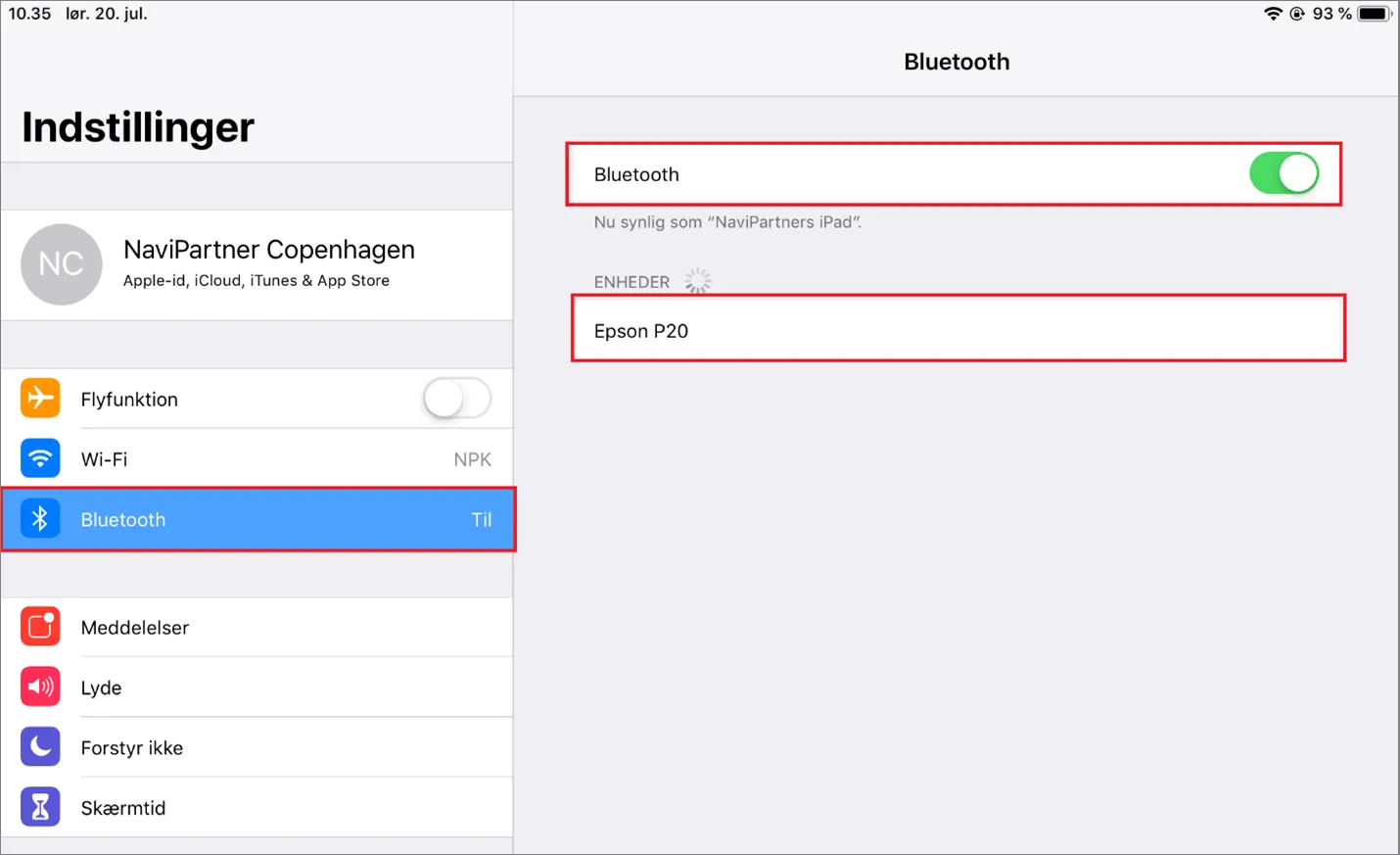
The connection between a receipt printer and an iPad/iPhone is now established.
#### See also
* [MPOS action setup for Scandit](/product/retail-mpos-scandit)
* [Create new buttons in the MPOS menu](/product/retail-mpos-add-buttons)
* [MPOS menus](/product/retail-mpos-menu)