> For clean Markdown of any page, append .md to the page URL.
> For a complete documentation index, see https://docs.navipartner.com/product/retail-mpos-add-buttons/llms.txt.
> For AI client integration (Claude Code, Cursor, etc.), connect to the MCP server at https://docs.navipartner.com/_mcp/server.
# Create new buttons in the MPOS menu
> Refer to this article to learn how to create new buttons in the MPOS menu.
To create new buttons in the NP Retail POS mobile app, make sure the prerequisite is met, and follow the provided steps:
#### Prerequisite
* Activate the [MPOS editor](/product/retail-mpos-activate-mpos-editor).
#### Procedure
1. Open the POS with the MPOS layout in which you want to create buttons from your desktop/browser version of Business Central.
> **Note:** Although you can't edit buttons and actions on your mobile device directly, all changes performed on the desktop are applied in the NP Retail POS mobile app upon reload.
2. Open the [MPOS Editor](/product/retail-pos-layout-pos-editor) by clicking .
3. Click on an empty cell in the MPOS screen area you wish to add the button to, followed by **Edit** in the dropdown list that is displayed. You can also edit an existing button, as presented in the screenshot below.\
The **Edit Button** window is displayed. It contains various customizable elements for buttons.
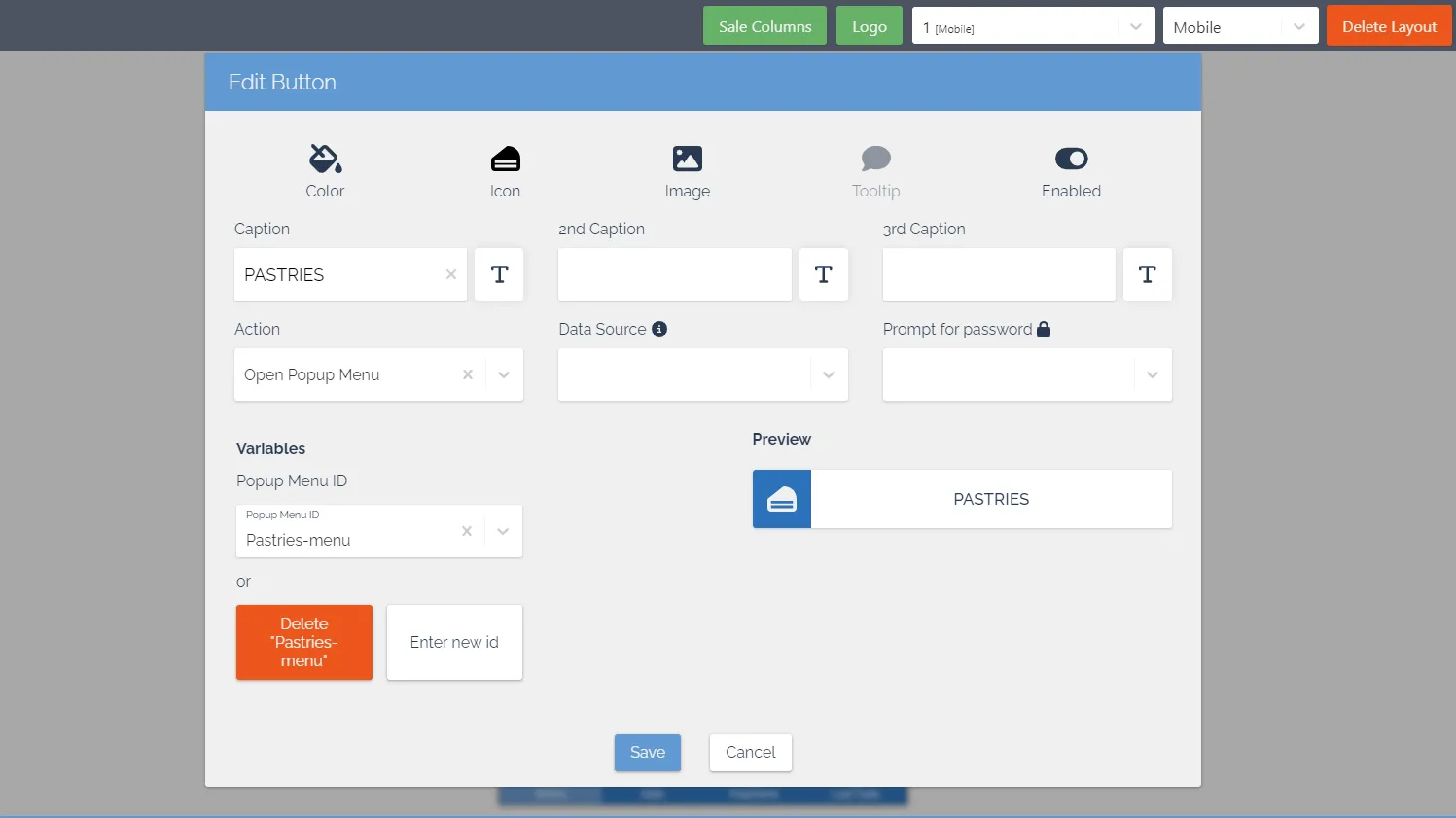
4. Provide the **Caption**, and make sure you've attached the desired POS **Action** to it.\
If the POS action you need doesn't exist yet, you can [create it](/product/retail-pos-processes-pos-actions-ref).
5. (Optional) You can also provide an image for the button background, change its color, and even add a password that will be required before the button’s action is triggered.
6. Once you’re satisfied with your changes, click **Save**.\
The button is now displayed in the selected MPOS screen area.
7. Open the NP Retail POS mobile app to view the changes on your mobile device.
> **Note:** You may need to refresh the app for the changes to take effect.
#### See also
* [MPOS action setup for Scandit](/product/retail-mpos-scandit)
* [Establish a connection between a receipt printer and an iPad/iPhone](/product/retail-mpos-bluetooth)
* [MPOS menus](/product/retail-mpos-menu)
> Documentation for NaviPartner's NP Retail, NP Attractions, NP Hospitality, NP Store Assistant and Entria products, plus their REST APIs, built on Microsoft Dynamics 365 Business Central.