> This page is for Product Documentation.
> For clean Markdown of any page, append .md to the page URL.
> For a complete documentation index, see https://docs.navipartner.com/llms.txt.
> For AI client integration (Claude Code, Cursor, etc.), connect to the MCP server at https://docs.navipartner.com/_mcp/server.
# Create item worksheet line
> Refer to this article to learn how item worksheet lines are created.
Item worksheet lines can be created in a couple of different ways:
* manually;
* via import from external data sources;
* via the **Suggest Worksheet Lines** action.
> **Note:** Files can be imported from the Excel file manually or automatically from the FTP server.
It is possible to create a field mapping for the import, by specifically stating what Excel column will be imported to what field in the Worksheet. You can define the mapping with the **Map Excelsheet** action in the **Import/Export** dropdown in the ribbon.
> **Note:** It is also possible to perform import without mapping the fields, but the columns in the Excel files need to be in the same order as they are in the system.
## Excel sheet approach
While importing from Excel, there are several options to use on how to handle the data.
| Field Name | Description |
| ------------------------- | -------------------------------------------------------------------------------------------------------------------------------------------------------------------------------------------------------------------------------------------------------------------------------------------------------------------------------------------------------------------------------- |
| **Add lines** | Inserts new lines below the existing ones in the item worksheet. |
| **Replace lines** | Removes all lines from the worksheet before the import. |
| **Set all items to SKIP** | All selected lines will be skipped in the import automatically. |
| Variant-specific options | These options indicate how the variants and varieties will be handled. |
| **Combine Varieties** | If enabled, the system will attempt to combine all item varieties into a single **Item Worksheet** line after the import is completed. This action will move all varieties to the first line with the same item, and remove the worksheet lines that are now without the variety data. You can also do this via manual processing in the actions of the **Item Worksheet** page. |
| **Export to Excel** | Export all **Item Worksheet** lines to an Excel file in that same format. This action is very useful when creating a template which can be used by a vendor to prepare data for import. |
When importing the Excel sheet, a single Excel line corresponds to a single item worksheet line. This means that when importing varieties, each variety is placed on a separate item worksheet line.
## Suggest Worksheet Lines action
The **Suggest Worksheet Lines** action allows you to select a range of items that will be inserted into the worksheet lines via filtering.
You can specify the following options:
| Field Name | Description |
| ------------ | ------------------------------------------------------------------------ |
| **Variants** | Specifies how the system will insert the variety lines in the worksheet. |
| **Defaults** | Determines the default action for the inserted lines. |
## Manual approach
You can insert new lines in the **Item Worksheet** page and populate the require fields. When an item worksheet line is created, the item worksheet variety lines can be created by clicking one of the following buttons in the **Actions** > **Worksheet** line.
| Action Name | Description |
| -------------------------------------- | ----------------------------------------------------------------------------------------------------------------------------------------------------------------------------------------------------------------- |
| **Suggest Existing Variants** | This action can be used only for the existing item–variant combinations. |
| **Suggest Varieties Without Variants** | This action will create variety lines for all variants not yet created. |
| **Suggest All Varieties** | This action will create lines for every possible variety. For example: if an item has two values for the variety COLOUR, and three for the variety SIZE, six lines will be created not counting the header lines. |
Variety lines can't be inserted manually, but they can be modified. The unit price (sales price) and unit cost (purchase price) of the variety are displayed between brackets if they are identical to the unit price/direct unit cost of the corresponding item worksheet line.
Header lines are inserted automatically with a **Header Text** summarizing the actions underneath. They will not result in an update of the variant or master data. However, they can be used to quickly modify the fields in the rows below. For example, setting an action or a sales price on a heading text will copy this action or the sales price to all rows below.
All lines inserted manually into the **Item Worksheet** are by default set to be skipped. The lines created via the **Suggest Item Worksheet Item Lines** action can be set to a default value (skip, create new, update only, update, and create variants). The **Item Worksheet** lines created via the Excel import are automatically set to **Update and Create Variants** if they can be matched to the existing items, or to **Create New** if they can't be matched.
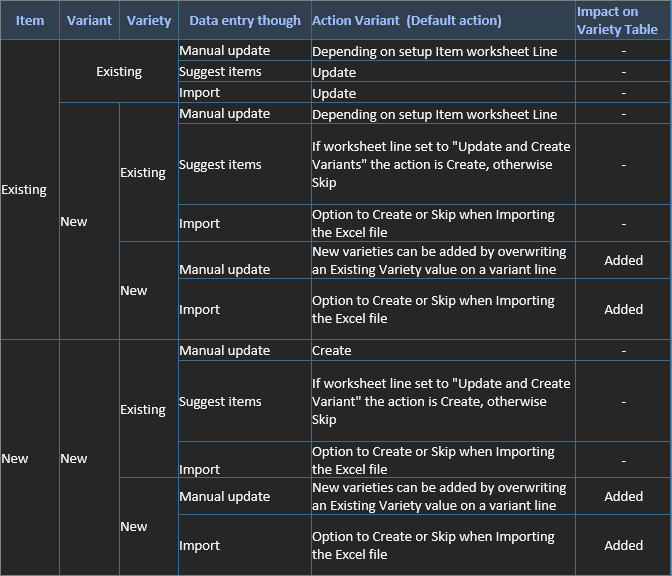
The provided table describes the system behavior in different scenarios of the existing data in Business Central, and the method of input.
#### See also
* [Item Worksheet overview](/product/retail-item-worksheet-intro)
* [Item Worksheet Template](/product/retail-item-worksheet-template-ref)
* [Adding variety values to the worksheet](/product/retail-item-worksheet-add-variety)