> This page is for Product Documentation.
> For clean Markdown of any page, append .md to the page URL.
> For a complete documentation index, see https://docs.navipartner.com/llms.txt.
> For AI client integration (Claude Code, Cursor, etc.), connect to the MCP server at https://docs.navipartner.com/_mcp/server.
# Install Self-service Minor Tom
> Install the standard layout for the non-customized SaaS self-service module
Follow the provided steps for installing the standard layout for the non-customized SaaS self-service module.
1. Download and install [Self-Service Minor Tom](https://npminortomselfservice.blob.core.windows.net/prod/Setup.exe).
2. Download and install [HW Connector](/product/retail-gettingstarted-hw-connector)
3. Once installed, open the self-service Minor Tom, and provide the POS-relevant information in the available fields.
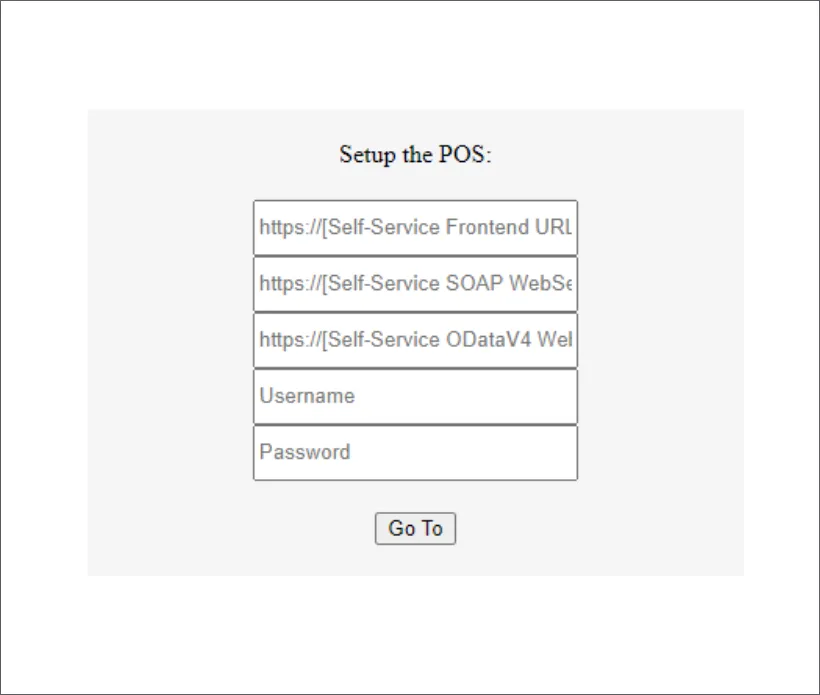
After entering the information, a window showing all configuration settings appears.
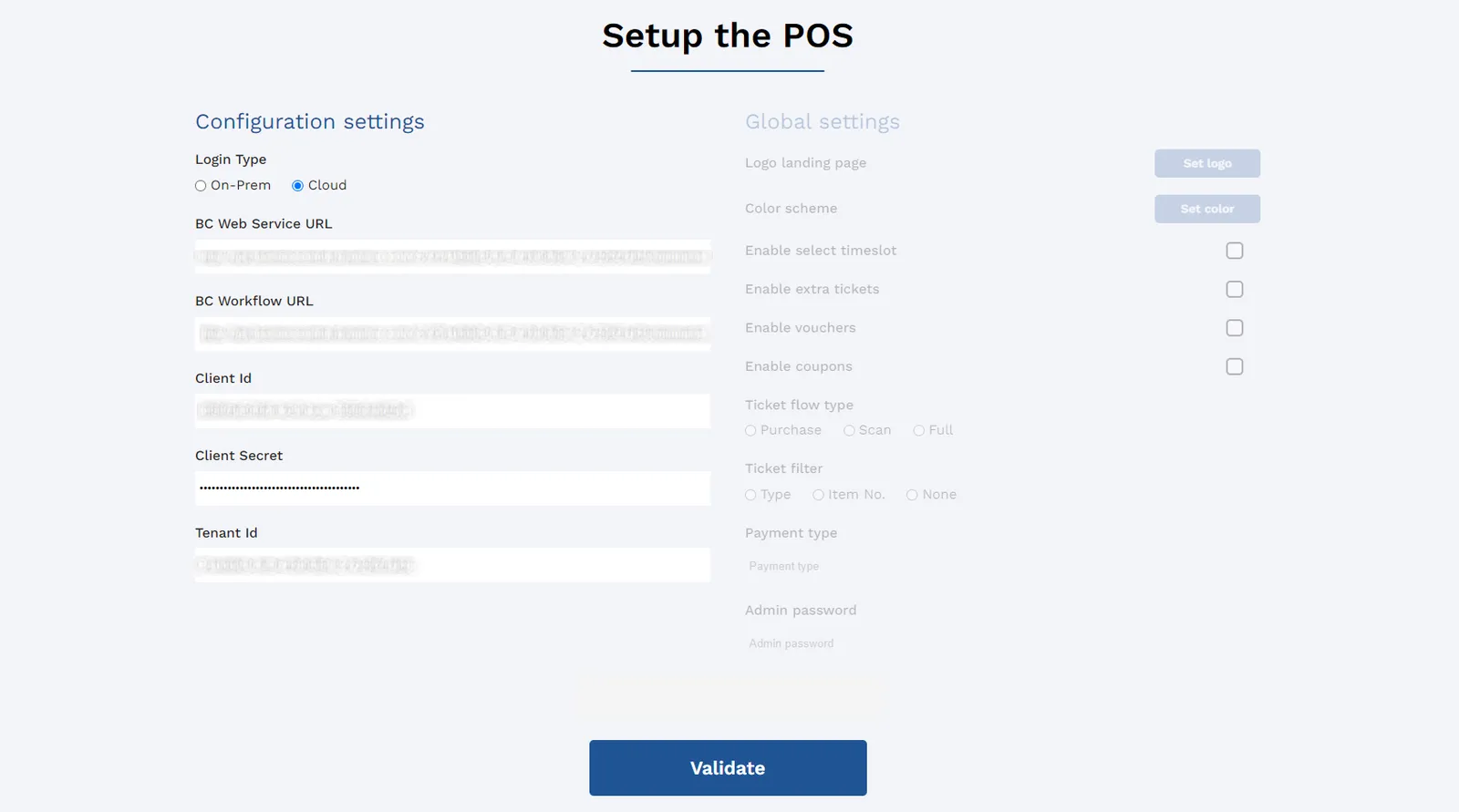
4. If you're satisfied with the configuration, click **Validate**.
#### See also
* [Instal Minor Tom](/product/retail-gettingstarted-minor-tom)
* [Self-service overview](/product/retail-self-service-intro)
* [Deploy a self-service POS unit](/product/retail-self-service-deployment)