> This page is for Product Documentation.
> For clean Markdown of any page, append .md to the page URL.
> For a complete documentation index, see https://docs.navipartner.com/llms.txt.
> For AI client integration (Claude Code, Cursor, etc.), connect to the MCP server at https://docs.navipartner.com/_mcp/server.
# Manually add total/line discounts on POS
> To add the line discount on a sale, make sure the prerequisites are met, and follow the provided steps for the line discount type you wish to apply.
The following instructions walk you through the processes of applying [line discount amount/percentage](/product/retail-discounts-total-discount) to an item. The item used as an example for illustrating these procedures is *Festina Stainless Steel Chrono Watch* and *Skagen Jewelry Classic Bracelet*, which are available in the NP Retail demo environment.
To add the line discount on a sale, make sure the prerequisites are met, and follow the provided steps for the line discount type you wish to apply.
#### Prerequisite for applying any line discount type
* [Create buttons](/product/retail-pos-layout-new-button) for applying line discount setup on a POS unit.
## Add line discount amount on sale
To add a line discount amount on a sale, follow the provided steps:
1. Open the POS and provide your **Salesperson Code**.\
The store’s POS view is displayed.
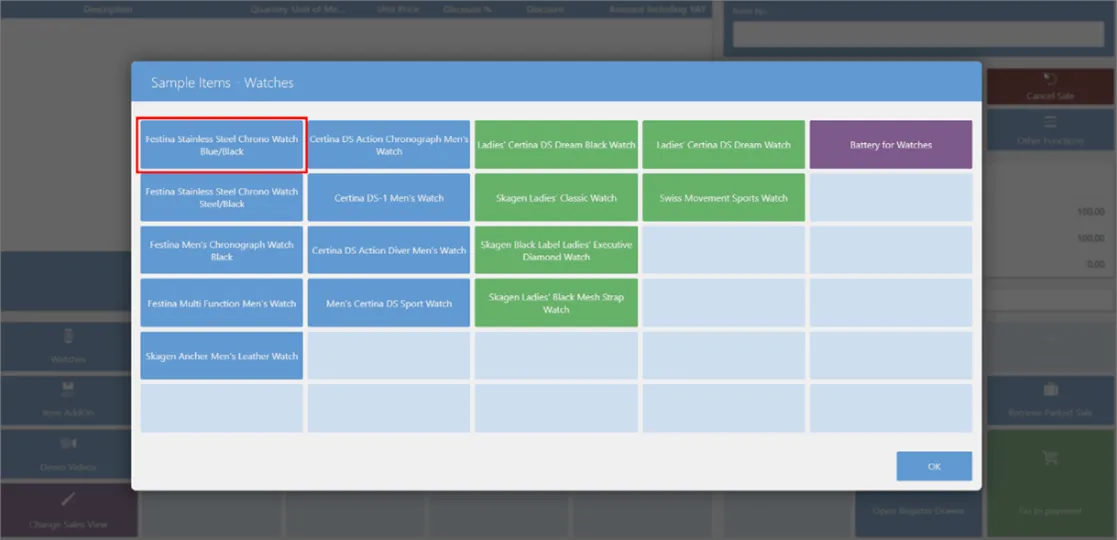
2. Click **Watches**.\
A pop-up window with products is displayed.
3. Click **Festina Stainless Steel Chrono Watch Blue/Black**.\
A new sales line is added.
4. Click **Discount** in the top right corner.\
A pop-up window with different types of discounts is displayed.
5. Select the **Line Amount** discount function.\
A pop-up window for setting up the supervisor password is displayed, so that only the person with a supervisor password can grant a discount to a customer.
6. Provide the password.\
A pop-up in which you need to add the total amount for the sales line is displayed.
7. Enter **500** to change the **Amount Including VAT**, then click **OK**.\
The Amount Including VAT is changed to the amount you’ve provided.
The discount and discount percentage are calculated.
## Add line discount percentage on sale
To add a line discount percentage on sale:
1. Open the POS and provide your **Salesperson Code**.\
The store’s POS view is displayed.
2. Click **Watches**.\
A pop-up window with products is displayed.
3. Click **Festina Stainless Steel Chrono Watch Blue/Black**.

4. Click **Discount** in the top right corner.\
A pop-up window with different types of discounts is displayed.
5. Click **Line Discount %**.\
A pop-up in which you need to add the discount percentage for the current sales line is displayed.
6. Enter **5** to add a 5% discount to a customer.\
The discount percentage you’ve inserted is applied to line. The discount amount and the new **Amount Including VAT** are calculated.
## Add extra line discount percentage on sale (relative)
#### Prerequisite
* Have a sales line with the Line Discount % applied.
#### Procedure
To add extra line discount percentage on sale:
1. Select the line with the **Festina Stainless Steel Chrono Watch Blue/Black** item and the 5% discount on it.
2. Click the **Discount** button.\
A new pop-up window with different types of discounts is displayed.
3. Select **Extra Line Discount % (Relative)**.\
A new numpad window is displayed.
4. Enter **5** for the additional 5% discount you want to give to a customer.\
The discount percentage that you have inserted is added to the previously applied discount. The discount amount and the new **Amount Including VAT** are calculated.
## Add extra line discount percentage on sale (absolute)
#### Prerequisite
* Have a sales line with the **Line Discount %** applied.
#### Procedure
To add extra line discount percentage on sale:
1. Select the line with the **Festina Stainless Steel Chrono Watch Blue/Black** item and the 5% discount on it.
2. Click the **Discount** button.\
A new pop-up window with different types of discounts is displayed.
3. Select **Extra Line Discount % (Absolute)**.\
A pop-up in which you need to add the additional discount percentage for the current sales line is displayed.
4. Enter **5** for the additional 5% discount you want to give to a customer.\
This five percent will be calculated on original price.
The discount percentage that you have inserted is added to the previously applied discount. The discount amount and the new Amount Including VAT are calculated.
## Add total discount amount for two separate items
1. Open the POS and provide your **Salesperson Code**.\
The store’s POS view is displayed.
2. Click **Watches**.\
A pop-up window with products is displayed.
3. Click **Festina Stainless Steel Chrono Watch Blue/Black**.\
A new sales line is added.

4. Click **Jewelries**.\
A pop-up window with products is displayed.
5. Click **Skagen Jewelry Classic Bracelet**.\
A new sales line is added.
6. Click **Discount** in the top right corner.\
A new pop-up window with different types of discounts is displayed.
7. Click **Total Amount**.\
A pop-up in which you need to add the total amount for the entire sale is displayed.
8. Enter **1500** for the new total amount of the entire sale (both items), then click **OK**.\
The total amount for the entire sale is changed to the new amount you’ve provided in the numpad. Both items receive the same discount percentage, and the **Amount Including VAT** for both items is changed. The discount amount is also calculated.
## Add total discount percentage for two separate items
1. Open the POS and provide your **Salesperson Code**.\
The store’s POS view is displayed.
2. Click **Watches**.\
A new pop-up window with products is displayed.
3. Click **Festina Stainless Steel Chrono Watch Blue/Black**.\
A new sales line is added.
4. Click **Jewelries**.\
A pop-up window with products is displayed.
5. Click **Skagen Jewelry Classic Bracelet**.\
A new sales line is added.
6. Click **Discount** in the top right corner.\
A new pop-up window with different types of discounts is displayed.
7. Click **Total discount %**.\
A pop-up window in which you can provide the discount percentage you want to add to the entire sale.
8. Enter **5** to give a 5% discount to a customer for the entire sale (both items), then click **OK**.\
Both items are assigned the discount percentage you’ve provided. The discount amount and the **Amount Including VAT** are also calculated.