> This page is for Product Documentation.
> For clean Markdown of any page, append .md to the page URL.
> For a complete documentation index, see https://docs.navipartner.com/llms.txt.
> For AI client integration (Claude Code, Cursor, etc.), connect to the MCP server at https://docs.navipartner.com/_mcp/server.
# Create an item_list for applying discounts
> If you wish to create a list of items to be used as a base for applying discounts, you need to choose ITEM_LIST as the discount module.
If you wish to create a list of items to be used as a base for applying discounts, you will choose **ITEM_LIST** as the discount module. After this, you need to add the items to that list.
1. Search for **Coupon Type** and choose the related link.\
A list of all existing coupon types is displayed.
2. Click **New** to open a **Coupon Type Card**.
3. Populate the fields and options, and use one of the [recommended discount coupon setups](/product/retail-coupons-discount-coupon-usecases) as reference.
4. Click **Setup** in the ribbon, followed by **Setup Apply Discount**.\
The **Coupon List Items** is displayed.
5. Click **Add Items** and use the available filters to find and add the items you wish to be discounted.
6. Set the priorities on the items in the list by clicking **Set Priorities** in the ribbon.\
**1** signifies the highest priority.
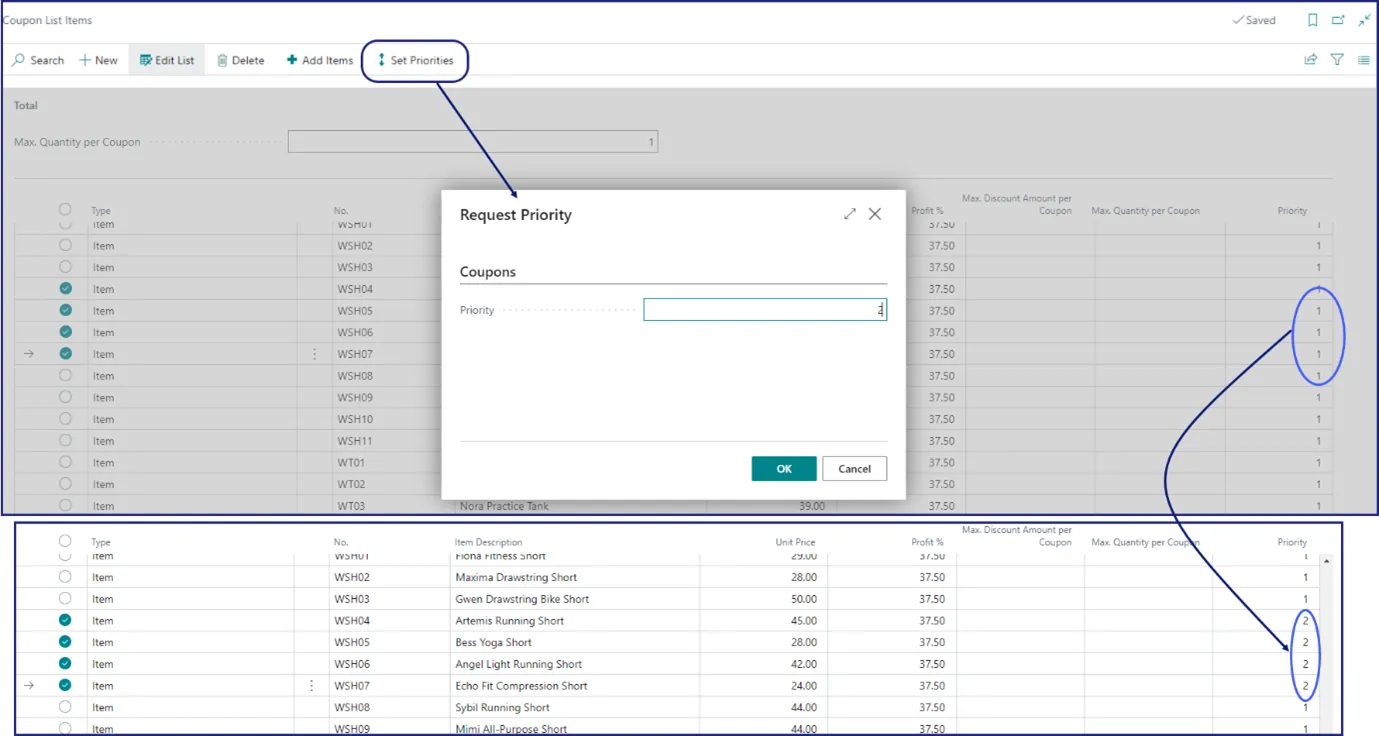
The list of items is generated, but you can modify it manually at any time.
#### See also
* [Coupon troubleshooting](/product/troubleshooting-coupon)
* [Discount types](/product/retail-discounts-discount-types)
* [Create a new coupon](/product/retail-coupons-new-coupon)