> This page is for Product Documentation.
> For clean Markdown of any page, append .md to the page URL.
> For a complete documentation index, see https://docs.navipartner.com/llms.txt.
> For AI client integration (Claude Code, Cursor, etc.), connect to the MCP server at https://docs.navipartner.com/_mcp/server.
# Set up email templates
> To set up email templates, follow the steps provided in this article.
You can create custom templates which will be sent via email to customers in various scenarios. For example, if a membership is about to expire, the affected customer may be notified via an email, the content of which is defined in the **E-mail Templates** administrative section in Business Central.
To set up email templates, follow the steps provided in this article:
1. Search for **E-mail templates**, and choose the related link.
2. Click **New** in the ribbon.
3. Fill in the following data:
* **Code** - the code should help easily distinguish this template from the others, and it needs to be unique.
* **Description** - specifies additional information about the template's usage; it is optional.
* **Table No.** - the table ID provided here depends on what kind of email template you're building.
* **Filename** - specifies the name of an attached file.
* **Subject** - specifies the name of the email subject line.
* **From E-mal Name** - specifies the name of the email's sender.
* **From Email Address** - specifies the address of the email's sender.
4. If you wish to format the email template though HTML, activate the **Use HTML Template** toggle switch, and click the three dots next to **HTML template** to open the text editor where you can provide the code snippet.
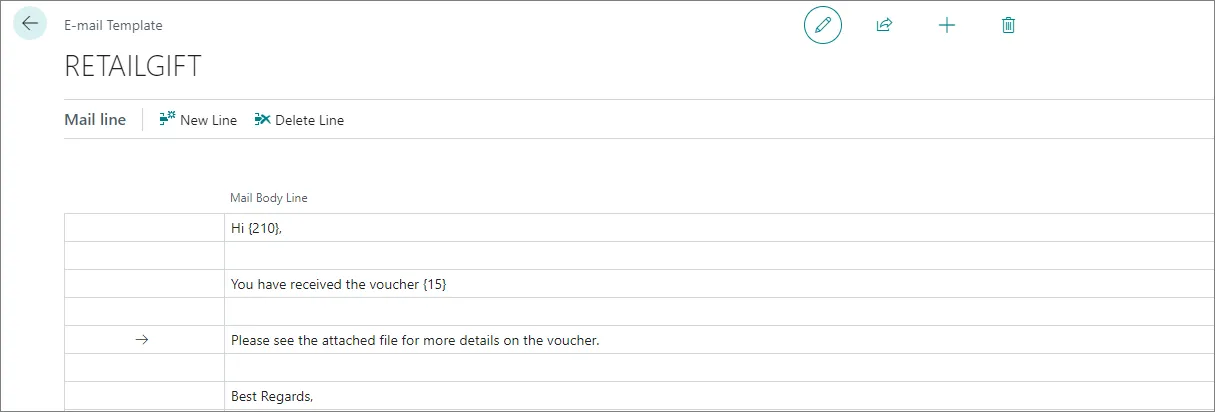
5. Add the email body to the **Mail Line** section.\
You can reference values from the table provided in **Table No.** as presented in the following screenshot.
#### See also
* [Set up Email (Business Central)](https://learn.microsoft.com/en-us/dynamics365/business-central/admin-how-setup-email)
* [Send Documents and Emails (Business Central)](https://learn.microsoft.com/en-us/dynamics365/business-central/ui-how-send-documents-email)
* [Email setup](/product/retail-communication-email-setup)