> This page is for Product Documentation.
> For clean Markdown of any page, append .md to the page URL.
> For a complete documentation index, see https://docs.navipartner.com/llms.txt.
> For AI client integration (Claude Code, Cursor, etc.), connect to the MCP server at https://docs.navipartner.com/_mcp/server.
# Set up a Pepper terminal
> Pepper terminals need to be set up individually, since the integration works with many different terminal types which have different parameters.
To set up a new Pepper terminal which uses Lane/3000 terminals through network on **IP 192.168.1.181**, follow the provided steps:
## Prerequisites
* Have the [basic Pepper terminal setup package downloaded](/product/providers-pepper-pepper-package-import).
* Have the [Pepper terminal type 96 created](/product/providers-pepper-new-terminal-type).
## Procedure
1. Search for **Pepper Terminal List**, and choose the related link.
2. Click **New** to open a Pepper Terminal Card.
3. Provide **03** in the **Code** field.\
The code doesn’t need to be same as the **POS Unit No.**, but it may make keeping track of the terminals easier.
4. Provide **Lane 3000 POS 03** in the **Description**.
5. Provide **03** in **POS Unit No.**
6. In the **IP Address** field, provide **192.168.1.181**.
7. Open the dropdown in the **Terminal Type Code** and select **96**.\
This is the code of the previously created terminal type.
8. In **Fixed Currency Code** open the dropdown and select **DKK**.
9. Tick the **Open Automatically** and **Close Automatically** checkboxes.\
**Open Automatically** implies that if the terminal is closed, it will be opened as soon as you send a transaction to it, instead of having to use a specific button to open it. **Close Automatically** means that when the balancing is carried out at the end of the day, it also results in the terminal being closed automatically.
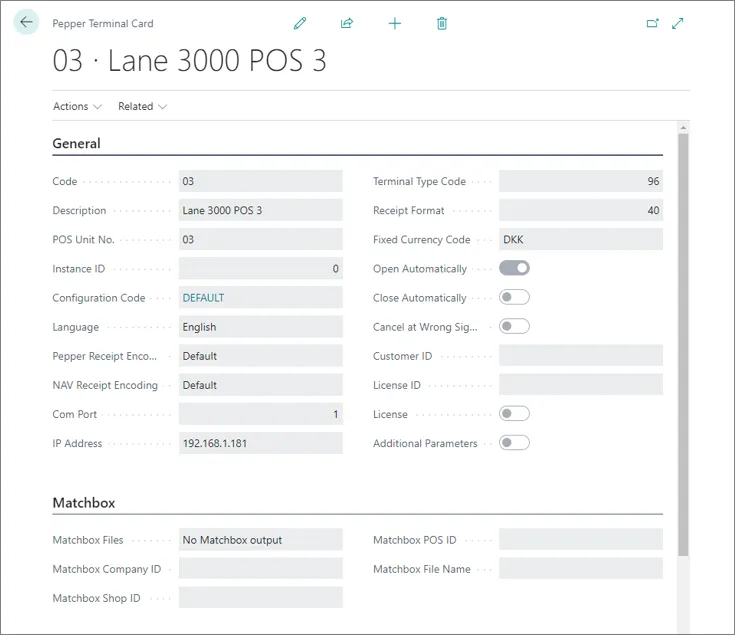
> **Note:** Since there is a test license attached to the **Pepper Configuration** in the **Basic Pepper Terminal Setup**, the **Pepper Terminal** will use it if no additional licenses are set up in the specific **Pepper Terminal Card**.
10. Exit the **Pepper Terminal Card** and navigate to the **EFT Setup**.
11. In **Payment Type POS** insert **T**.\
The **T** is used as a general **POS Payment Method** to make our terminal calls.
12. In POS **Unit No.**, insert **03**.
13. In **EFT Integration Type** open the pop-up by clicking the **...** option, and then select **PEPPER**.