> This page is for Product Documentation.
> For clean Markdown of any page, append .md to the page URL.
> For a complete documentation index, see https://docs.navipartner.com/llms.txt.
> For AI client integration (Claude Code, Cursor, etc.), connect to the MCP server at https://docs.navipartner.com/_mcp/server.
# Use the Vipps/MobilePay Login functionality
> Despite Vipps/MobilePay app being primarily a mobile wallet, it can also used for storing additional information about the user.
To use the Vipps/MobilePay Login functionality, make sure the prerequisites are met, and follow the provided steps:
#### Prerequisites
* Make sure the **Vipps/MobilePay** use cases have been selected in the [**Member Info Integration Setup**](/product/providers-mobilepay-member-info-integration) page in Business Central.
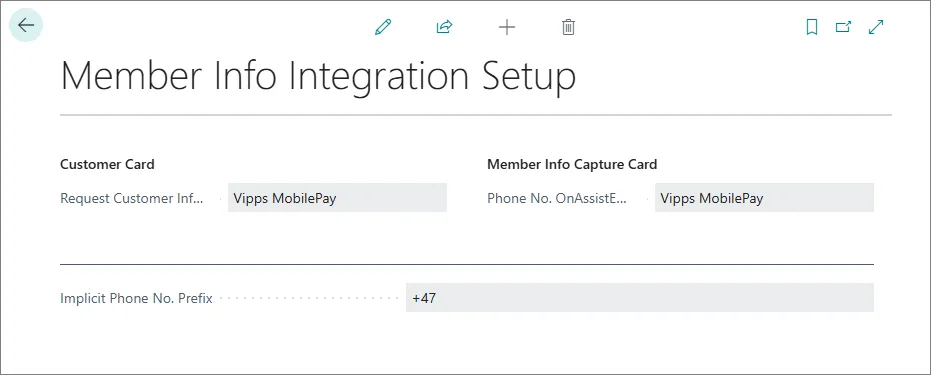
The following options are available:
* **Request Customer Info. Action** - specifies which integration is tied to the request for customer information on the **Customer Card** page.
* **Phone No. OnAssistEdit Integr.** - specifies which integration is tied to the request for customer's phone number when registering a new member on the POS.
#### Procedure
You can request customer information either from the POS or from the relevant **Customer Card** in Business Central. Both procedures are described in the following text:
### POS
1. Open the POS, and add a membership to the checkout.
2. Select a membership and register a new member.\
The **Member Information** pop-up window is displayed.
3. Enter the customer's phone number in the dedicated field on the page and click **...**.\
A dialog is displayed, informing you that the request needs to be confirmed by a customer to proceed.
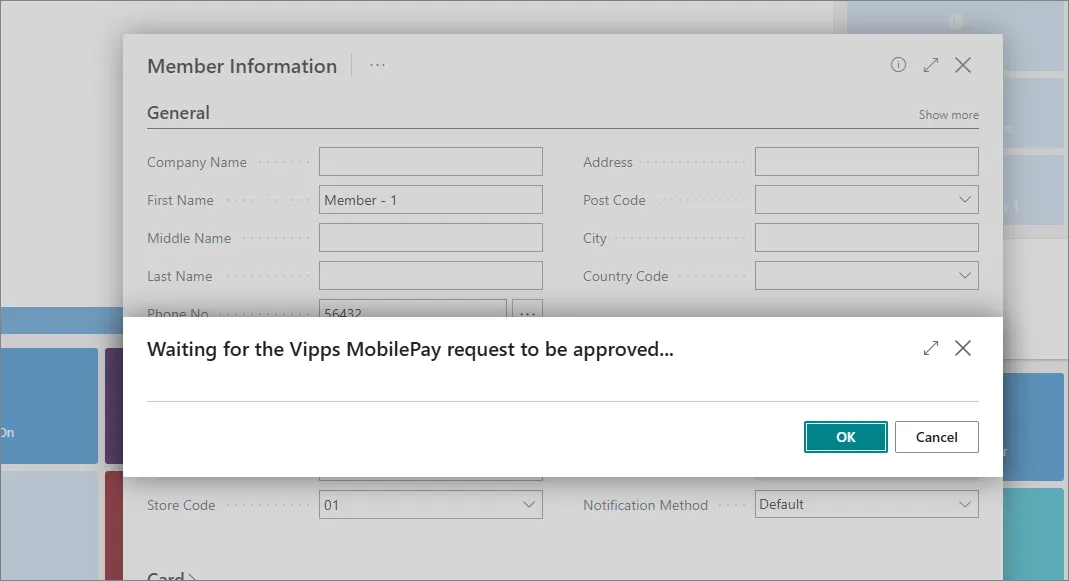
After the customer confirms the request, the dialog page closes and the customer's information is promptly collected and saved.
> **Note:** If the user hasn't enabled push notification for Vipps/MobilePay, they need to manually open the app and possibly pull the home screen down for a refresh to receive the authentication request.
Try out the POS portion of the Vipps/MobilePay Login feature with our interactive demo:
### Customer Card
1. Search for **Customers**, and choose the related link.\
The list of available customers is displayed.
2. Select the customer you need to retrieve personal information from.\
The **Customer Card** is opened.
3. In the ribbon, click **Customer**, followed by **Request Customer Information**.
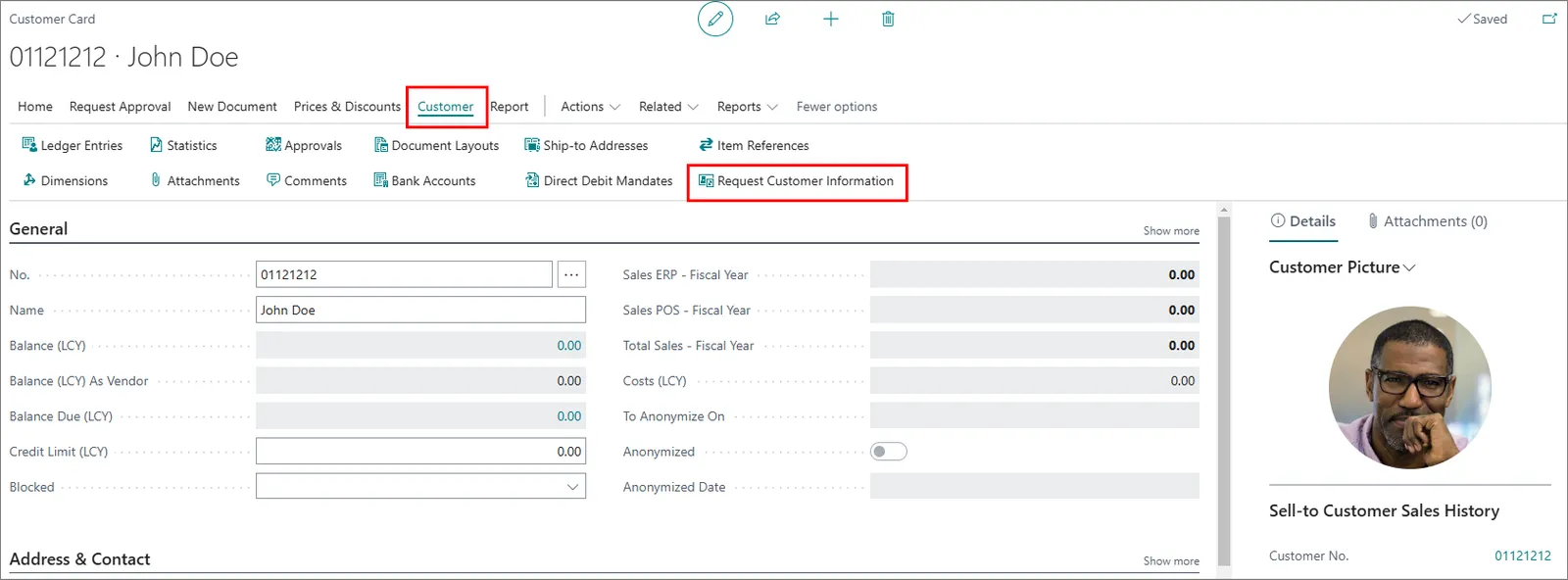
A dialog is displayed, informing you that the request needs to be confirmed by a customer to proceed. After the customer confirms the request, the dialog page closes and the customer's information is promptly collected and saved.
> **Note:** You can set the scopes of the requested information for each use case scenario on the **Vipps MobilePay Login Setup** page.
#### See also
* [Vipps/MobilePay merchant portal](https://portal.vippsmobilepay.com/login)\
*Refer to this portal for more information on any changes regarding flagging parts of the request as mandatory.*
* [Member info integration overview](/product/providers-mobilepay-member-info-integration)