> This page is for Product Documentation.
> For clean Markdown of any page, append .md to the page URL.
> For a complete documentation index, see https://docs.navipartner.com/llms.txt.
> For AI client integration (Claude Code, Cursor, etc.), connect to the MCP server at https://docs.navipartner.com/_mcp/server.
# Restaurant transactions flow
> This article contains the typical flow of various steps involved in the Restaurant module.
Here are some of the typical flow components involved in the Restaurant module:
## Make a seat ready
Users need to navigate to the **Seating List**, and manually change the status of the seat to **READY** when preparing to open the restaurant and start admitting guests.
## Seating
Waiters log into their POS, and select free seatings for their guests from the **Restaurant Seating Plan View**. When you click on the table, you will see the **New Waiterpad** pop-up window in which you can enter the **Number of Guests**, as well as the **Name** of the guest group.
## Ordering
When the waiters are done providing information in **New Waiterpad**, the **Sales** view of the POS is opened, and the order can be started on.
## Requesting preparation
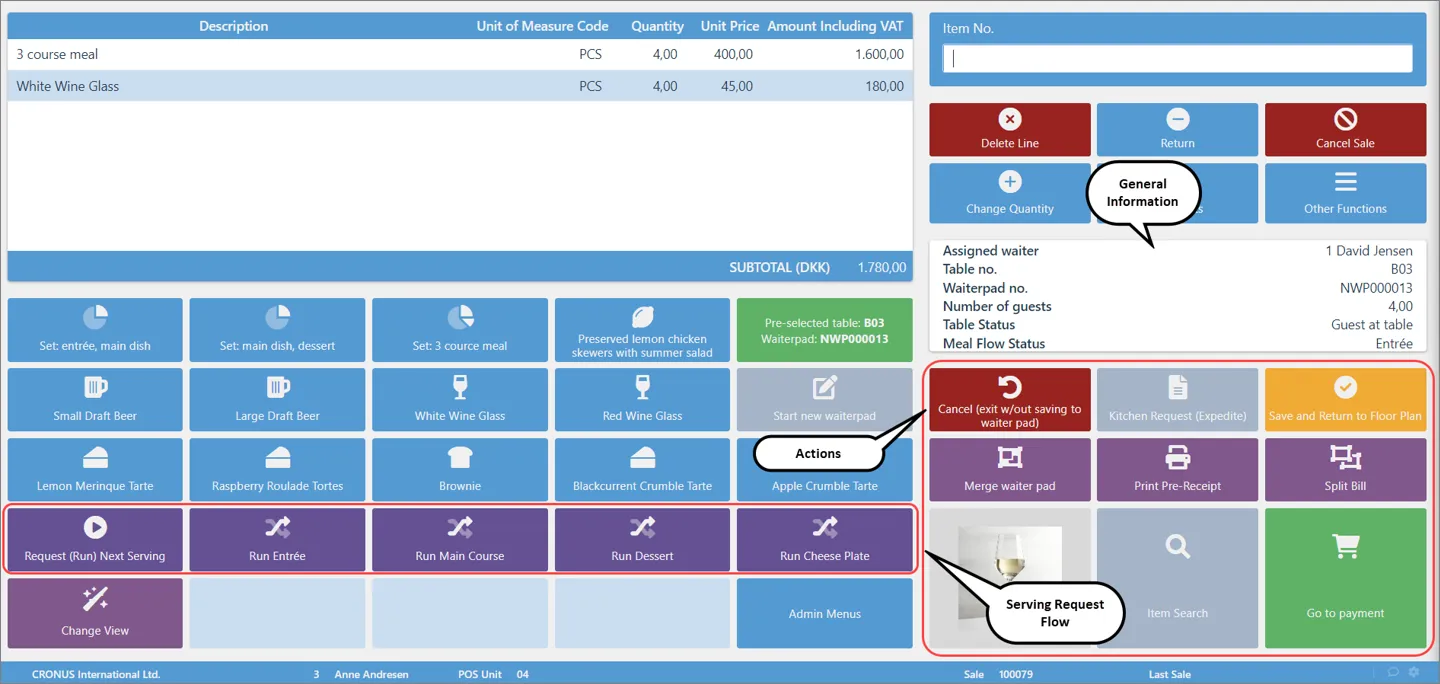
As soon as the waiter receives the order, they can start preparations from the various kitchen stations in the **Request Serving Flow**. To do this, they need to press **Request (Run) Next Serving**, which initiates the predefined serving steps. Alternatively, the waiter can choose to do each step manually by pressing the **Run** buttons individually.
## Kitchen/Bar preparation
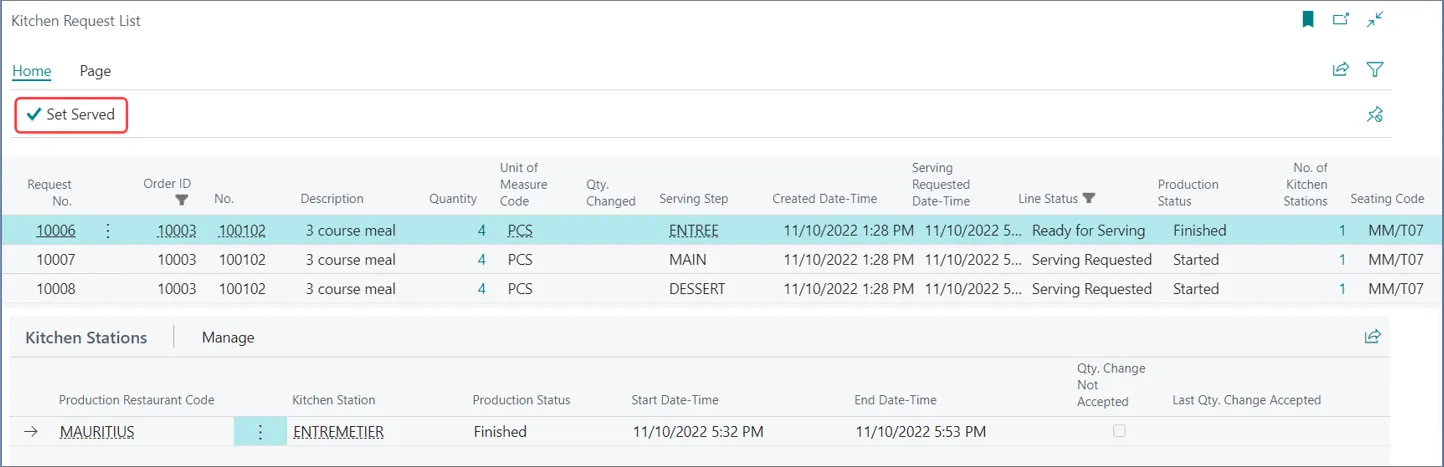
Once the service steps are requested, the preparation order is displayed on the KDS, or a printer, for each kitchen station. From the **Kitchen Request List**, select the kitchen station, and the KDS for that station will be displayed as the result.
Once the meal is prepared by the kitchen station, it is ready to be served.
## Send Serving Ready
The waiter will be notified in their **Kitchen Request List** that the plate is ready to be served. Then, they can add the **Set Served** checkmark, and start physically serving the guests.
## Additional order
If, during the course of the meal, a guest wishes to order an additional meal/drink, the waiter can recall the waiter pad, and add new orders on it. Then, they can send the new lines for **Requesting Preparation** to the respective kitchen stations.
## Serving & completing the order
At this stage, the waiter prints a pre-receipt to present it to the guests, and receive their payment. The guests can pay a single bill, or ask for it to be split. After that, the waiter finalizes the payment from the POS, and prints the actual sales ticket. The seat is freed automatically, and set to **READY** for the next arriving guest, as per the previously established **Restaurant Setup**.
#### See also
* [Listings](/product/hospitality-listings)
* [Kitchen](/product/hospitality-kitchen)
* [Seating](/product/hospitality-seating-layout)
* [Grouping](/product/hospitality-seating-grouping)