> This page is for Product Documentation.
> For clean Markdown of any page, append .md to the page URL.
> For a complete documentation index, see https://docs.navipartner.com/llms.txt.
> For AI client integration (Claude Code, Cursor, etc.), connect to the MCP server at https://docs.navipartner.com/_mcp/server.
# Purchase vouchers in the web store
> This guide provides step-by-step instructions for purchasing vouchers in the web store. Follow these steps to complete your transaction successfully.
This guide provides step-by-step instructions for purchasing vouchers in the web store. Follow these steps to complete your transaction successfully:
#### Prerequisites
* [Create a new voucher](/product/ecommerce-vouchers-create-vouchers).
* Ensure the voucher is available in the main menu of the web store.
#### Procedure in the web store
1. Find the voucher you wish to purchase in the main menu of the web store.\
A page displaying all relevant voucher details is displayed.
2. Fill in the recipient's name and email address in the designated fields.
3. Click **Add to Cart**.\
The voucher is now added to your cart and ready for checkout.
4. Click the cart icon in the upper-right corner.
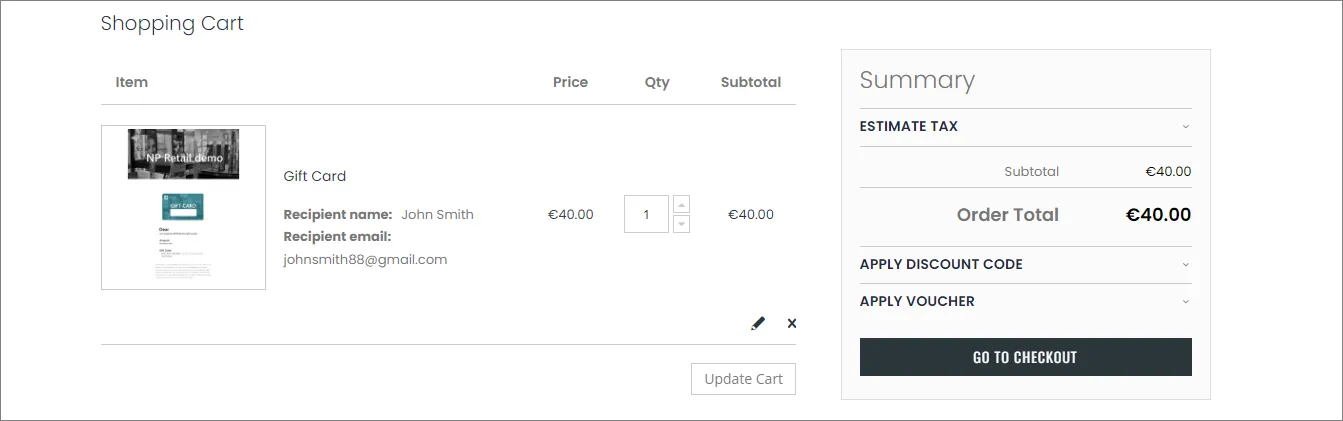
5. Adjust the voucher quantity if necessary and click **Go to Checkout**.
6. Provide the required billing information, and select the payment method.\
If you're paying with card, you also need to provide credit card details before purchasing the voucher.
7. Scroll down, and click **Place Order**.\
It may take some time for the payment to be processed and completed.
8. Once the order is placed, note your order number.\
A confirmation email is also sent to the email address you've provided in the previous steps.
## Next steps
### Find the order details in Magento Webadmin
This portion of the guide is performed in the back-end, and it needs to be performed by someone with access to Magento Webadmin, who has the necessary credentials.
1. Log into **Magento Webadmin**.
2. Click **Sales** > **Orders**.\
The list of all placed orders is displayed.
3. Locate your order in the list.
> **Note:** If you can't find your order number, click **Clear Filter**. Once you've done so, you will be able to see your order number at the top of the list.
4. Click the **Order Number** from the email confirmation.
> **Note:** You can also find the sales order number in the **Import List** administrative section in Business Central.
5. Click **Select** in the **NaviConnect** tab, and then **View XML**.\
The order number is listed under the `` element.
### Apply the voucher on the web order
Once you've received a voucher, you can use it to [apply a discount](/product/ecommerce-vouchers-apply-voucher) on your next purchase. If the item costs less than the voucher amount, you may be able to get it for free.
#### See also
* [Create vouchers in Magento and Business Central](/product/ecommerce-vouchers-create-vouchers)