> This page is for Product Documentation.
> For clean Markdown of any page, append .md to the page URL.
> For a complete documentation index, see https://docs.navipartner.com/llms.txt.
> For AI client integration (Claude Code, Cursor, etc.), connect to the MCP server at https://docs.navipartner.com/_mcp/server.
# Set up Nets Easy payment integration
> Refer to this article if you wish to set up the Nets Easy payment integration in NP Retail.
To set up the Nets Easy online payment gateway integration in Business Central, make sure the prerequisites are met, and follow the provided steps:
## Prerequisite
* Create a Nets Easy account.\
Follow the [Nets Easy setup](https://developer.nexigroup.com/nets-easy/en-EU/docs/account-portal/) guide to create a Nets Easy account.
* Acquire the API key information.\
The API keys are necessary for testing and using Nets Easy, and making the integration secure. Two sets of integration keys are generated - one for the test environment and one for the production environment. Refer to the [integration key setup guide](https://developers.nets.eu/nets-easy/en-EU/docs/access-your-integration-keys/) to obtain your keys. Note that Business Central requires the **Secret Key**.
## Procedure
1. Search for **Payment Gateways**, and select the related link.
2. Click **New** to create a code for the NetsEasy integration.
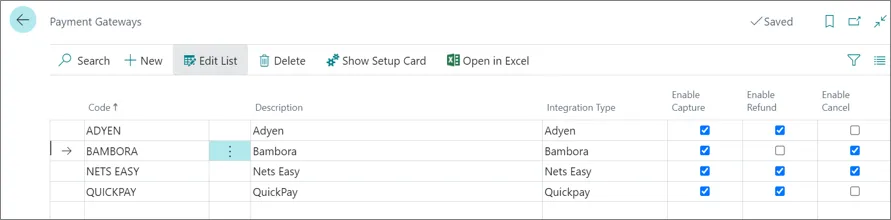
3. Click **Show Setup Card** to edit the details.
The following values needs to be defined:
* **Environment** - Select **Test** for the test environment or **Production** for the live environment.
* **API Authorization Token** - The secret key obtained during the prerequisite.