> This page is for Product Documentation.
> For clean Markdown of any page, append .md to the page URL.
> For a complete documentation index, see https://docs.navipartner.com/llms.txt.
> For AI client integration (Claude Code, Cursor, etc.), connect to the MCP server at https://docs.navipartner.com/_mcp/server.
# Member card
The **Member Card** administrative section is used for storing information for identifying individual members. It also contains options useful for configuring the member entity in Business Central.
You can open a **Member Card** of a specific member by clicking the customer's **External Member No.** from the **Members** administrative section. The following sections are available:
## General
You can get an overview of basic information about members, such as their ID, full name, phone number, and address. It's also possible to edit this information, if it has been edited since the last update. There's also an option to **Block** members in this section.
## Member Memberships
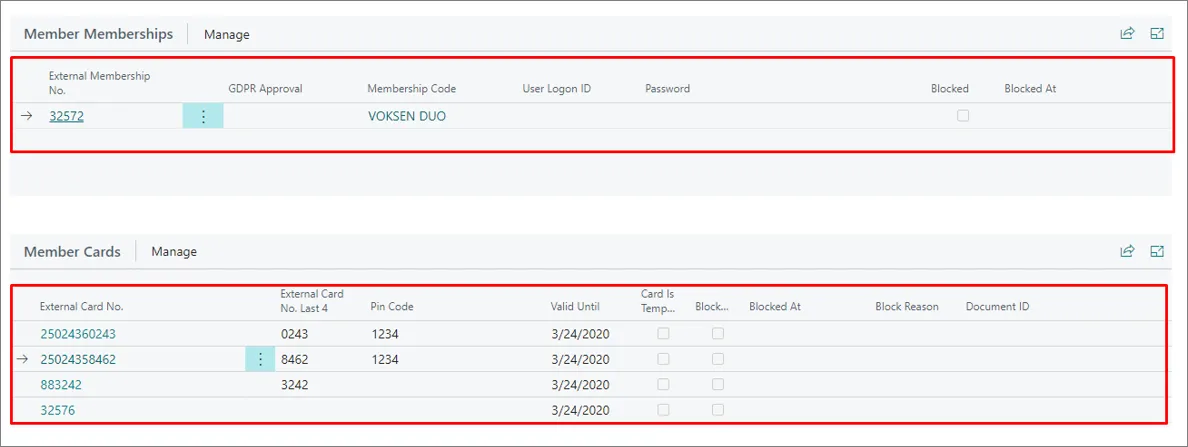
This section contains information such as **External Membership No.** and **Membership Code**, which define the type of the membership in use.
## Member Cards
All membership cards that ever existed for that particular member are listed in this section. Member cards contain information about the subscriptions the members are currently using, or have used in the past.
## Member card actions
The following actions can be taken in the **Member Card** administrative section:
### Issuing new Member cards
If a customer looses their member card, a new one can be issued from the system. This can be done by clicking **Process** in the ribbon, followed by the **Generate New Card** action.
### Anonymizing members
You can wipe out the member's personal information when their membership expires, while still keeping the transactional data stored in the system. When anonymization is complete, the member will be automatically blocked.
The **External Card No.** is still stored in the system even after the anonymization, so a person can come back with the number and have it reactivated.
You can anonymize customers manually by clicking **Actions**, followed by **Member Anonymization**.
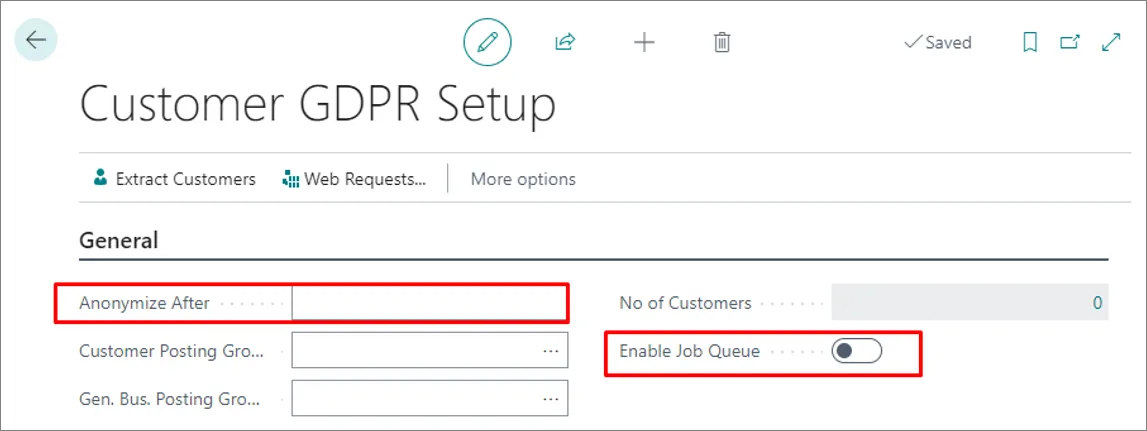
There's also an administrative section **Customer GDPR Setup** that contains the **Anonymize After** field in which you can specify for how many years after memberships have expired the customer data will be stored in the system. After the specified number of years expires, the customer data is anonymized. Additionally, it's necessary to activate the **Enable Job Queue** toggle switch for the automatic anonymization to become effective.
## Arrival registration for annual passes
For annual passes, registering a member's arrival (the visit "scan in") is a separate action from selling or renewing the membership. Selling or renewing an annual pass does **not** record an arrival on its own.
* **Arrival registration is triggered by a dedicated scan-event item.** When a member's card is scanned on arrival, the scan resolves to this dedicated item, and that is what records the arrival.
* **The sale or renewal item does not trigger arrival registration.** The membership sale/renewal item creates or extends the membership — it does not register an arrival. An arrival is only recorded when the member is later scanned in.
* **A member-card scan button must exist on each POS** where arrivals are registered. Without the scan button, staff at that POS cannot scan the member card, and no arrival can be recorded there.
> **Note:** If arrivals are not being recorded at a particular POS, confirm the member-card scan button is present on that POS and that the scan resolves to the dedicated scan-event item — rather than looking at the sale or renewal item.
#### See also
* [Member community](/product/Attraction-membership-member-community-ref)
* [Set up the membership module web services](/product/Attraction-membership-membership-setup)
* [Set up the automatic renewal process](/product/Attraction-membership-autorenewal)
* [Azure member registration setup](/product/Attraction-membership-azure-membership)
* [Membership web services](/product/Attraction-membership-membership-webservices-ref)