> This page is for Product Documentation.
> For clean Markdown of any page, append .md to the page URL.
> For a complete documentation index, see https://docs.navipartner.com/llms.txt.
> For AI client integration (Claude Code, Cursor, etc.), connect to the MCP server at https://docs.navipartner.com/_mcp/server.
# Redeem_points on sale
> When a customer already has enough points to use them and benefit from the loyalty program they need to follow the provided steps to redeem points on sale.
When a customer already has enough points to use them and benefit from the loyalty program (this is determined by the **Point threshold** field), it is necessary to follow the provided steps to redeem points on sale:
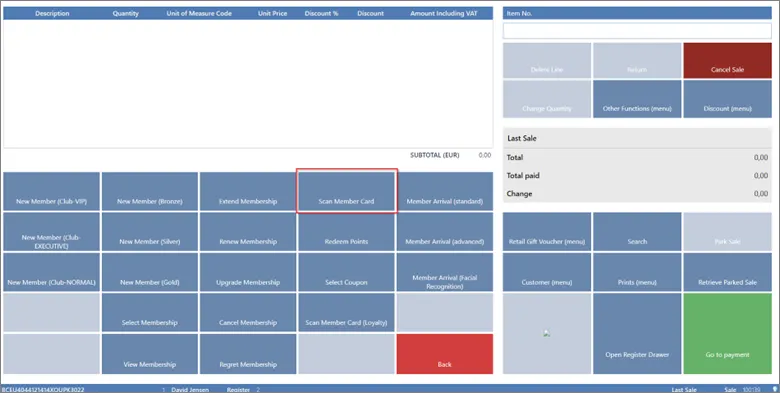
1. Assign the member on sale again in the POS by clicking the **Scan Member Card** button.
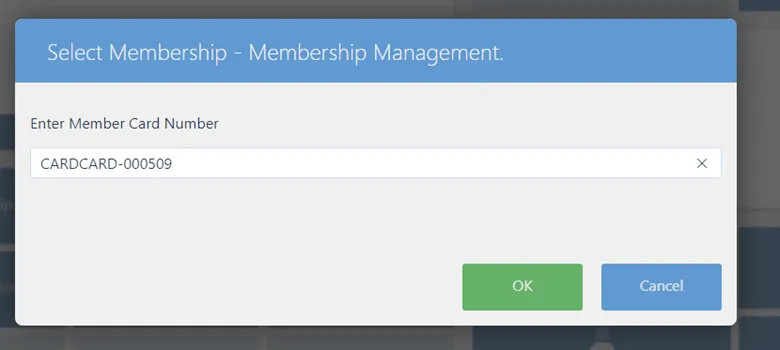
2. Enter the number of the card which can be found in the **Member Card**.
3. After inserting the sales lines, it is necessary to navigate to the **Redeem Point** button.
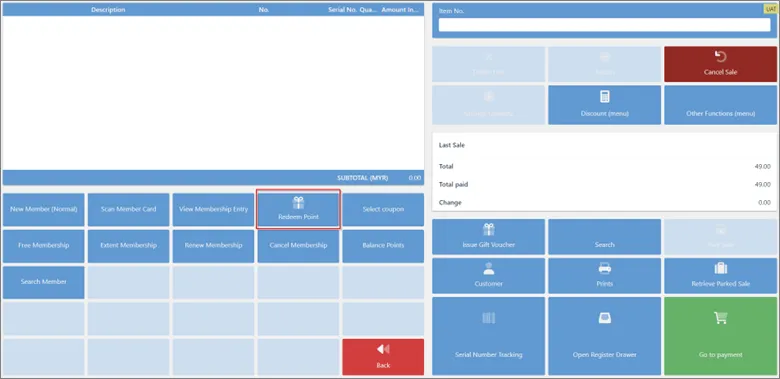
The coupon discount will be added in the sale and applied to the sale transaction.
After the sale is finalized, the withdrawal of points will be displayed in the **Member Points Entry**.
#### See also
* [Set up the loyalty program](/product/shipping-labels-shipmondo-setup)
* [Assign points on sale](/product/Attraction-loyalty-assign-points)
* [Navigation and reports](/product/Attraction-loyalty-navigation-reports)